

- Show What would convince you to try Apple TV+? only to respondents who picked Apple TV+ above it.
- Show the Heavy users block only to respondents who use Netflix, Disney+ and Prime Video.
- Show one of two wordings of a question, by adding both with opposite conditions. It works in every language, with no code.
- Offer only the brands a respondent knows: show each option of Which one would you miss the most? only if it was picked in Which streaming services do you use?.
The condition
A show-if condition is written like the condition of a logic rule. It can use:- answers to earlier questions
- Embedded Data fields: hidden fields from the link, and calculated fields
- response details, such as the respondent’s language
What a show-if may use
A show-if can only depend on what the respondent has already seen, so the survey always knows whether to show it:- A block’s show-if can use answers from earlier blocks only.
- A question’s show-if can use answers from earlier blocks, and from the questions above it on the same page.
- An option’s show-if can use what its question’s show-if can. The same goes for the rows and columns of a matrix.
- Nothing can depend on itself or on anything below it.
What respondents see
- A question appears and disappears live. When an answer above it on the same page changes, the question shows up right under it, or hides again.
- A hidden question is not asked. It never stops the respondent from going on, even if it is required, and an answer typed into it before it hid is not submitted.
- A hidden block is skipped. The survey moves on to the next block. The block’s logic still runs, as if the respondent had submitted it with no answers, so its calculations and jumps keep working.
- A block whose questions are all hidden is skipped the same way.
Before an answer exists
In a show-if, a condition on a question the respondent hasn’t answered is false, whatever its operator, does not equal included. So a follow-up waits for the answer it depends on, and never shows and then disappears as that answer comes in. Only is skipped (for a call to action, is not clicked) matches an unanswered question, and only once the respondent has moved past it, on a later page. On the page they are filling in, it doesn’t match yet. This is about show-if only. Logic rules and quotas read an unanswered question as they always have: there, does not equal X matches a question the respondent skipped.Show if on options
Every question with options can show each option only under a condition: single select, multi select, ranking and picture selection, and the rows and columns of a matrix.- Options are filtered live. When an answer the condition reads changes, the option appears or disappears.
- A question left with no options is skipped, like a hidden question. For a matrix, that is no row or no column left.
- An answer to an option that disappears is removed. If a respondent picked an option, then went back and changed the answer it depends on, the option is no longer offered and their pick of it is dropped from the response.
Hidden options
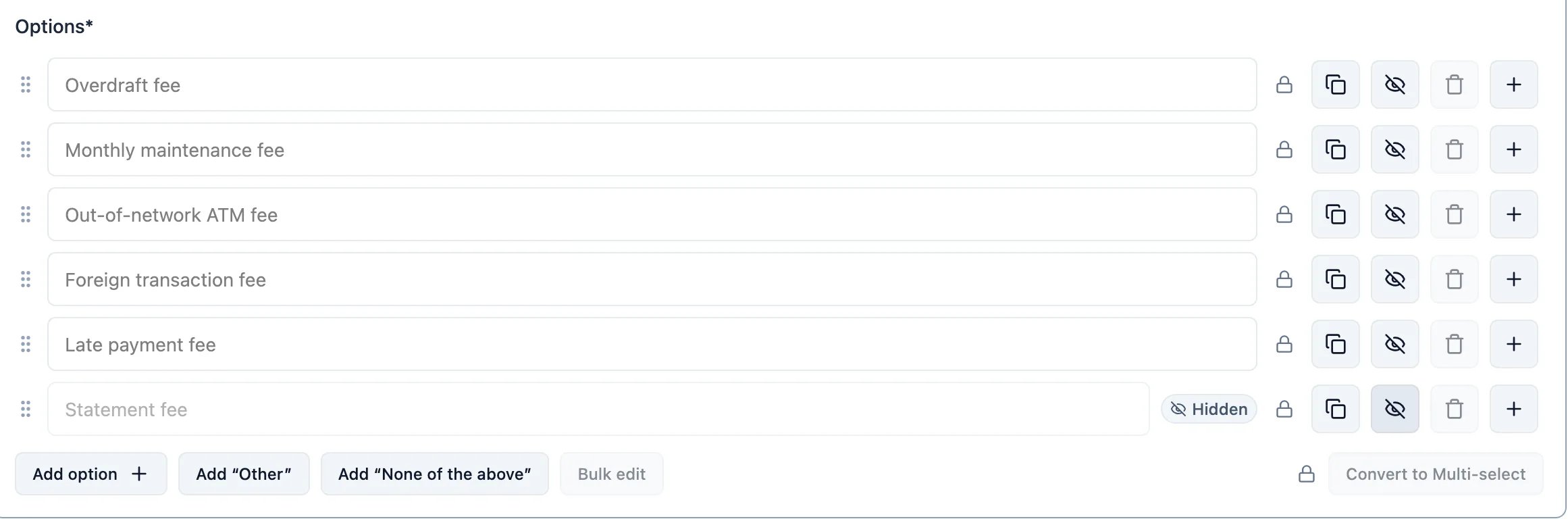
A published survey can’t lose an option that existed at launch: deleting it would break earlier answers and their codes. Hide it instead.- A Hidden option is never shown to respondents, whatever its condition says.
- It keeps its ID, its answer code and the answers given before it was hidden.
- It stays in results, labelled Hidden.
Adding and editing a show-if
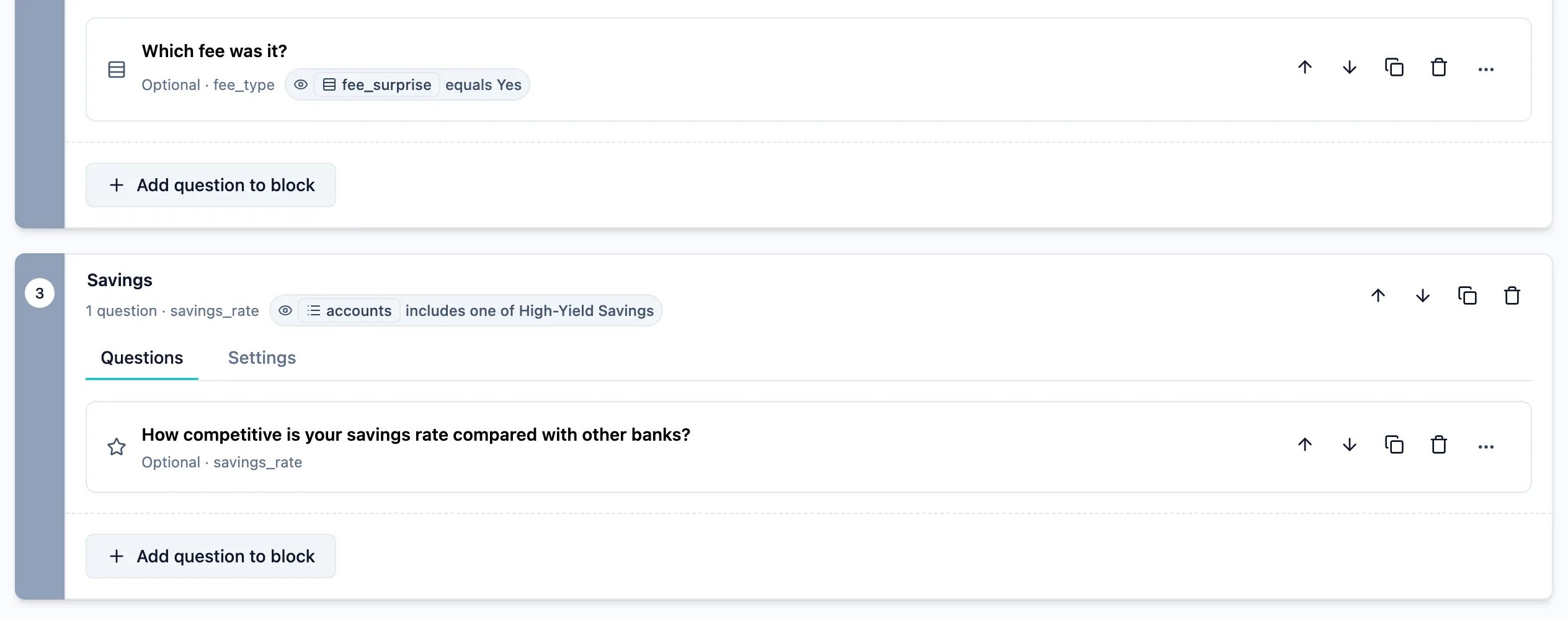
Show-if can be edited on the Flow tab, or on the Questions tab, without leaving the question you’re working on. Both edit the same show-if, so a change on one tab shows on the other. On the Flow tab:- On a block: open the block and click Show block if… in its header, or choose Show block if… under Add logic.
- On a question: open its block and click Add condition in the question’s Show question if… column.
- On a block: open the block’s Settings tab and click Add condition under Show block if….
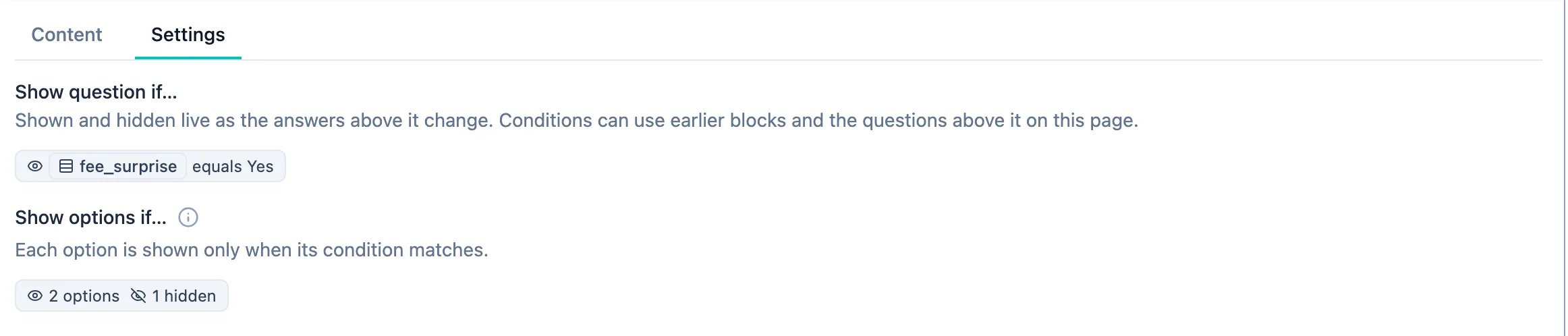
- On a question: open the question’s Settings tab and click Add condition under Show question if….
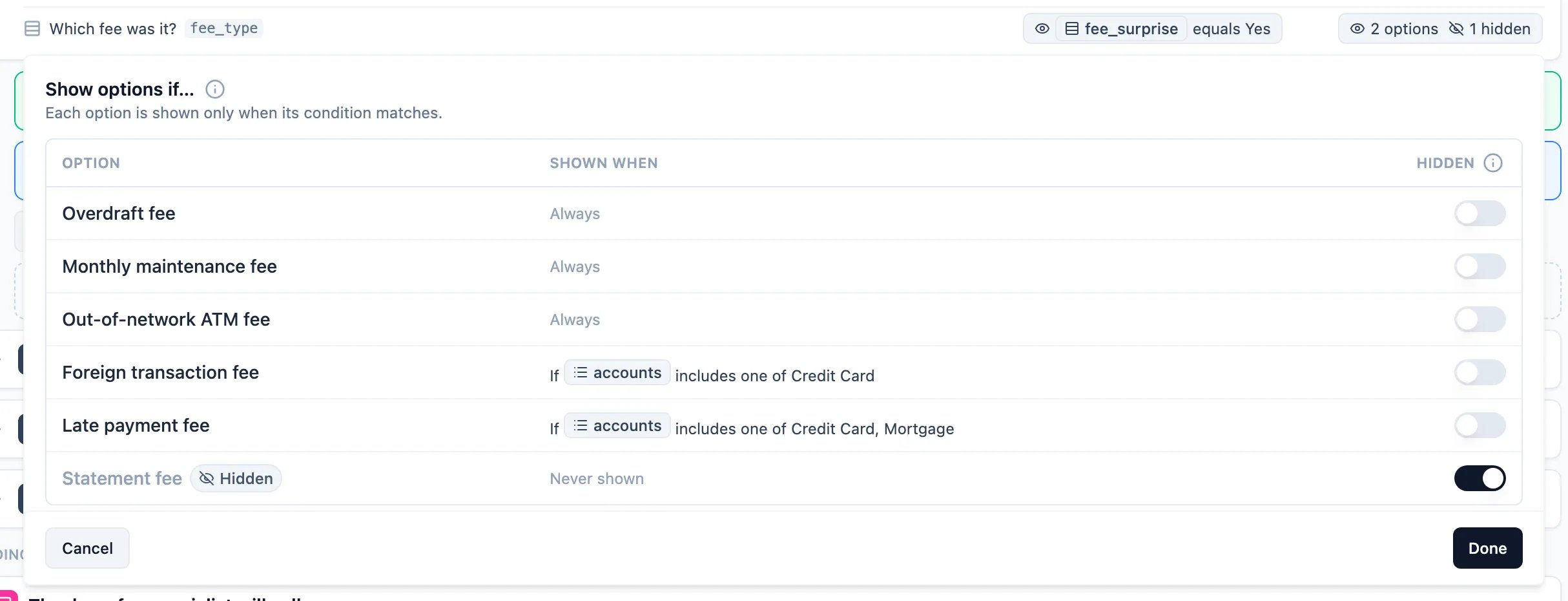
- On options: in the same Settings tab, a question with options also has Show options if…, which opens the options table described below.

- Shown when reads Always, the option’s condition, or Never shown for a Hidden option. Hover a row and click Add condition to add one; click the condition to change it, or Remove condition.
- The toggle in the Hidden column hides the option for good, or shows it again.
In results
Each response records what show-if kept from its respondent, at the moment they answered, down to the options, rows and columns. The Summary shows Not shown to N on a question, and the response shows a Not shown marker, and neither counts it as skipped. An option shown to fewer respondents than answered the question shows Shown to N out of M, M being everyone who answered it, and its percentage is over those N. The Analysis export leaves what was not shown blank, and the Standard export is unchanged. Because it is recorded at answer time, editing a show-if later does not change earlier results. See Reading survey results.Through the API
In the survey document, a show-if is an optionalshowIf on a block, an element, a choice, or a matrix row or column. It uses the condition-group format of logic rules. A Hidden option carries hidden: true. A question with copied options names its source in optionsCopiedFrom, and its copied options carry the source’s id and code and a showIf “picked in the source”; a code sent for a copy is replaced by the source option’s. A v3 response carries what its respondent was not shown as a read-only notShown. See the Management API and MCP.