

Purpose
Most happy customers would leave a review, they just never get around to it. A short survey right after a good experience catches them while the goodwill is fresh, gives you private feedback either way, and hands the review link to the people who want to share it publicly.Formbricks Approach
- Ask one question, not ten. The survey is the ask, not the review.
- Give everyone the review link — never only the happy ones (see the note below).
- Keep the private feedback, so a bad experience still reaches you instead of Google.
Google’s prohibited content policy forbids “review gating”: selectively soliciting positive reviews or discouraging negative ones. So do not use a rating question to decide who gets the review link. Use it to decide what you say while offering the link to everyone.
Setup
To collect Google reviews with Formbricks you need to:- Get your Google review link
- Build a short survey
- Add the review link to the ending card
- Share the survey at the right moment
1. Get your Google review link
In your Google Business Profile, open Read reviews and choose Get more reviews. Google gives you a short link in the form:2. Build a short survey
Create a survey and keep it to one or two questions:- A Rating question, for example “How was your experience with us?” — smileys or stars, 5-point scale.
- An optional Free Text question for anything they want to add.
3. Add the review link to the ending card
Open the Thank You card at the bottom of the editor, turn on Show Button and fill in:- Button Label:
Leave a Google review - Button URL: the link from step 1
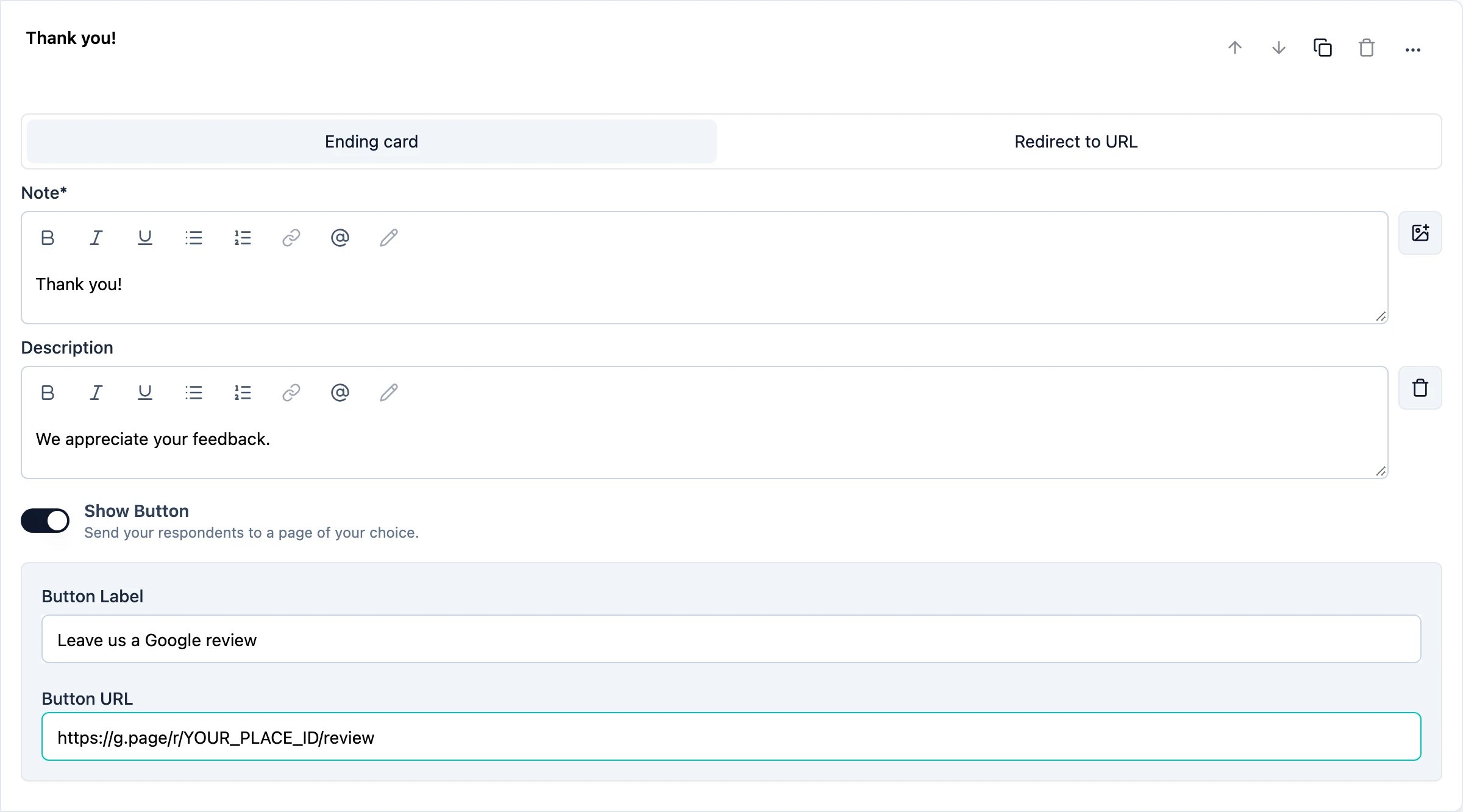
On Formbricks Cloud, custom external URLs in the Button URL field require a paid plan. This helps us prevent phishing. Self-hosted instances have no such restriction.
Duplicate rather than Add ending: a new ending starts with the Formbricks default button (
Create your own Survey, pointing at formbricks.com), so you would have to enter the review link again — and if you miss it, low-rating respondents lose the link your anti-gating setup depends on.4. Share the survey at the right moment
Timing matters more than copy. Send the survey when the experience just happened:- Link survey in a post-purchase or post-visit email or SMS.
- QR code — download it from the survey summary and print it on the receipt, the table tent, or the packaging.
- Website or app survey triggered after a successful action, such as a completed order.
Responses collected via QR code are anonymous, which is exactly what you want for a walk-in or in-store ask.
Follow up on what you learn
The reviews are only half the value. Build a Workflow that alerts your team whenever someone has a bad experience, so you can reach out before it turns into a public review you did not want. The second ending from step 3 is what makes this work: a workflow filters on the ending card the respondent reached, not on the rating itself. So the low-rating ending is your signal.- Create a workflow with the Response completed trigger and select your review survey.
- Under Ending cards, choose Specific endings and pick the ending you route low ratings to.
- Add the Send email action and pick the workspace member who owns follow-ups as the recipient. Type
@in the body to recall the rating and the comment, or turn on Attach response data to send the whole response.
Workflows are part of the Formbricks Enterprise Edition.