

Purpose
Feedback about a feature collected days later is feedback about the memory of it. Asked on the spot, you get the friction while it is still fresh — and only from people who actually used the thing.1. Start from the template
Open Surveys, click New Survey and choose Choose a template. Search for Feature Chaser, then click the card to create the survey.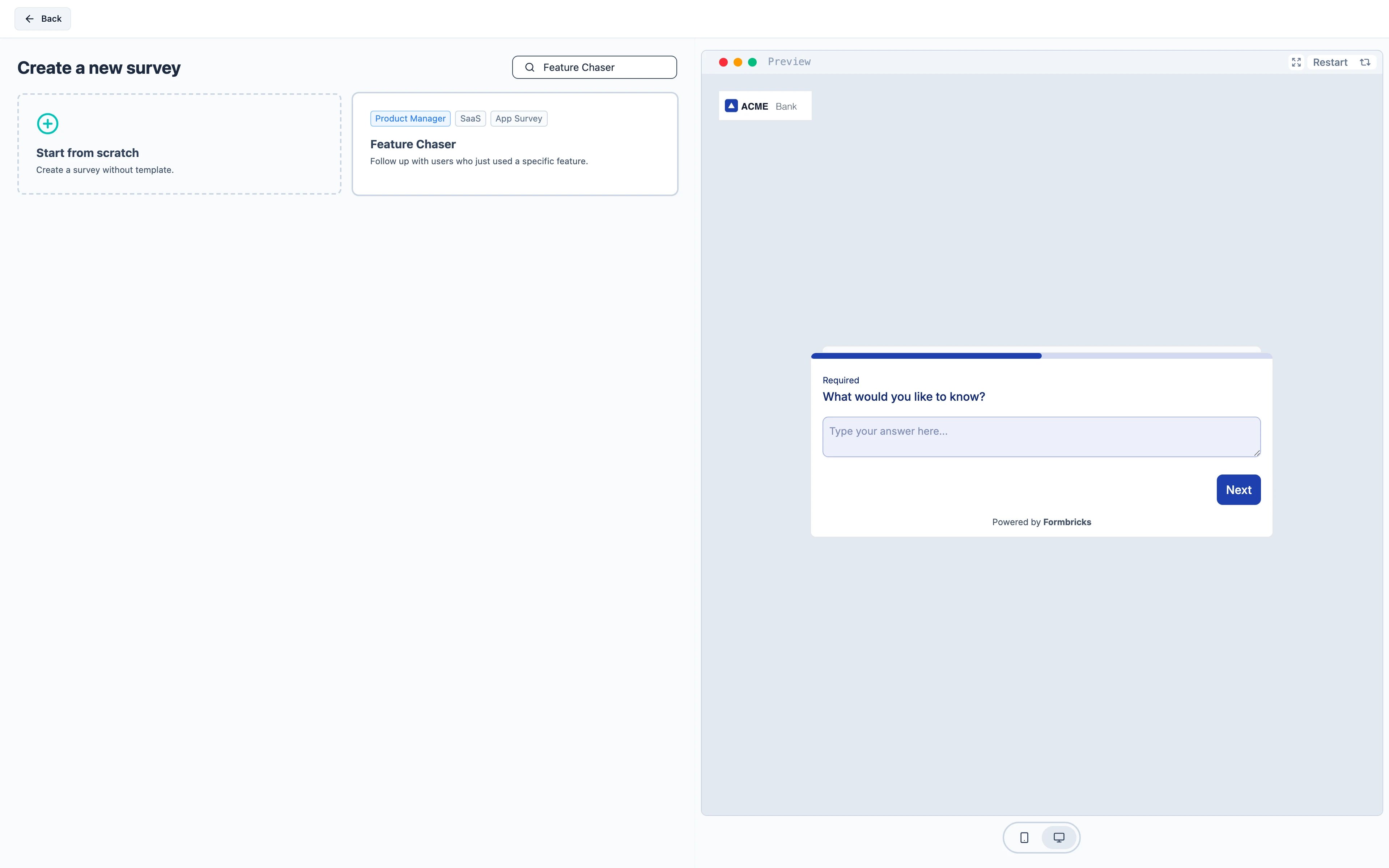
2. Trigger it at the right moment
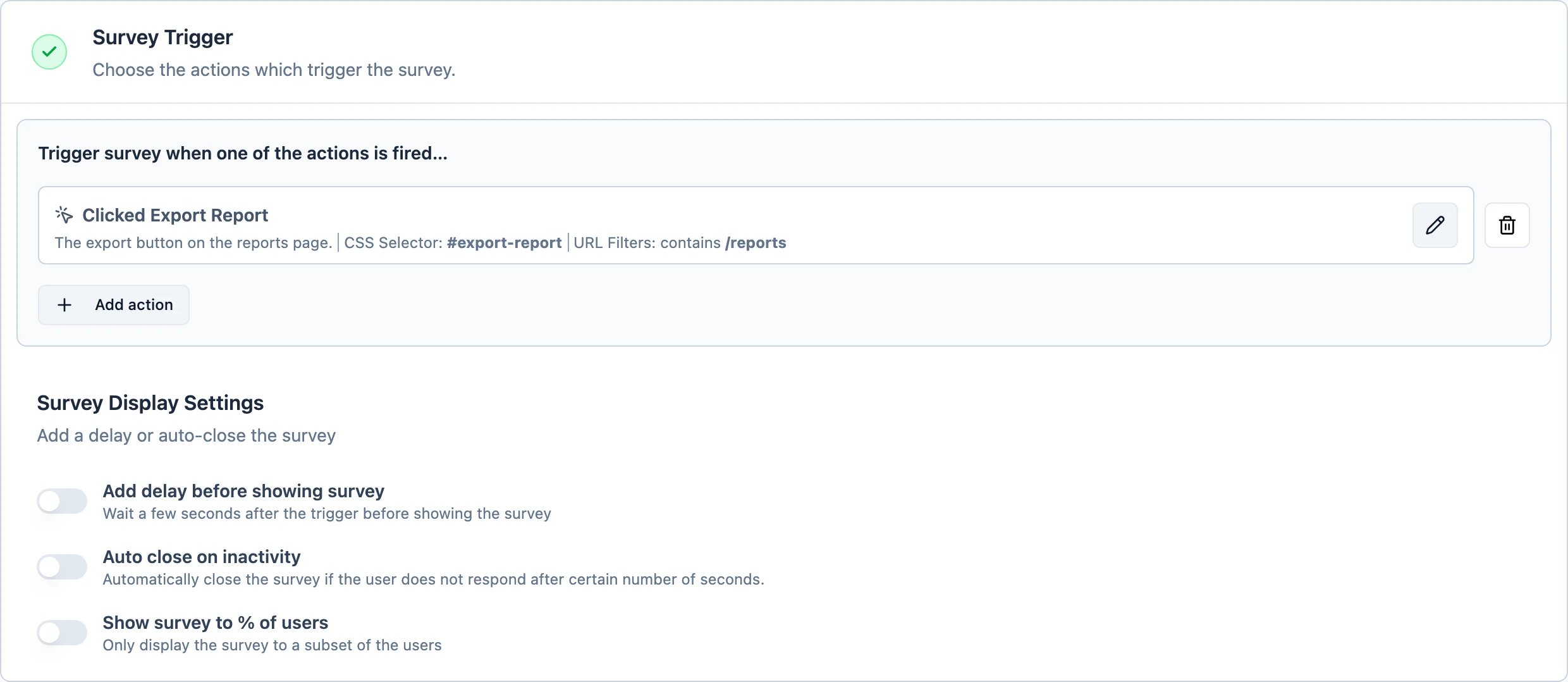
Identify the click that means “finished using the feature” — usually the last button in the flow, such as Export Report. Match it with Inner Text, or with a CSS Selector such as#export-report if the same label appears elsewhere.
Open the Settings tab, find Survey Trigger and add the action.
3. Decide how often it may appear
Still on Settings, open Display & Recontact. Choose Show only once for a one-off read on a new feature, or Ask until they submit a response if you want to keep asking until someone answers.Recontact Options and the workspace-wide Cooldown Period
are two separate gates and a survey has to pass both — Recontact Options first, then the cooldown. If
your workspace shows at most one survey a week, this survey inherits that unless you set Ignore
Cooldown Period.
4. Activate
Activate starts it. The widget picks up the change within a minute.This is an app survey, so it needs the Formbricks widget running in your product. If you have not
installed it yet, follow the quickstart first.