

Purpose
A low-friction channel catches the small frustrations that never make it into a support ticket. Because it is always available rather than scheduled, it also tells you when something broke.What you will build
A survey that opens whenever someone clicks your Feedback button, and that keeps working every time they click it — not once per person. Two settings get you there, and both are needed: the recontact option, and an exemption from the workspace cooldown.This is an app survey, so it needs the Formbricks widget running in your product. If you have not
installed it yet, follow the quickstart first.
1. Start from the template
Open Surveys, click New Survey and choose Choose a template. Search for Feedback Box.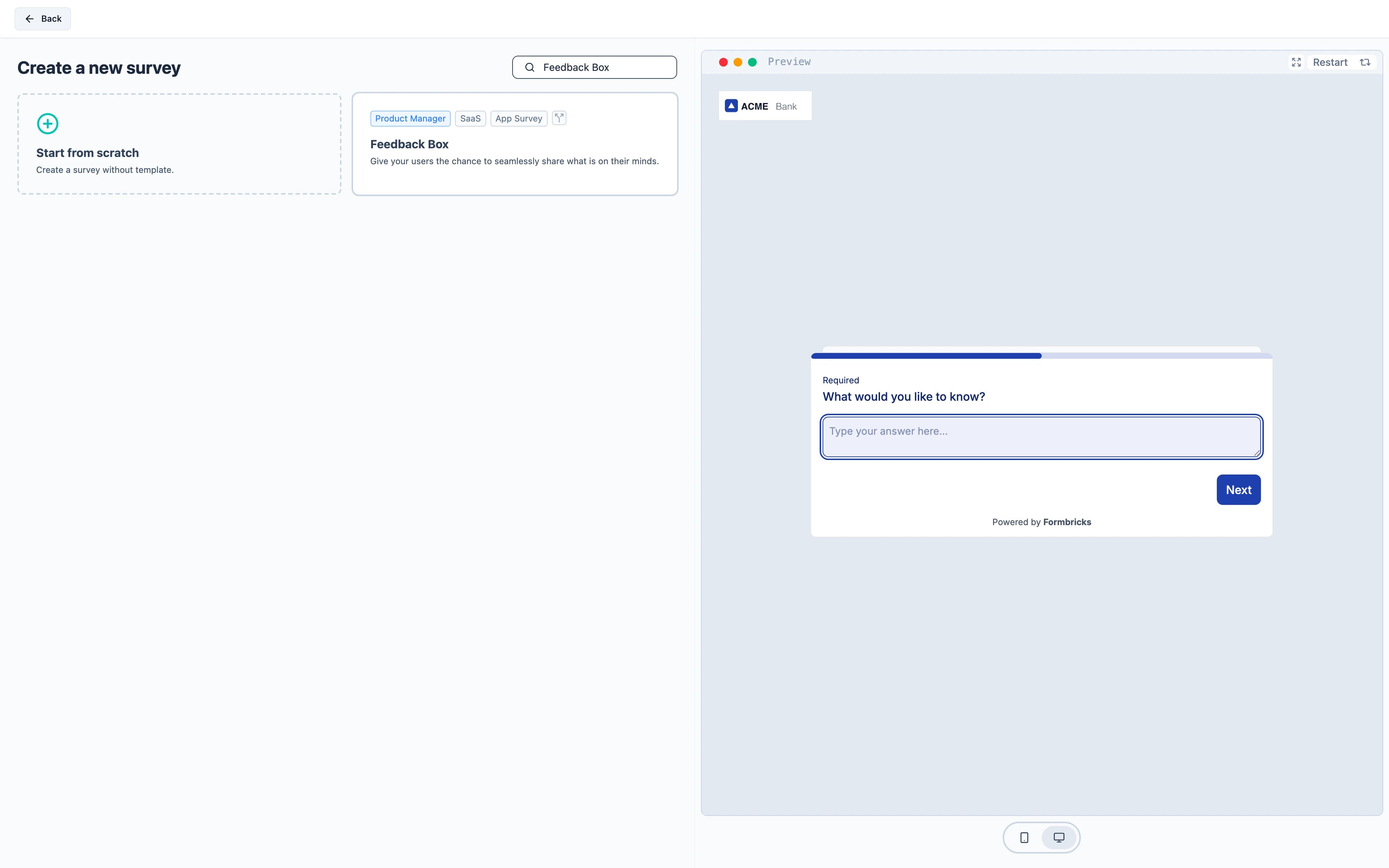
2. Make it yours
Edit the questions on the Questions tab. The wording matters more than it looks: “What is on your mind, boss?” sets a casual tone that suits some products and not others. Keep it short. Every extra question costs you responses, and the value of a feedback box is that answering it is nearly free.3. Trigger it on your Feedback button
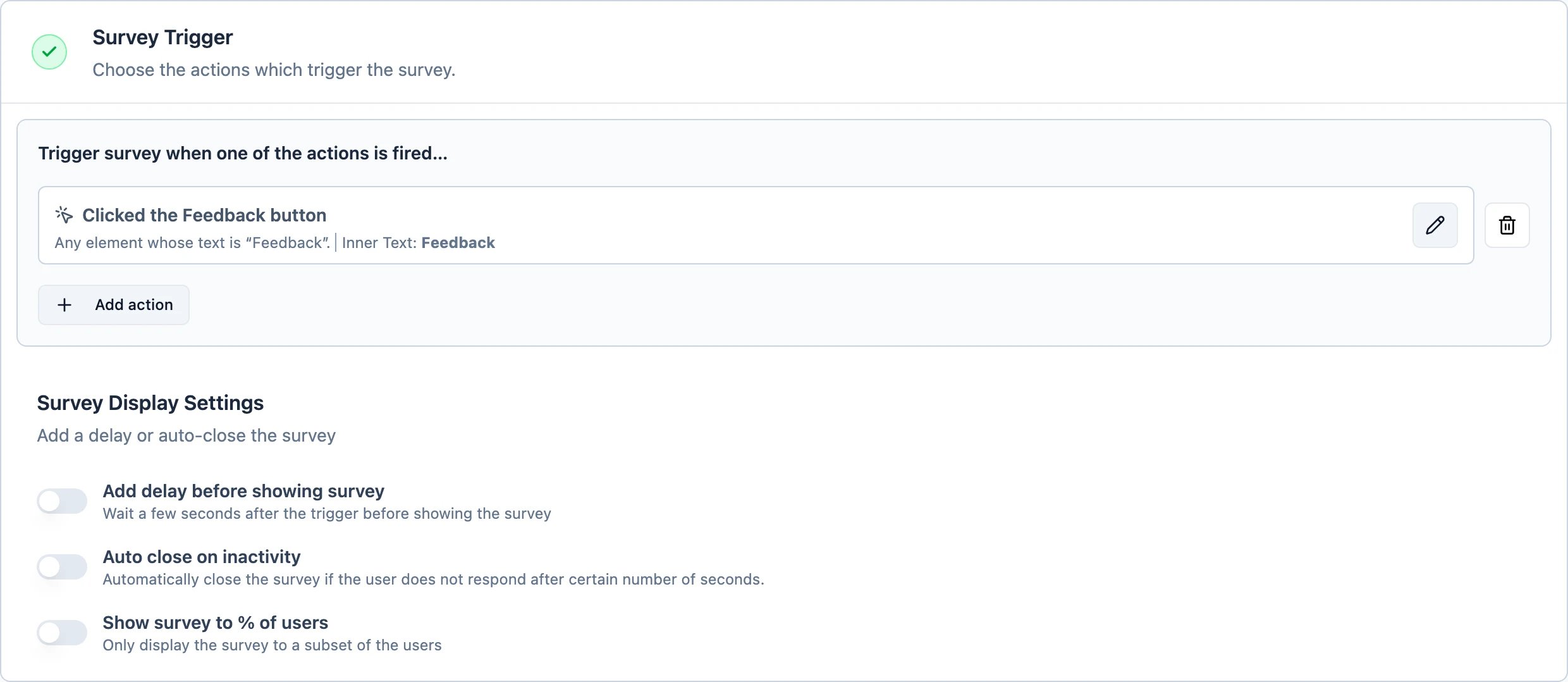
Open the Settings tab and find Survey Trigger. Click Add action, then Capture new action.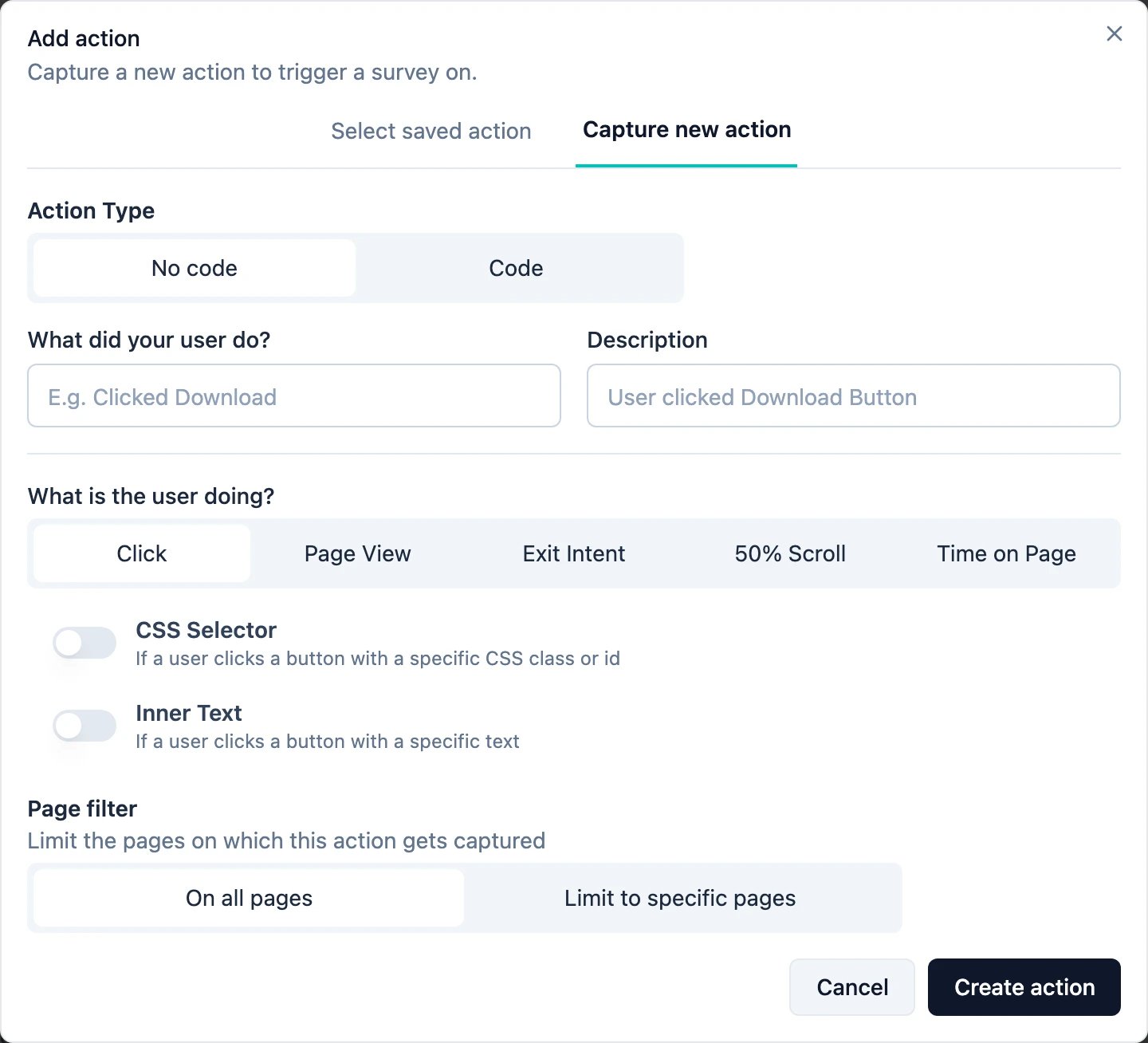
- Inner Text — matches the visible text of the element that was clicked. Switch it on and enter
Feedbackif that is what your button says. - CSS Selector — matches a class or id, such as
#feedback-button. Use this when the label is translated, or when several elements share the text.
4. Let it open every time
By default a survey is shown to each person once. That is wrong for a feedback box — someone who reports a bug on Monday should still be able to request a feature on Tuesday. Still on Settings, open Display & Recontact and choose Keep showing while conditions match.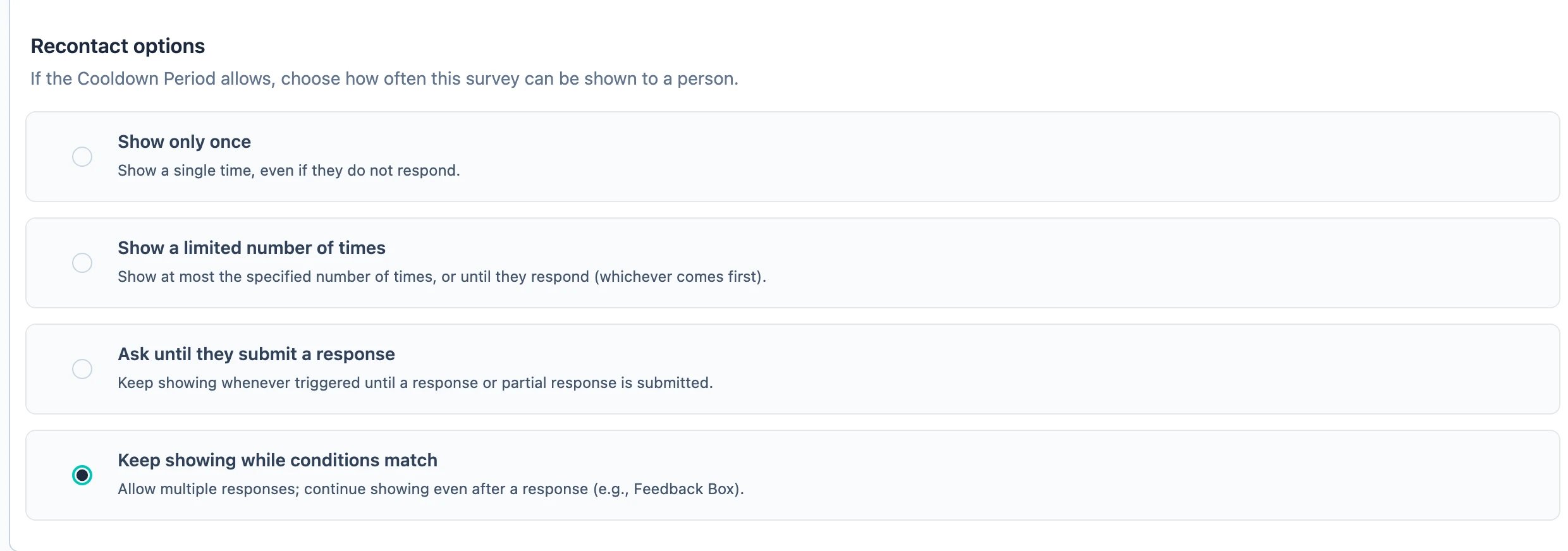
Ignoring the cooldown is the right call here and not in general. It is defensible because the user
opened this survey deliberately; a survey that interrupts them uninvited should stay inside the
workspace budget.