

Creatives are part of the Formbricks Enterprise Edition, on self-hosted
instances whose license includes Creatives. They are not available on Formbricks Cloud. They show on
websites through the JavaScript SDK; the mobile SDKs don’t show
them.
Feedback button
A tab on the left, right or bottom edge of the page that opens a survey or a link. Always there, never
dismissed.
Banner
A bar across the top or bottom of the page, with a formatted message, an optional button and an optional
close control.
How a creative works
A creative is made of three parts:- What visitors see: its text and look, on the Content and Styling tabs.
- Where and when it shows: on every page view or when an action fires, narrowed by show conditions, a share of visitors and a schedule, on the Settings tab. See When It Shows.
- What it opens: a survey or a link, under On click on the Content tab. A banner can also have no button at all and just inform.
Create a creative
1
Open Creatives
In the main navigation, under Ask, click Creatives. It sits between Surveys and Contacts.
2
Pick a type
Click New creative, choose Feedback button or Banner, and click Continue.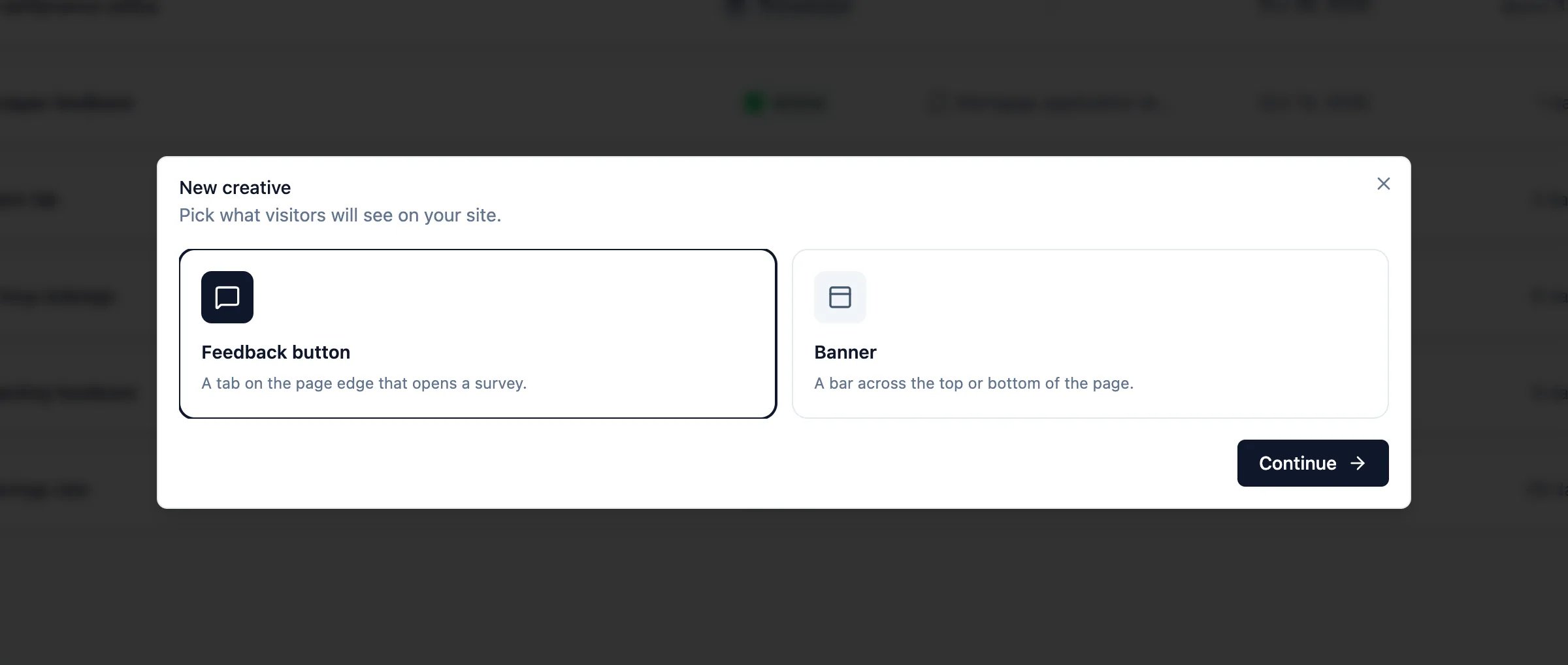
3
Build it in the editor
Formbricks creates a Draft called “Untitled creative” and opens the editor. Click the name at the top to rename it. The type can’t be changed later.
4
Publish
Click Publish. Formbricks checks that nothing is missing, then takes the creative live, or schedules it if its start time is ahead.
The editor
The editor has four tabs:
A live preview next to the tabs shows the creative on a sample page. Switch it between Desktop and Phone and between light and dark mode. Clicking the creative in the preview tells you what it would open on your site instead of opening it. The preview is hidden on narrow screens.
A draft is saved with Save even when it isn’t finished. Once a creative is published, every Save has to pass the same checks as Publish. If someone else saved the creative after you opened it, your save is refused and you’re asked to reload, so nobody overwrites another person’s changes.
Languages
The Language tab translates everything visitors read: the label, the banner message, the banner’s button label and its accessible name. Add any of the workspace’s languages with Add language, then fill in each one with Edit translation. A text you leave empty shows the default language’s text. Turn Shown off to keep a translation without showing it to visitors, and use Make default in a row’s menu to change the default language. A visitor gets the language your site sets withsetLanguage, then their browser’s language if Use browser language by default is on, and otherwise the default language. The switch sits under the languages table and turns on when you add the creative’s second language; it only applies to the creative’s own texts, so a survey it opens still follows that survey’s own setting.
If a creative opens a multi-language app survey that lacks the language your site set, the survey couldn’t
open for those visitors, so they don’t see the creative at all. A link survey, or an app survey with a single
language, opens in its default language instead. The editor warns you in both cases.
Publish
Publish takes a draft live. It checks that the creative has:- a name;
- a label (feedback button) or a message (banner), and a button label if the banner has a button;
- if it has a button (every feedback button does): a survey it is allowed to open, or a valid link;
- at least one action, if it shows When an action fires;
- a value in every Show when condition;
- an end after its start, if it has a schedule.
Status
A creative uses the same status words as a survey:
A creative is paused automatically, without anything being changed on it, when:
- the survey it opens isn’t active (it’s a draft, paused, closed or archived). It comes back by itself as soon as the survey runs again, unless you paused it yourself;
- it has nothing to open, for example after an archived survey it opened was deleted;
- it shows When an action fires but has no action.
Manage creatives
The Creatives list shows each creative’s name, status, what it opens, when it was created and updated, and who created it. Search by name, filter by Status and Type, and sort by update date, creation date or name. Archived creatives only appear when you filter for Archived.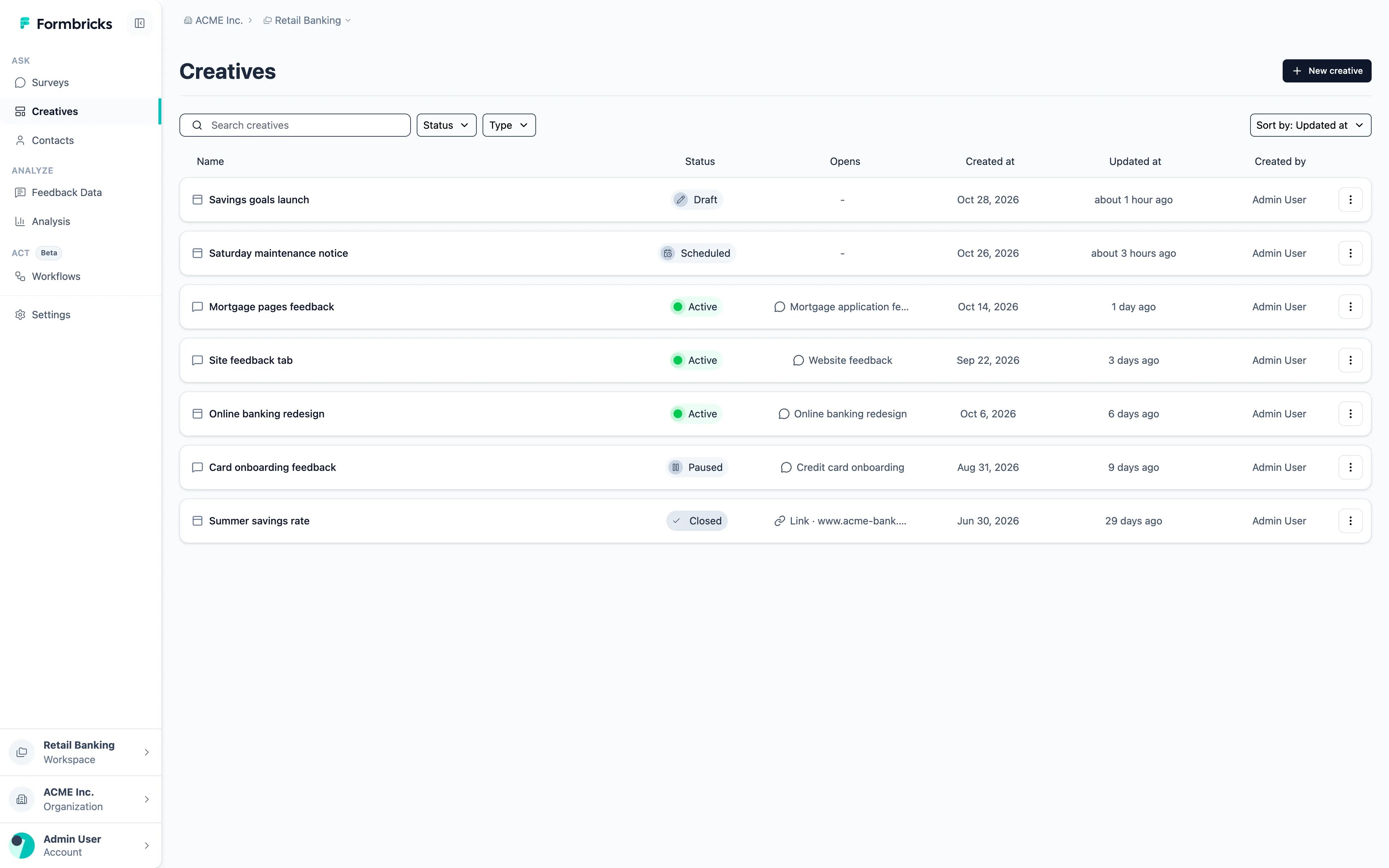
- Edit;
- Pause, Resume, Close or Reopen, depending on its status;
- Duplicate: a new draft called ”… (copy)”, without the original’s numbers;
- Archive: takes it off your site and out of the list, and keeps its numbers. Restore brings it back as a draft;
- Delete: takes it off your site, as fast as any other change reaches visitors (see When changes reach your site), and deletes its numbers. Responses it brought in keep the name of the creative that opened them.
- it has nothing to open;
- its survey can’t be opened by a creative anymore (see Which surveys a creative can open);
- it shows when an action fires but has no action;
- it could overlap another active creative on the same page.
Creatives and their surveys
Which surveys a creative can open
On click lists the workspace’s app and link surveys, running ones first. A creative can’t open a survey that:- is Restricted (visible only to some people in the workspace). It is listed but can’t be picked, because everyone who can see the creative would see which survey it opens. See Survey Visibility;
- uses single-use links or is PIN-protected. These aren’t listed.
What changes on the survey side
Once a creative opens a survey, the survey shows it:-
App surveys can go live without an action. The Survey Trigger card lists the creatives that open the survey under Opened by, and the survey can be published with no trigger of its own: it then shows only when someone clicks a creative.
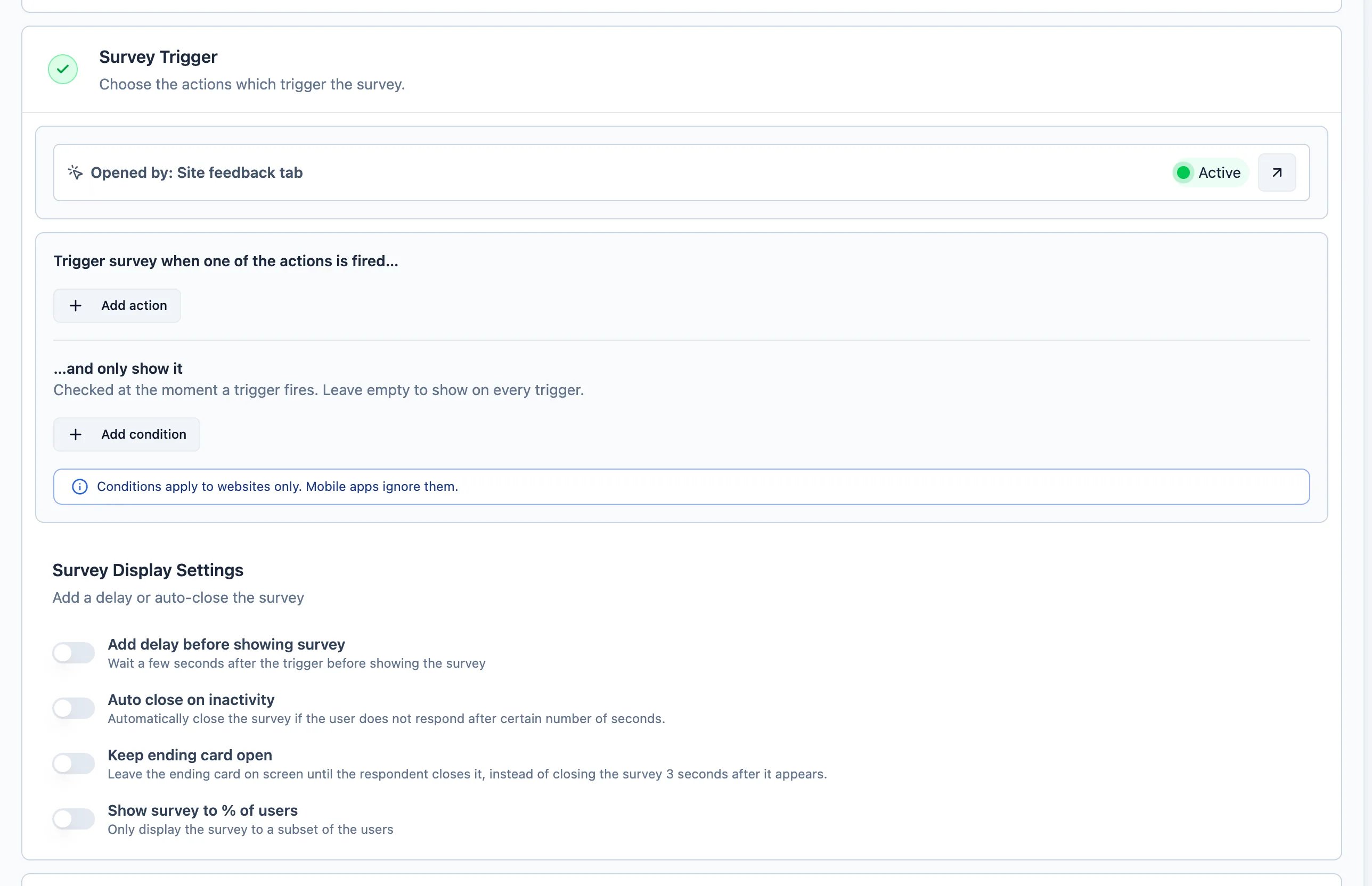
- Recontact options apply to popups only. On a survey that only creatives open, the Display & Recontact settings are disabled, because a click always opens the survey. On a survey that also has its own actions, they still apply to its automatic popups.
-
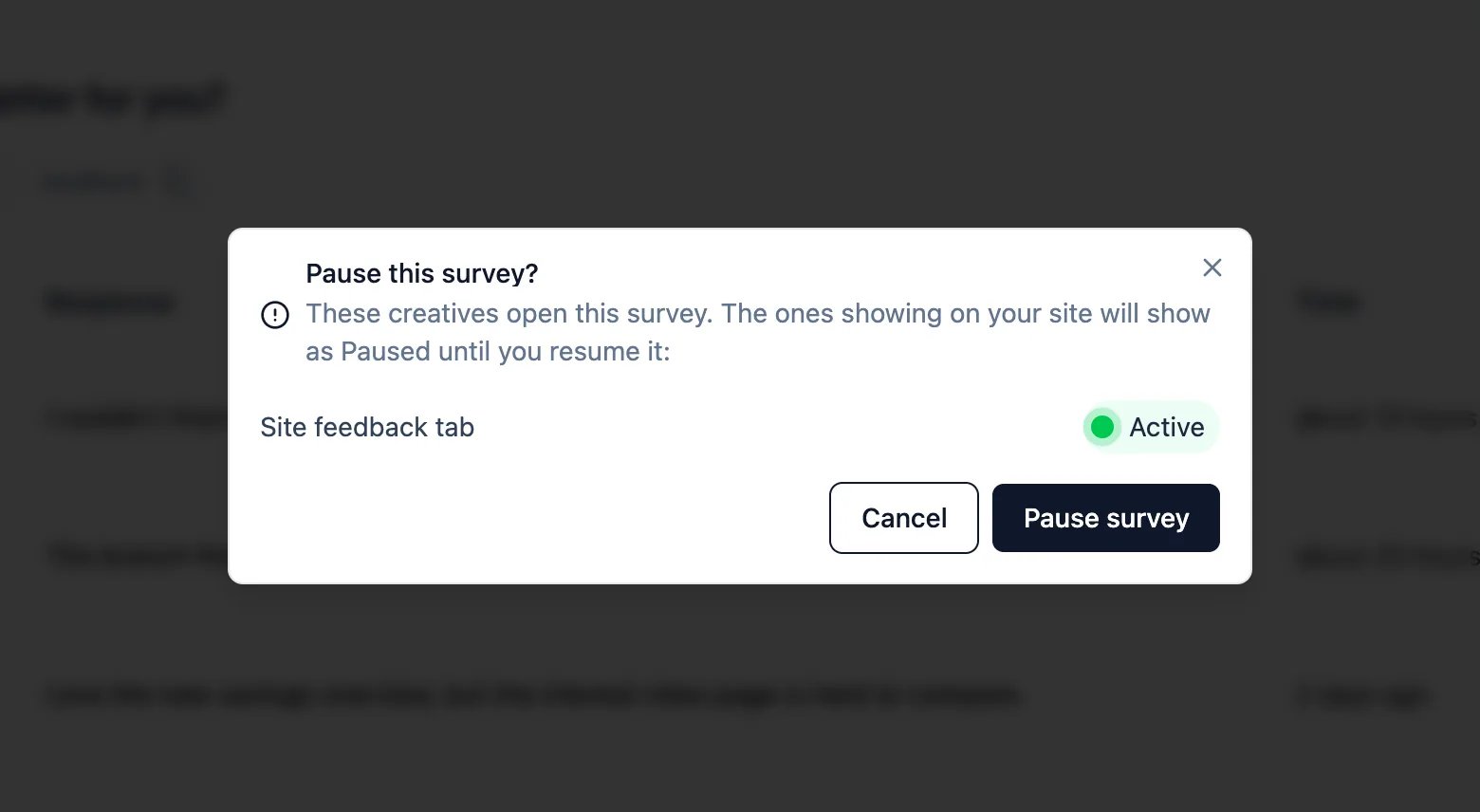
Pausing, closing or resuming the survey names the creatives that open it. While the survey isn’t running, they show as Paused and disappear from your site; when you resume it, they come back by themselves. The resume dialog lets you Keep these creatives paused instead.
- Deleting the survey isn’t possible while creatives still open it, drafts and paused ones included. Delete them, archive them or point them at another survey first. Archived creatives don’t block it: they just lose what they open.
- Making the survey Restricted, turning on single-use links or setting a PIN is blocked the same way. Turning single-use links or the PIN off is always possible.
- Archiving the survey keeps its creatives paused. If an archived survey is deleted for good after 30 days, its creatives lose what they open.
Who can do what
Creatives follow the workspace access of your team:- Read access lets a member see the list, the summaries and the editor, read-only.
- Read & Write and Manage access let a member create, edit, publish, pause, archive, duplicate and delete creatives.
If your license no longer includes Creatives
If your license stops including Creatives while a workspace still has some, they are taken off your sites, and Creatives stays visible read-only with a notice. You can still pause, close or delete creatives; everything else is locked. Nothing about the creatives is changed: when your license includes Creatives again, the ones you didn’t pause, close or delete show again on their own. On instances that have never had Creatives, and on Formbricks Cloud, the Creatives entry doesn’t appear.API and MCP
Everything in the editor is also available through the Management API v3 under/api/v3/creatives: list, get, create, update (including publish, pause, close and reopen through status), delete, archive, restore, duplicate, and read counts by day, page or device type. POST /api/v3/creatives/pause pauses every creative that opens a given survey. Reading needs read access to the workspace; everything else needs read & write access.
The Formbricks MCP server offers the same as tools, except the bulk pause: list_creatives, get_creative and get_creative_stats with the surveys:read scope; create_creative, patch_creative, delete_creative, duplicate_creative, archive_creative and restore_creative with surveys:write.
Still have questions? Join us in GitHub Discussions and we’ll be glad to help.
Self-hosted background processing
Impressions and clicks reach the database through the background job worker. If you disabled the built-in worker, your external worker must runcreative-stats.flush. Counts not flushed by the end of the following UTC day are lost; already
stored counts remain available.