

Team-level roles are a feature of the Enterprise Edition. In the Community Edition, all members are Organisation-level “Owners”.
Understanding the role hierarchy
Formbricks uses a two-tier permission system:- Organization-level roles - Apply across all teams and workspaces
- Team-level roles - Apply within specific teams and workspaces
How roles interact
- Organization-level roles (Owner, Manager) can override team-level restrictions
- Team-level roles provide granular control for specific teams
- Workspace permissions further refine what users can do within individual workspaces
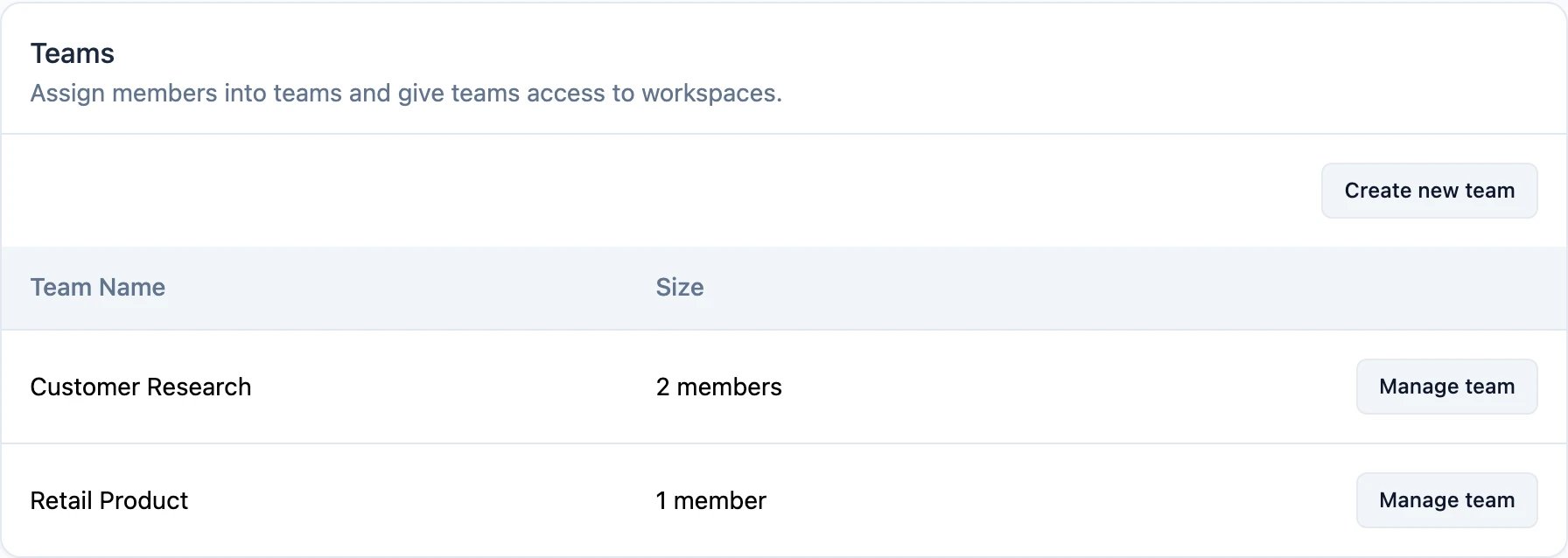
Team-level roles
Team Admins
- Have additional permissions to manage their team’s membership and workspaces
- Can add or remove team members
- Can create and manage workspaces within their team
- Can assign workspace-level permissions to team members
- These permissions are granted at the team-level and don’t apply to teams where they’re not a Team Admin
Team Contributors
- Can view and act on surveys and responses within their assigned workspaces
- Cannot manage team membership or create new workspaces
- Permissions depend on their workspace-level access (Read, Read & Write, or Manage)
Workspace-level permissions
A team is granted access to a workspace one workspace at a time, under Settings → Workspace → Team Access. The permission there decides what the team’s members can do in that workspace.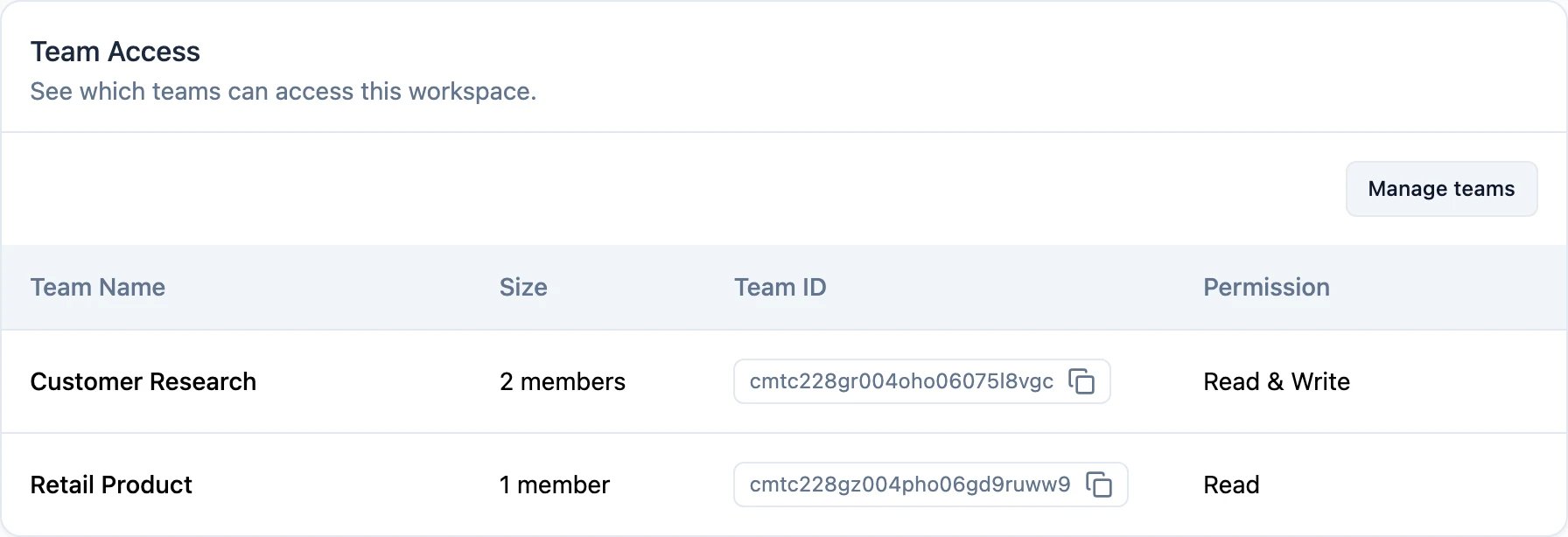
Read
- Read access to all resources (except settings) in the workspace
- Can view surveys, responses, and analytics
- Cannot create, edit, or delete surveys
- Cannot modify workspace settings
Read & Write
- Read & write access to all resources (except settings) in the workspace
- Can create, edit, and delete surveys
- Can manage responses and tags
- Can download survey data
- Cannot modify workspace settings or manage integrations
Manage
- Read & write access to all resources including settings in the workspace
- Full workspace control including settings
- Can manage API keys and integrations
- Can configure workspace-level settings like recontact options and styling
- Can manage workspace tags and actions
Permission examples
Scenario 1: Marketing Team Member
- Organization role: Member
- Team role: Team Contributor
- Workspace permission: Read & Write
- Can do: Create and edit surveys, view responses, download data
- Cannot do: Change workspace settings, manage team membership
Scenario 2: Team Lead
- Organization role: Member
- Team role: Team Admin
- Workspace permission: Manage
- Can do: Everything within their team including managing members and workspace settings
- Cannot do: Access other teams, change organization settings
Scenario 3: Department Manager
- Organization role: Manager
- Team role: N/A (org role overrides)
- Workspace permission: N/A (org role provides access)
- Can do: Access all teams and workspaces, manage organization membership
- Cannot do: Change organization-level settings like billing