

Prerequisites
To invite members, you need:- Owner or Manager role in the organization
- Valid email addresses for the people you want to invite
Individual invitations
Use this method when inviting a few people or when you need to carefully control each invitation.Steps to invite individual members
1
Navigate to Settings → Organization → Teams
Go to Settings → Organization → Teams, where members are managed.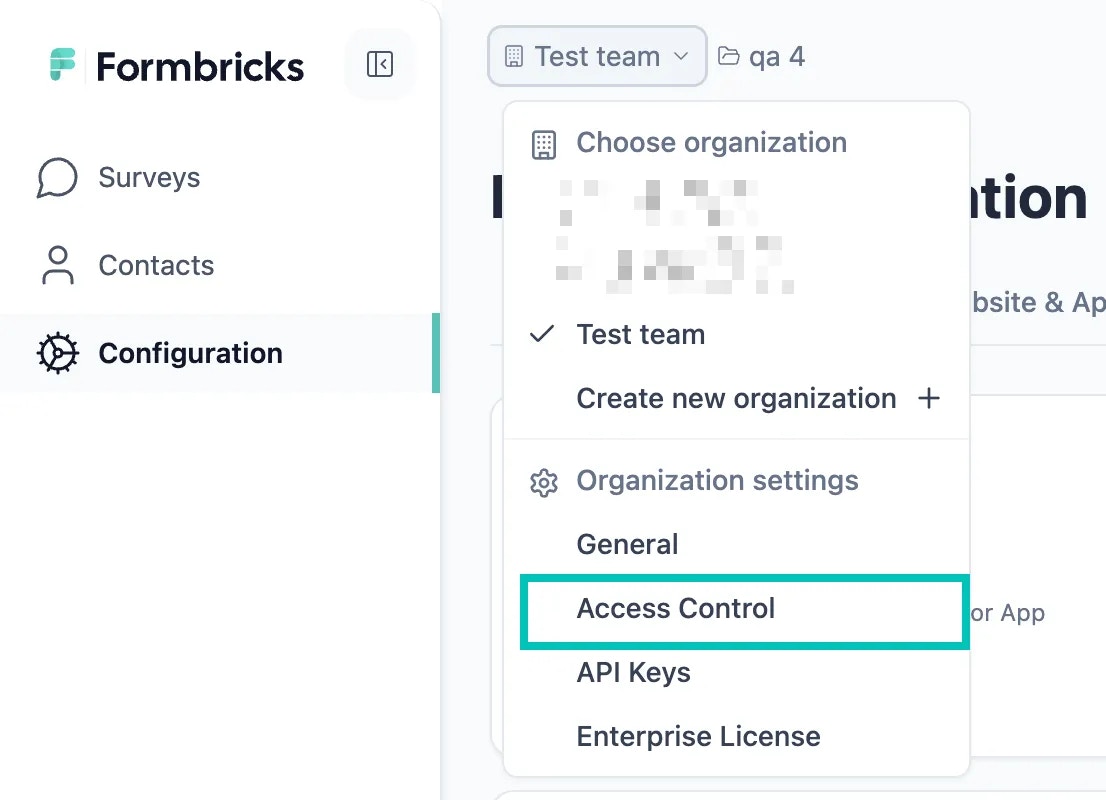
2
Start the invitation process
Click on the 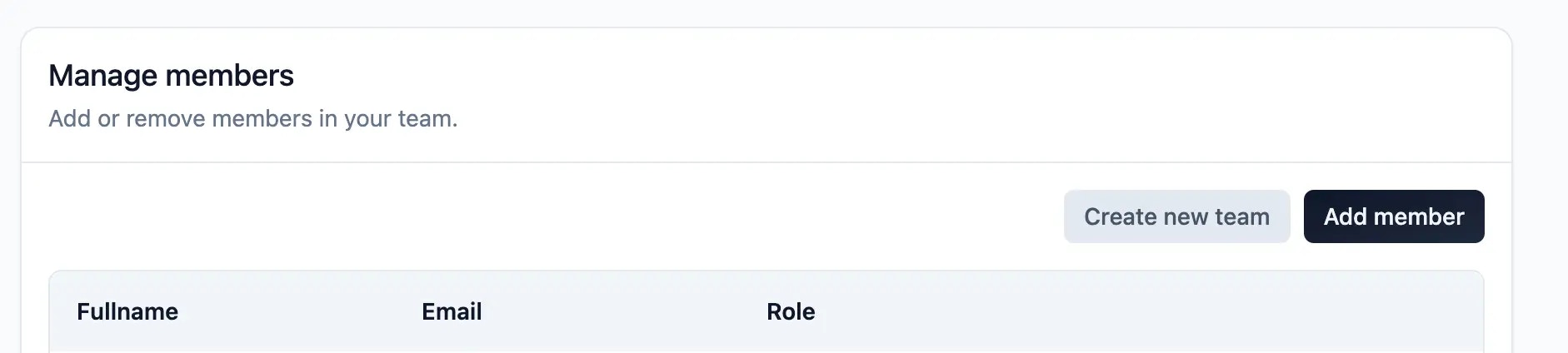
Add member button:3
Fill in member details
In the modal, add the Name, Email and Role of the organization member you want to invite: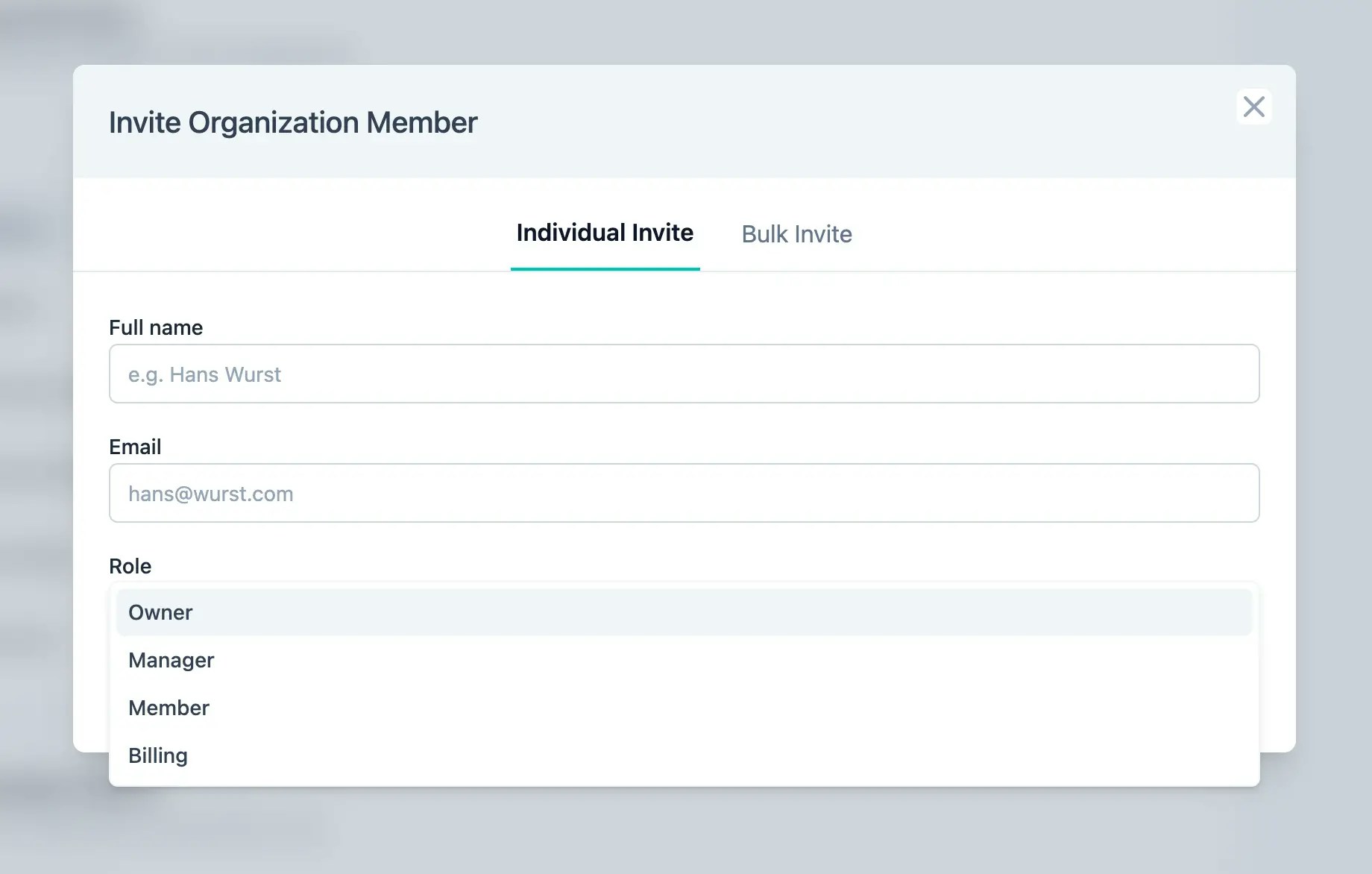
4
Send the invitation
Click the invite button to send the invitation email.
What happens next
- Formbricks sends an email to the organization member with an invitation link
- The organization member can accept the invitation or create a new account by clicking on the link
- Once accepted, they’ll have access based on the role you assigned
Inviting a Dashboard viewer
Choose Dashboard viewer as the role to invite someone who should only read dashboards. The role is offered only when your plan includes both Access Control and Dashboards. Owners and Managers can invite Dashboard viewers. A Dashboard viewer sees the dashboards of the Workspaces their teams have access to, so add them to a team when you invite them, or later under Settings → Organization → Teams. Until they are on a team with access to a Workspace, they see a page saying no dashboards are shared with them yet. Read what the role can and can’t do in Organizations and roles.Bulk invitations
Use bulk invitations when you need to invite many people at once, such as when onboarding an entire team or department.Steps to invite members in bulk
1
Navigate to Settings → Organization → Teams
Go to Settings → Organization → Teams, where members are managed.
2
Start the bulk invitation process
Click on the
Add member button:3
Switch to bulk invite
In the modal, switch to 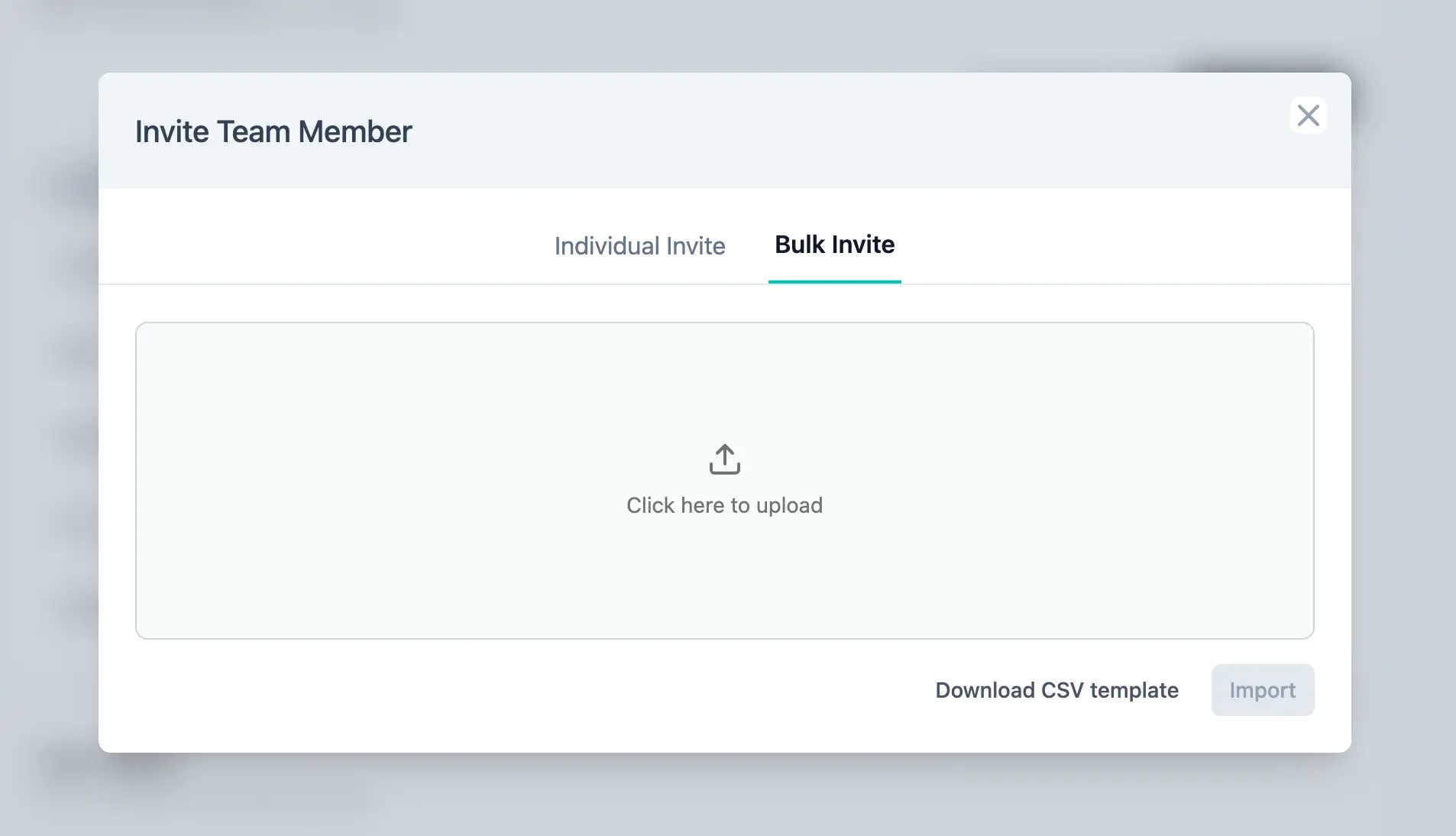
Bulk Invite. You can download an example .CSV file to fill in the Name, Email and Role of the organization members you want to invite:4
Prepare your CSV file
The CSV file should include three columns:
- Name: Full name of the person
- Email: Valid email address
- Role: One of the available organization roles (Owner, Manager, Billing, Member, Dashboard viewer)
5
Upload and send invitations
Upload the filled .CSV file and invite the organization members in bulk ✅
What happens next
- Formbricks sends an email to each organization member in the CSV
- Each member can accept the invitation or create a new account by clicking on the link
- All invitations are processed simultaneously
Managing invitations
Pending invitations
- View pending invitations under Settings → Organization → Teams
- Resend invitations if needed
- Cancel pending invitations before they’re accepted
Invitation status
Monitor the status of your invitations:- Pending: Invitation sent but not yet accepted
- Accepted: User has joined the organization
- Expired: Invitation has expired and needs to be resent