

Access Roles is a feature of the Enterprise Edition. In the Community Edition and on the Free
and Startup plan in the Cloud you can invite unlimited organization members as
Owner.Role hierarchy
Here are the different access permissions, ranked from highest to lowest access:- Owner - Full organizational control
- Manager - Management access with some restrictions
- Billing - Billing and payment management only
- Member - Basic access to assigned Workspaces
- Dashboard viewer - Reads the dashboards of assigned Workspaces, nothing else
Role Permissions and Privilege Escalation Prevention
To prevent privilege escalation, the following rules apply:-
Owners can:
- Invite users as owners, managers, members, or Dashboard viewers
- Assign roles up to owner level
-
Managers can:
- Invite users only as members or Dashboard viewers
- Assign the member or Dashboard viewer role only, not manager or owner
-
Members cannot:
- Invite users
- Assign roles
Organization-level roles
All users and their organization-level roles are listed under Settings → Organization → Teams. The role dropdown beside each person is where you change one.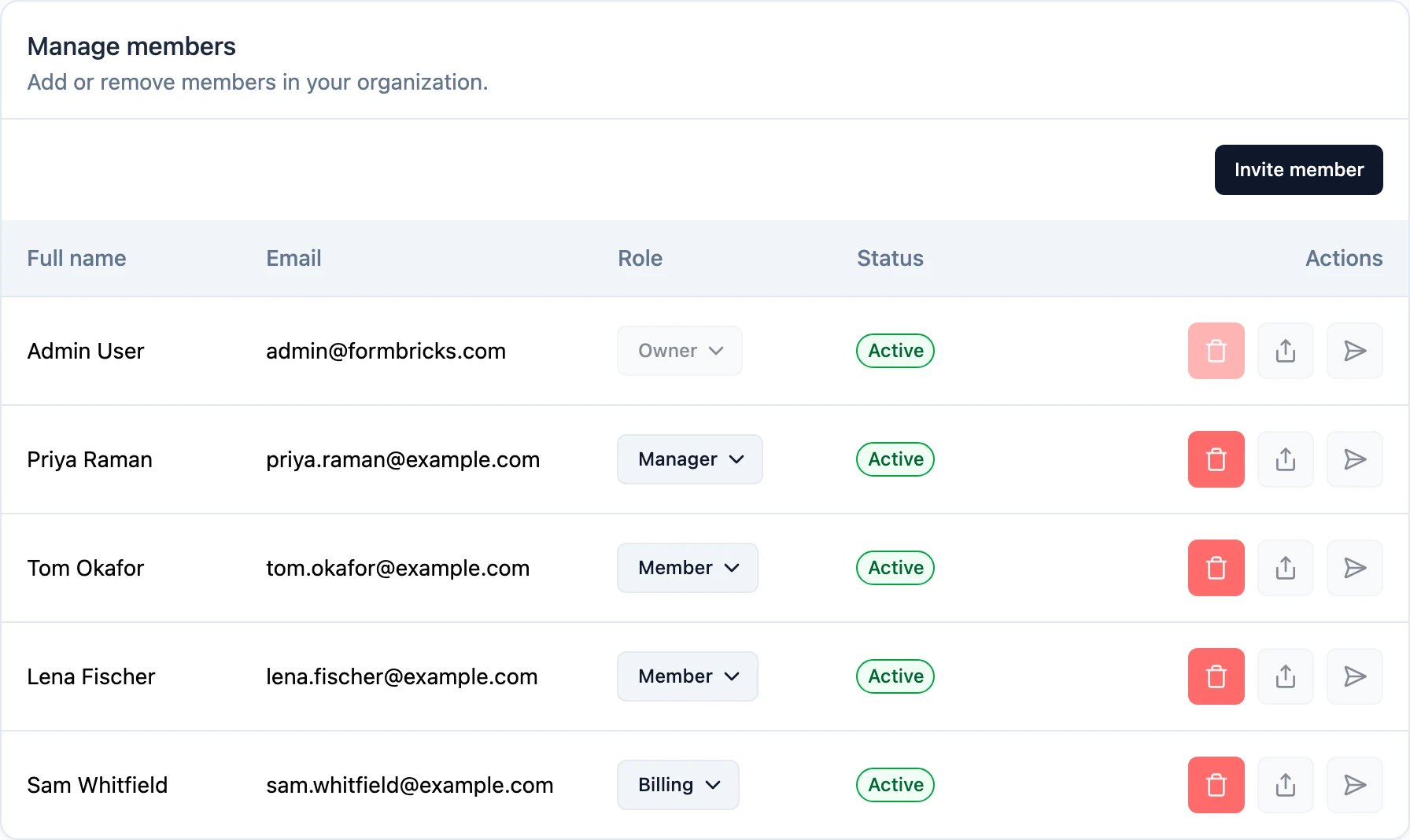
Owner
- Have full access to the organization, its data, and settings
- Can perform Team Admin actions without needing to join the team
- Can manage all aspects of the organization including billing, integrations, and member management
Manager
- Have full management access to all teams and Workspaces
- Can manage the organization’s membership (but can only invite or assign users as members)
- Can perform Team Admin actions without needing to join the team
- Cannot change other organization settings like billing or delete the organization
Billing
- Can manage payment and compliance details in the organization
- Have access to billing settings and subscription management
- Cannot access other organizational data or settings
Member
- Can view most data in the organization and act in the Workspaces they are members of
- Cannot create or join Workspaces on their own and need to be assigned by owners or managers
- Have limited permissions that depend on their Workspace-level access
Dashboard viewer
- Can open the dashboards of the Workspaces their teams have access to, and nothing else in the organization
- Can use each dashboard’s filters and date range, which only ever narrow what the dashboard’s charts show
- Cannot see surveys, responses, contacts, Feedback Records, the chart builder, or organization and Workspace settings
- Cannot create, edit, or delete dashboards or charts
Detailed permissions matrix
* - for the read & write permissions team members
** - for the manage permissions team members
A Dashboard viewer holds none of the permissions in this table. The only thing the role can do is read
dashboards, as described below.
Dashboard viewer role
The Dashboard viewer role is for people who need to follow your feedback insights without access to the raw data behind them, for example executives, other departments, or a client.The Dashboard viewer role needs both Access Control and Dashboards on your plan. Until both are
available, the role is not offered when you invite someone or change a role.
Which dashboards a Dashboard viewer sees
A Dashboard viewer sees the dashboards of every Workspace that one of their teams has access to. The team’s permission on the Workspace (Read, Read & Write, or Manage) makes no difference: a Dashboard viewer only ever reads dashboards. To share dashboards with someone:1
Invite them as a Dashboard viewer
Invite the person with the Dashboard viewer role, see Invite members.
2
Add them to a team
Add them to a team under Settings → Organization → Teams. A Dashboard viewer who is on no team sees no
dashboards yet.
3
Give the team access to the Workspace
Give that team access to the Workspace whose dashboards they should see, see
Teams and roles.
What a Dashboard viewer can do
- Open the dashboards of their Workspaces. The navigation shows Dashboards and nothing else, and after signing in they land on the dashboards of the Workspace they used last.
- Pick values in a dashboard’s filters and choose a date range. Filters only narrow what each chart’s author saved; they never show data a chart leaves out. See Dashboard filters.
- Switch between the organizations they belong to.
- Change their profile and notification settings, and see and revoke the apps they connected under Account → Authorized apps.
- Connect an MCP client or another app over OAuth. The app only gets to read the dashboards the Dashboard viewer can see, whatever else it asks for. The consent screen says so.
What a Dashboard viewer can’t do
- See surveys, responses, contacts, Feedback Records, Feedback Sources, or the chart builder.
- Create, edit, duplicate, or delete dashboards or charts.
- Open organization or Workspace settings, billing, API keys, or integrations.
- Read a chart outside a dashboard, or run their own chart queries through the API.
When the plan changes
If your plan no longer includes Access Control or Dashboards, Dashboard viewers keep their role but see a “Dashboards are not available on this plan” page instead of the dashboards. They are never turned into Members, so they get no access they did not have. When the plan includes both again, their dashboards come back. A Dashboard viewer who belongs to several organizations keeps every role they hold elsewhere. Restrictions on connected apps apply only when someone is a Dashboard viewer in every organization they belong to; in an organization where they hold another role, that role’s permissions apply as usual.Best practices
- Principle of least privilege: Assign users the minimum role necessary for their responsibilities
- Regular audits: Periodically review organization members and their roles
- Owner role: Limit the number of owners to reduce security risk
- Manager role: Use for team leads who need to manage Workspaces but not organizational settings
- Dashboard viewer role: Use for people who only need to follow results, instead of giving them Member access