

Self-Hosting Requirements: Uploading custom background images and brand logos requires file upload
storage to be configured. If you’re self-hosting Formbricks, make sure to configure file
uploads before using these features.
Configuration
In the left sidebar, open Settings → Workspace → Appearance: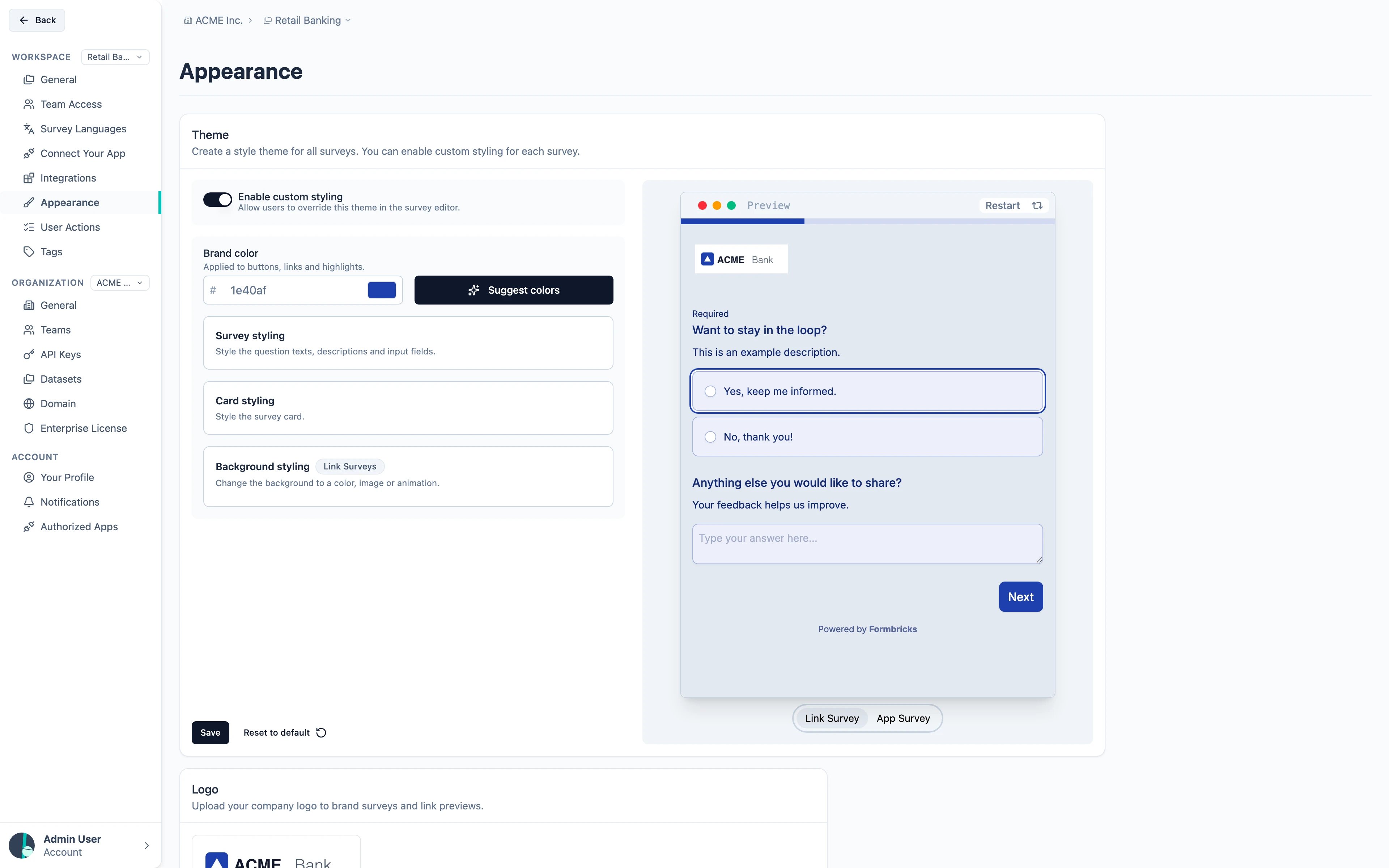
Light And Dark
Select Dark at the top of the styling settings to set the dark palette used when your app asks for dark mode. Empty fields show the derived color as a placeholder; the brand color is the same in light and dark. Sizes, fonts and layout are shared by both. Link surveys always render light, so Background styling (which only applies to link surveys) is unavailable while Dark is selected, and the preview’s Link Survey option is disabled. For a dark link survey, choose a dark background and light text colors in Light; the Cardless card arrangement lets the background fill the page. You can also switch the preview between light and dark with the sun and moon toggle under it. See Dark Mode.Survey styling
The Survey styling section gives you granular control over every text and input element in your survey. Expand the Survey styling panel to find collapsible sub-sections for Headlines & Descriptions, Inputs, Buttons, and Options.Headlines & Descriptions
Fine-tune how question headlines, descriptions, and upper labels appear:Inputs
Control the appearance of text inputs, textareas, and other form fields:Buttons
Customize the submit and navigation buttons:Options
Style the select options in single-select, multi-select, and similar question types:Card Styling
Adjust the look of the survey card container:Progress Bar
When the progress bar is visible (toggle Hide progress bar to control it), you can customize:Background Styling
Customize the survey background with static colors, animations, or images (upload your own or pick from Unsplash).Background styling is only available for Link Surveys.
Add Brand Logo
Customize your survey with your brand’s logo.Brand logos are only visible on Link Survey pages.
- In Settings → Workspace → Appearance, scroll down to Logo.
- Upload your logo. Logos must be 5 MB or less.
- Optionally turn on Add background color — useful for a transparent logo that needs a solid backdrop.
- Choose Save. The logo only takes effect once saved.
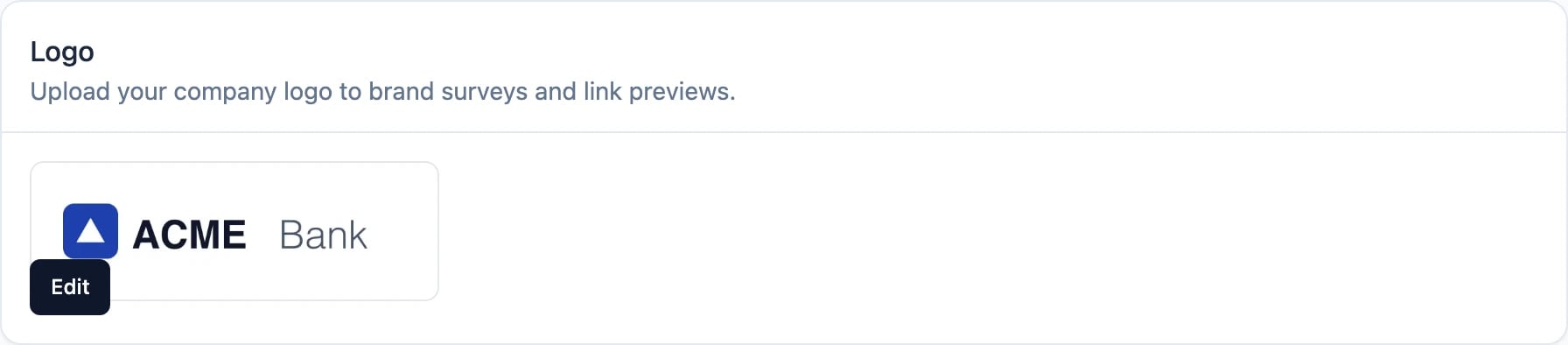
The logo settings apply across all Link Survey pages.
Overwrite Styling Theme
You can allow overwriting the styling theme for individual surveys to create unique styles per survey:
CSS Variables Reference
Under the hood, every styling property maps to a CSS variable prefixed with--fb-. For App & Website Surveys, you can override these directly in your global CSS file (e.g., globals.css) by targeting the #fbjs selector.
See the full CSS Variables Reference in the Custom Styling guide.
To go beyond the theme editor, add Custom CSS for the whole workspace in Appearance, or for a single survey in its Styling tab.