

Important for Self-Hosted Setups:Multi-Domain Setup: If you are using the multi-domain setup, the
appUrl parameter in all SDK configurations should point to your public domain (PUBLIC_URL environment variable). This is the domain where surveys and public-facing content are served, which may be different from your admin interface domain (WEBAPP_URL).Single Domain Setup: If you are using the single domain setup, the appUrl parameter in all SDK configurations should point to your admin domain (WEBAPP_URL environment variable).HTML
All you need to do is add three lines of code to your HTML script, and that’s it!
React.js
Load our JavaScript library with your Workspace ID, and you’re ready to
go!
Next.js
Natively add us to your Next.js app, with support for both App Router and Pages Router setups.
Vue.js
Learn how to use Formbricks’ Vue.js SDK to integrate your surveys into Vue.js applications.
React Native
Easily integrate our SDK with your React Native app for seamless survey
support.
Swift
Use our iOS SDK to quickly integrate surveys into your iOS
applications.
Android
Integrate surveys into your Android applications using our native Kotlin
SDK.
Flutter
Add surveys to your Flutter app on iOS and Android with our Dart SDK.
Prerequisites
Before getting started, make sure you have:- A running web application with user authentication in your chosen framework.
-
A Formbricks account with your Workspace ID and SDK Connection URL (the
appUrlin every snippet below), available under Settings → Workspace → Web & Mobile SDK, on the Workspace details card.
HTML
All you need to do is copy a<script> tag to your HTML head:
Required Customizations
Now, visit the Validate Your Setup section to verify your setup!
React.js
Install the Formbricks SDK using one of the following package managers:npm, pnpm, or yarn.
Note that zod is required as a peer dependency and must also be installed in your app.
npm
pnpm
yarn
App.js/ts file to initialize Formbricks.
src/App.js
Required Customizations
Now, visit the Validate Your Setup section to verify your setup!
Next.js
Next.js apps use either the App Directory or the Pages Directory. Since the Formbricks SDK runs on the client side, follow these steps based on your setup:-
App Directory: Create a new component in
app/formbricks.tsxand call it inapp/layout.tsx. -
Pages Directory: Initialize Formbricks directly in
_app.tsx.
npm
pnpm
yarn
App directory
app/formbricks.tsx
app/layout.tsx
Pages directory
src/pages/_app.tsx
Required Customizations
First, initialize the Formbricks SDK to run only on the client side. To track page changes, register the route change event with the Next.js router.
Next, go to the Validate Your Setup section to verify your setup!
Vue.js
Integrating the Formbricks SDK with Vue.js is easy. We’ll ensure the SDK is only loaded and used on the client side, as it’s not meant for server-side use.npm
pnpm
yarn
src/formbricks.js
src/main.js
Required Customizations
Now, visit the Validate Your Setup section to verify your setup!
React Native
Interaction-based Segments: targeting users by whether they have seen, started or completed a survey requires @formbricks/react-native 3.1.0 or higher. See Survey Display Logic.
npm
pnpm
yarn
App.js/App.tsx file to initialize Formbricks:
src/App.js
Required Customizations
Drive the SDK through its named exports from anywhere:
setEmbeddedData attaches context to whichever survey is displayed next, without tying it to a trigger.
See Mobile SDKs for the full Embedded Data reference.Swift
Minimum iOS Version: The Formbricks iOS SDK requires iOS 16.4 or higher.
Interaction-based Segments: targeting users by whether they have seen, started or completed a survey requires FormbricksSDK 2.1.0 or higher. See Survey Display Logic.
- In Xcode choose File → Add Packages…
-
Enter your repo URL (e.g.
https://github.com/formbricks/ios.git) -
Choose version rule (e.g. “Up to Next Major” starting at
2.1.0). -
Import in your code:
-
Add the following to your
Podfile: -
Run
pod installin your app directory -
Import in your code:
setEmbeddedData attaches context to whichever survey is displayed next, without tying it to a trigger.
See Mobile SDKs for the value types and for the nil caveat that is
specific to Swift.Required Customizations
Now, visit the Validate Your Setup section to verify your setup!
Android
Minimum Android Version: The Formbricks Android SDK requires Android 10 (API level 29) or higher.
Interaction-based Segments: targeting users by whether they have seen, started or completed a survey requires com.formbricks:android 2.1.0 or higher. See Survey Display Logic.
Installation
Add the Maven Central repository and the Formbricks SDK dependency to your application’sbuild.gradle.kts:
Usage
setEmbeddedData attaches context to whichever survey is displayed next, without tying it to a trigger.
See Mobile SDKs for the value types and clearing semantics.Required Customizations
Flutter
Platform Support: The Formbricks Flutter SDK targets iOS and Android only. Flutter Web and desktop are not supported.
Interaction-based Segments: targeting users by whether they have seen, started or completed a survey requires formbricks 1.1.0 or higher. See Survey Display Logic.
Usage
Mount theFormbricks widget once, high in your widget tree (e.g. alongside your app’s home). It initializes the SDK on mount and renders any triggered survey in a modal overlay:
Prefer to initialize before any UI mounts? Call
Formbricks.setup(appUrl: ..., workspaceId: ...) directly — the widget still needs to be in the tree to render surveys, but it won’t re-run setup (setup is idempotent). setup, track, setUserId, setAttribute, setAttributes, setLanguage and logout are sequenced through an internal command queue, so they run in submission order and return a Future<Result<void, FormbricksError>>. setEmbeddedData and clearEmbeddedData are the exceptions: they are synchronous and return void, so a context push at launch is not dropped while setup is still running.Public API
Attribute keys must be lowercase letters, numbers, and underscores, and start with a letter.
DateTime values are sent as UTC ISO-8601 strings; numbers stay numbers. Identity and attribute changes are debounced (~500 ms) and coalesced into a single backend request.
Required Customizations
Surveys render by loading
{appUrl}/js/surveys.umd.cjs in a WebView, so that URL must be reachable from the device. Formbricks Cloud and standard self-hosted instances serve this script automatically. Config is persisted with shared_preferences and is not encrypted at rest — avoid putting sensitive PII in attribute values.Validate your setup
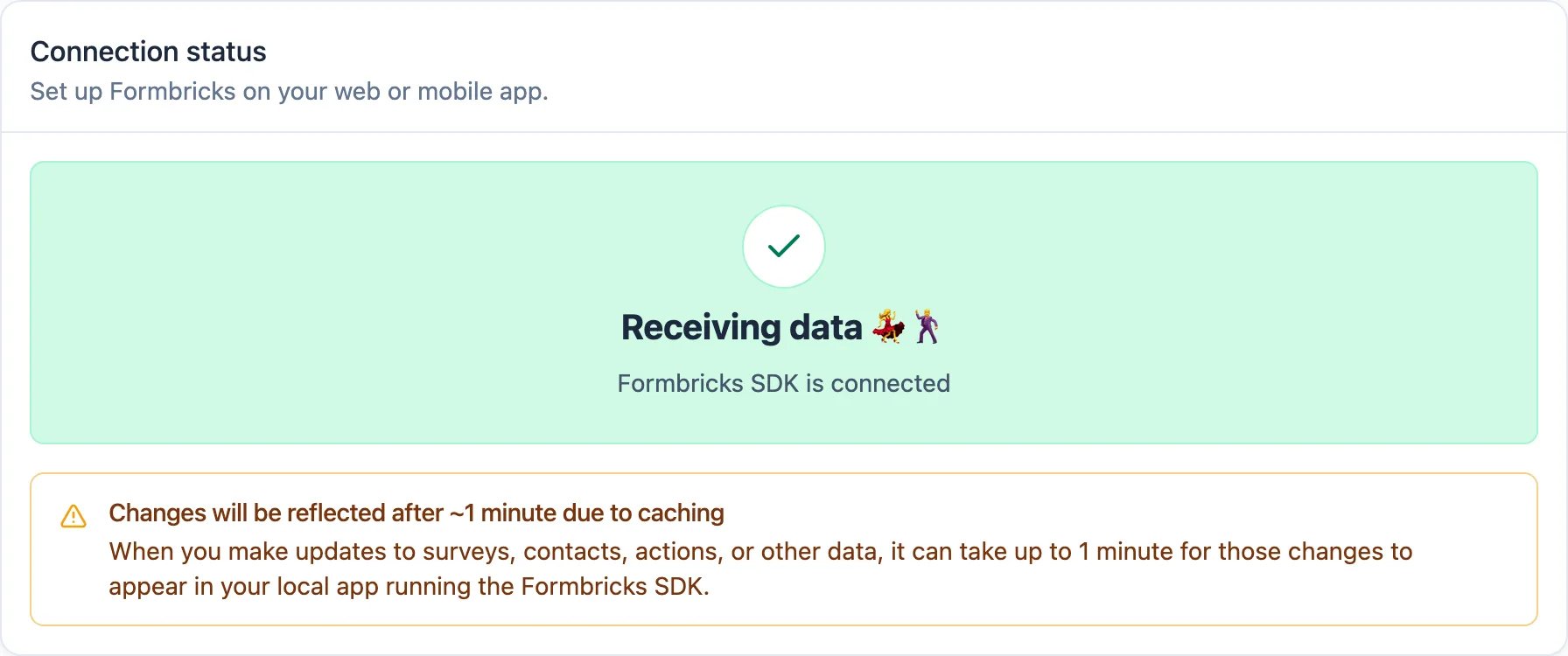
Once you’ve completed the steps above, load your app so the SDK sends its first request, then open the Connection status card under Settings → Workspace → Web & Mobile SDK and hit Re-check. The card reads the status on load and on Re-check only, so it will not turn green while you watch it. It should change from this: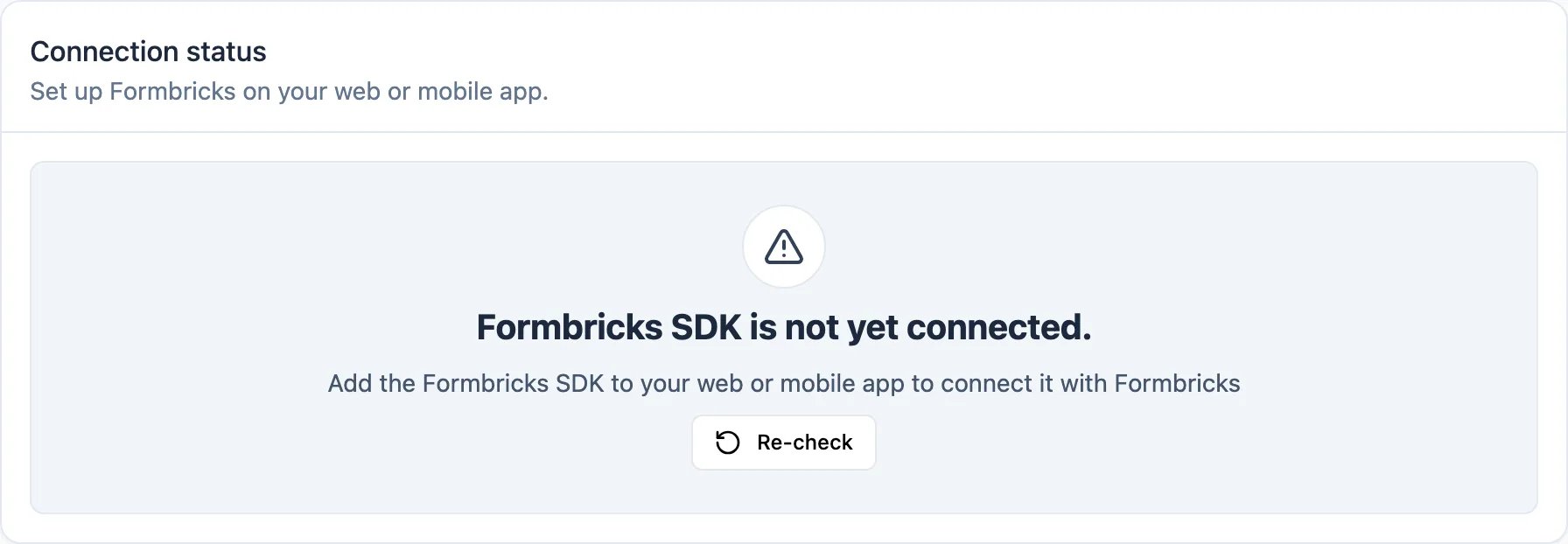
Dark Mode
Surveys render light unless your app asks for something else. Tell the SDK which appearance to use, either when you set it up or whenever your app’s own theme changes:Setting the survey appearance
Dark mode needs the script-tag SDK for now. The
@formbricks/js npm package does not yet pass
appearance through setup or expose setAppearance, so with it surveys stay light."system"follows the visitor’s browser setting and updates if it changes. If your app has its own light/dark toggle, pass"light"or"dark"from that toggle instead, because the SDK cannot see your app’s theme.- A survey that is already open switches in place. Answers, progress and focus are kept.
setAppearancecan be called beforesetup. The value is kept for the page session and surviveslogout.- The dark colors are derived from your brand color, which is the same in light and dark. Override any other color in Look & Feel (or a survey’s Styling tab) with the Light / Dark toggle at the top of the styling settings.
- Link surveys always render light: they do not follow dark mode. For a dark link survey, design it dark in the light theme: pick a dark color in Background styling, set light text, input and button colors, and use the Cardless card arrangement so the background fills the page.
setAppearanceneeds a recent SDK. If you support older SDK versions, checktypeof formbricks.setAppearance === "function"before calling it.
"system" is resolved on each platform, and what respondents see while versions are mixed.
Content Security Policy
If your app serves a strictContent-Security-Policy header, the browser can block the Formbricks widget before anything renders. Three directives are involved.
This applies to the JavaScript SDK only. Link surveys are served by Formbricks itself, and the mobile
SDKs render surveys in a WebView, so neither is affected by your app’s CSP.
Allowing scripts and API calls
The SDK loads two scripts from your Formbricks instance:formbricks.umd.cjs (the SDK) and surveys.umd.cjs (the survey renderer, fetched the first time a survey is shown). It then talks to the client API on the same host. Both directives need to point at your appUrl:
'strict-dynamic' works instead of a host allowlist, but only if the script that loads the SDK carries a matching nonce or hash of its own — both bundles are inserted programmatically, so they inherit trust from that root. Without a trusted root, 'strict-dynamic' blocks the SDK before it ever reaches surveys.umd.cjs.
Passing a nonce for survey styles
Surveys are styled by two<style> elements the renderer appends to <head>: formbricks__css for the base stylesheet and formbricks__css__custom for your workspace and survey theme. style-src treats an injected <style> element as inline CSS, so a policy without 'unsafe-inline' blocks both and surveys appear unstyled.
Instead of loosening the policy, hand the SDK the nonce your server already generated for the request. setNonce stamps it onto both style elements, which satisfies style-src 'nonce-...':
Setting the CSP nonce
style-src-elem is what the browser consults for <style> elements whenever it is present, and it does not fall back to style-src — so a nonce listed only under style-src leaves surveys unstyled on any policy that sets both. If your policy has no style-src-elem, the first line alone is enough.
Pass the raw value only — not the nonce- prefix that appears in the header. Passing undefined stops the SDK nonce-ing style elements it creates from then on; elements already in the page keep the attribute they were given.
Note: call
setNonce before setup. The SDK stores the nonce and applies it when the survey
renderer loads, so setting it early covers every survey in the page’s lifetime. A nonce must be
regenerated per response and match the one in the header, so read it from wherever your framework
exposes it rather than hardcoding a value.Debugging Formbricks Integration
The debug mode is only available in the JavaScript SDK and works exclusively in the browser. It is not
supported in mobile SDKs such as React Native, iOS, Android, or Flutter.
Activate Debug Mode
To enable debug mode, add?formbricksDebug=true to your app’s URL (e.g., https://example.com?formbricksDebug=true).
View Debug Logs
- Open your browser’s developer tools:
-
Google Chrome/Edge: Press
F12or right-click and select “Inspect” > “Console”. -
Firefox: Press
F12or right-click and select “Inspect Element” > “Console”. -
Safari: Press
Option + Command + Cto open developer tools and go to the “Console” tab.
Common Use Cases
Debug mode is helpful for:- Verifying Formbricks initialization.
- Identifying issues with survey triggers.
- Troubleshooting unexpected behavior.
Debug Log Messages
Logs provide insights into:- API calls and responses.
- Survey triggers and form interactions.
- Initialization errors.