

Prerequisites
- Google Tag Manager installed on your website
- Your Formbricks Workspace ID (Settings → Workspace → Web & Mobile SDK, on the Workspace details card)
- Your App URL:
https://app.formbricks.com(or your self-hosted URL)
Use PUBLIC_URL for multi-domain setups, WEBAPP_URL for single-domain setups.
Basic Setup
1
Create a Custom HTML tag in GTM
- Create a new tag with preferred name e.g. “Formbricks Intercept Surveys”
- Tag Type: Custom HTML
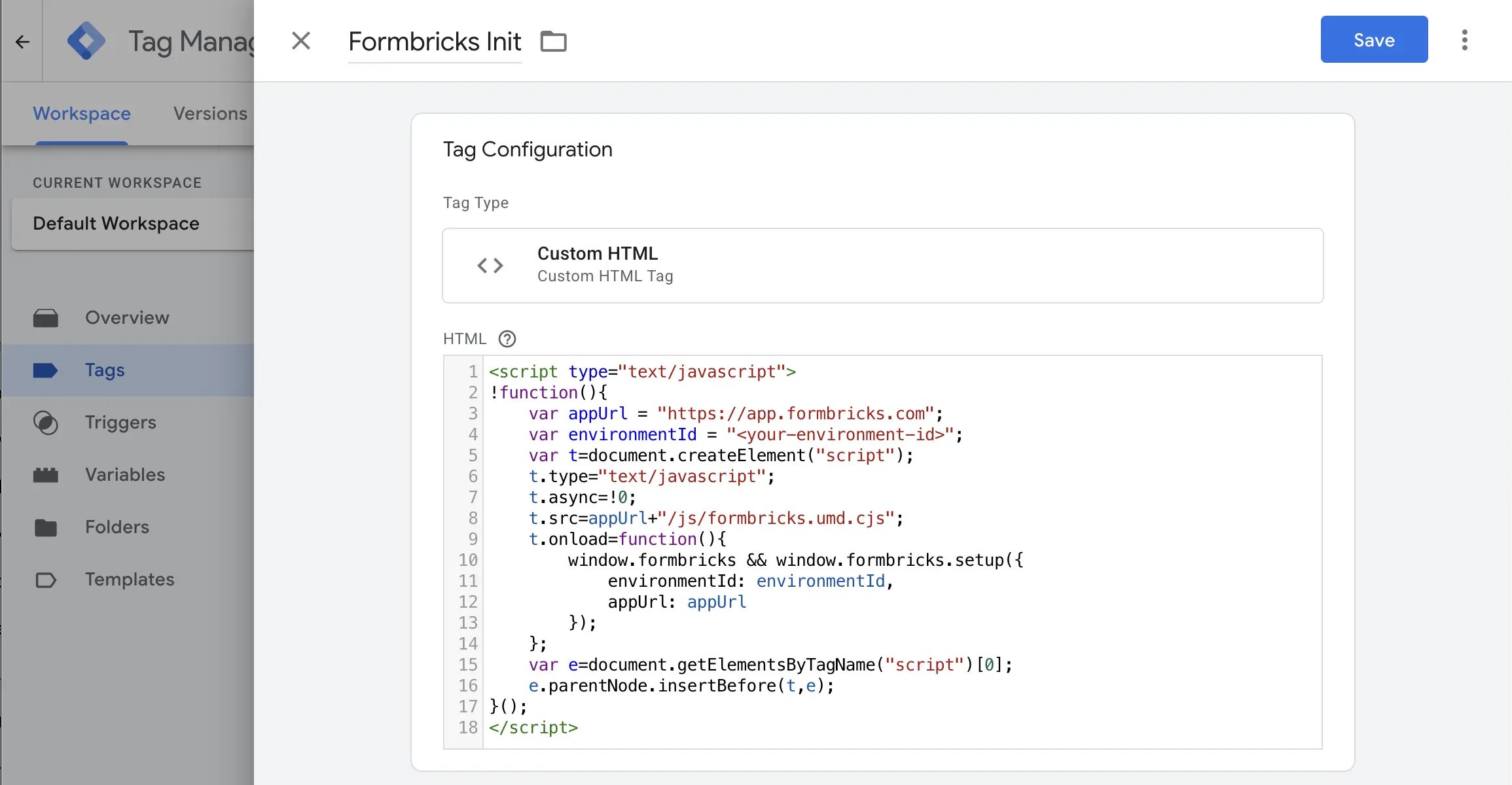
- Paste the code from Step 2. Make sure to replace
<your-workspace-id>and if you self-host, replace<your-app-url>
2
Add initialization script
3
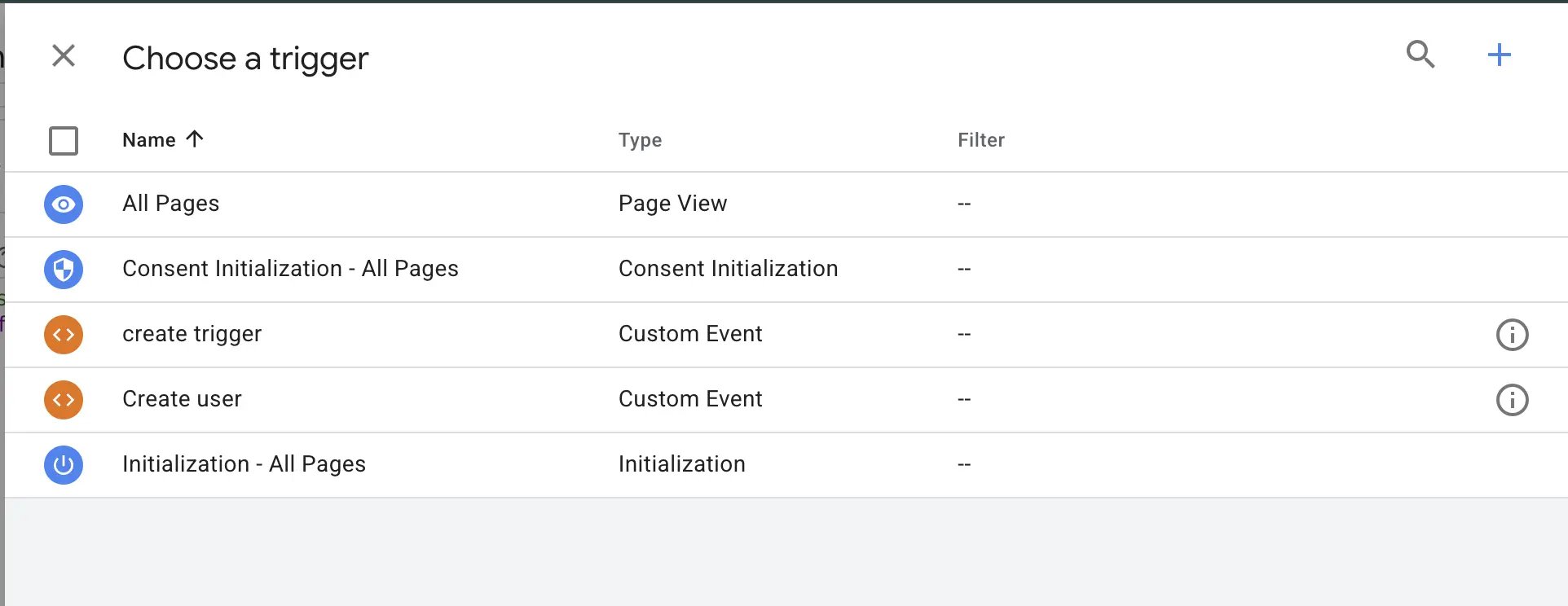
Set trigger
- Trigger: All Pages - Page View (default) or use case specific event
- Save and publish
4
Test
- Use GTM Preview mode
- Verify the tag fires
- Add
?formbricksDebug=trueto the URL to see test logs in browser console (see Debugging Mode for more details)
Formbricks Events in the Data Layer
The SDK pushes its own lifecycle events towindow.dataLayer, so you can trigger GTM tags off what Formbricks actually did rather than guessing at timing.
formbricks_survey_shown reports what the respondent saw, so every appearance is paired with a formbricks_survey_closed. The Displays number in your Formbricks dashboard counts what reached the server instead, so it can be lower if the network dropped — worth knowing before you reconcile a GTM-side count against the dashboard.
The push happens through the standard window.dataLayer = window.dataLayer || [] idiom, so it survives load order: events emitted before GTM loads are still in the array when GTM drains it.
1
Create a Custom Event trigger
- Triggers → New → Trigger Type: Custom Event
- Event name: the event you want, e.g.
formbricks_setup_successful - Save and publish
2
Read the payload with a Data Layer Variable
The payload is nested under a
formbricks key rather than spread flat, so it cannot collide with your
own data layer keys — action in particular is one of the most common keys in an ecommerce data layer.- Variables → New User-defined Variable
- Variable Type: Data Layer Variable
- Data Layer Variable Name:
formbricks.surveyId(orformbricks.responseId,formbricks.finished,formbricks.action,formbricks.workspaceId) - Save and publish
Every push carries the full set of keys, with
null for the ones that event does not set. That is
deliberate: GTM merges pushes recursively, so a partial push would let survey A’s responseId still resolve
under survey B’s formbricks_survey_shown. Check for null rather than assuming a key is absent — and note
that responseId is optional on formbricks_response_submitted itself, so it reads null there too
whenever the stored id is not available. A tag that needs the id has to tolerate that.User Identification
Identify users to enable targeting and attributes. Learn more about user identification.User identification is part of the Formbricks Enterprise Edition.
1
Create GTM variables
- Go to Variables on GTM dashboard
- Create new User-defined variable
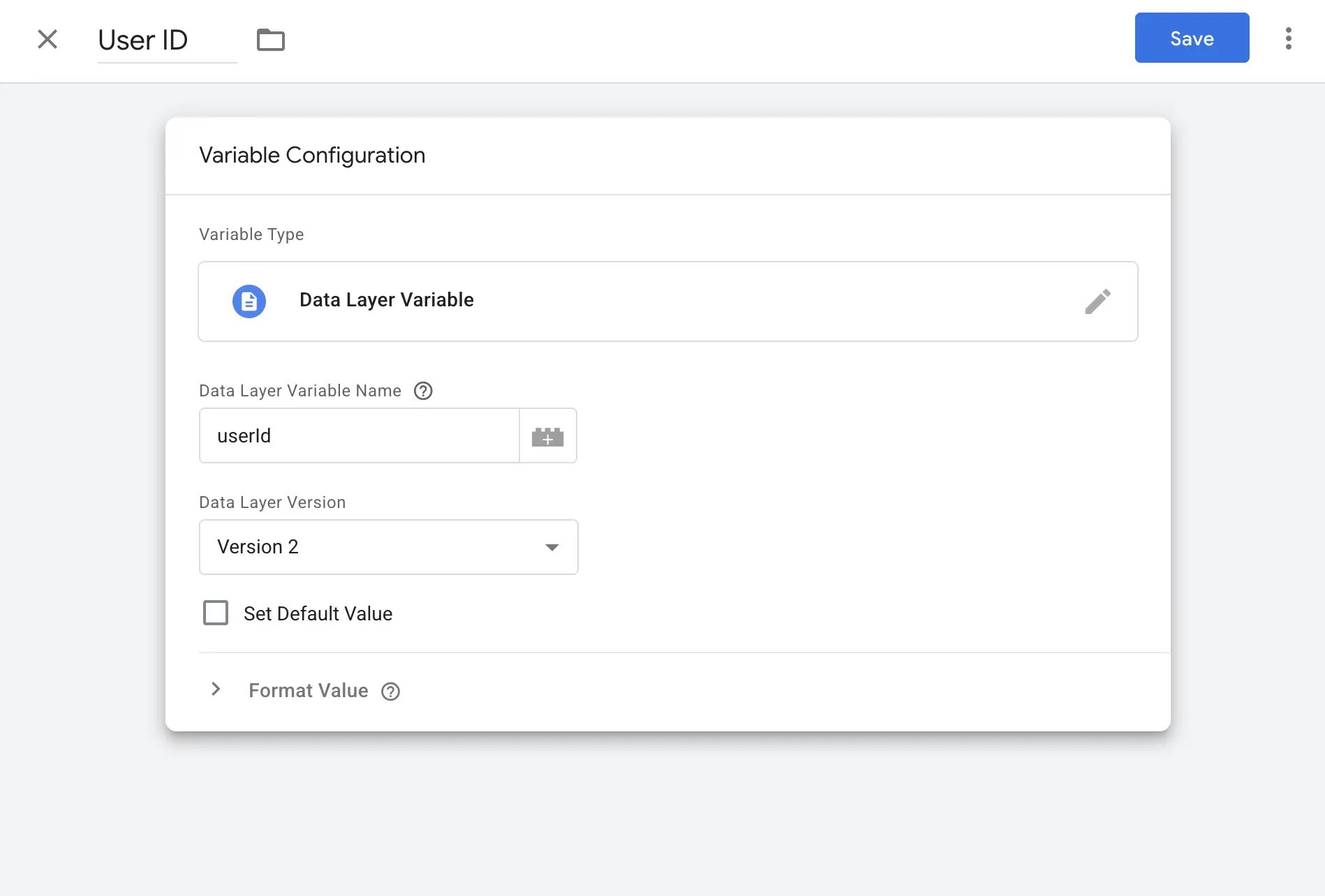
- Name it (e.g., “User ID”)
- Variable Type: Data Layer Variable
- Data Layer Variable: “userId”
- Save and publish
-
Repeat for attributes you want to track e.g. “userEmail” and “userPlan” (optional)
2
Create identification tag
New Custom HTML tag named “Formbricks - User”:
3
Set triggers and push data
Attach two Custom Event triggers to the “Formbricks - User” tag, so it runs whichever of the two
things happens last:
-
user-login— your own event, for a user who signs in after Formbricks is already running. -
formbricks_setup_successful— the SDK’s readiness event, for a user who was already signed in when the page loaded. GTM’s data layer is a merged model, so{{User ID}}still resolves to what your earlieruser-loginpush set.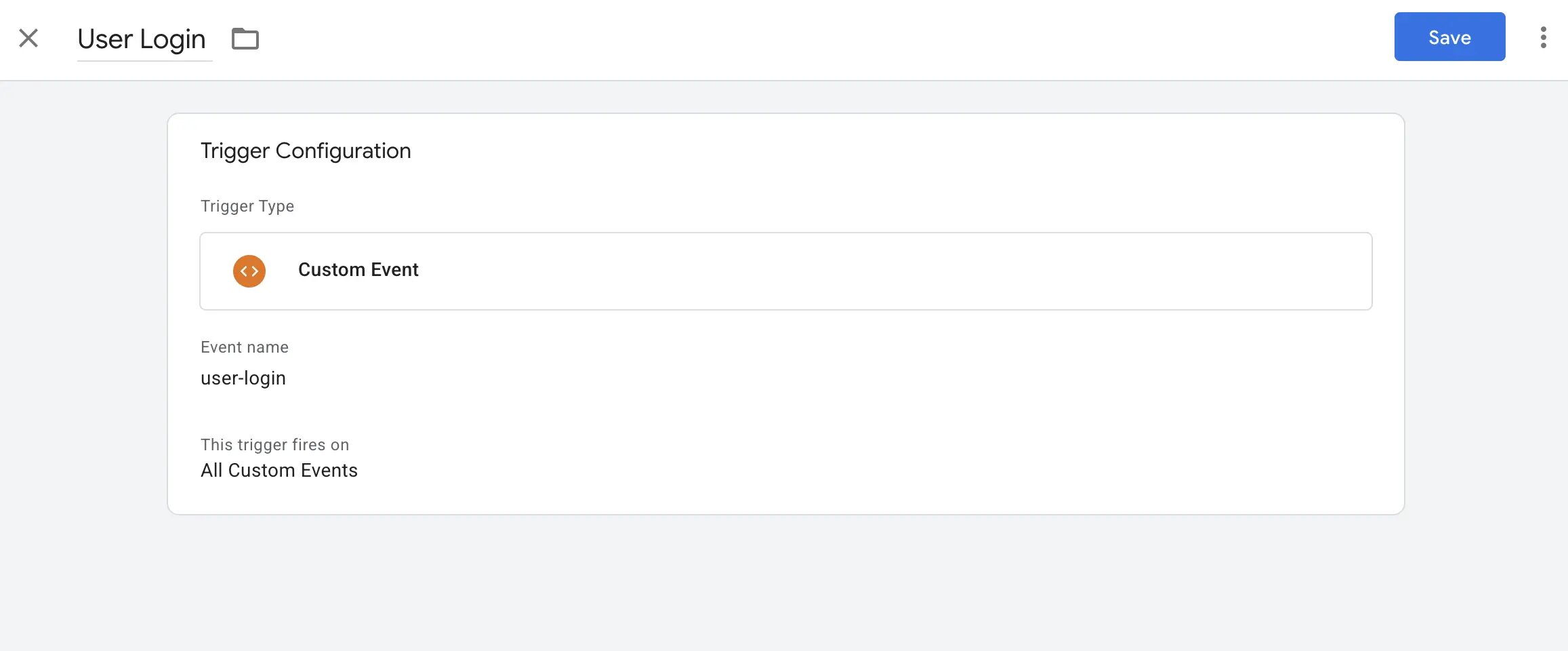
- In your code, push data with the same event name:
Both guards in the tag are cheap and both matter:
window.formbricks may not exist yet on the user-login
path, and {{User ID}} may not be set yet on the formbricks_setup_successful path. Whichever fires
second does the work.Track Custom Events
1
Create code action in Formbricks
Add code action via Formbricks UI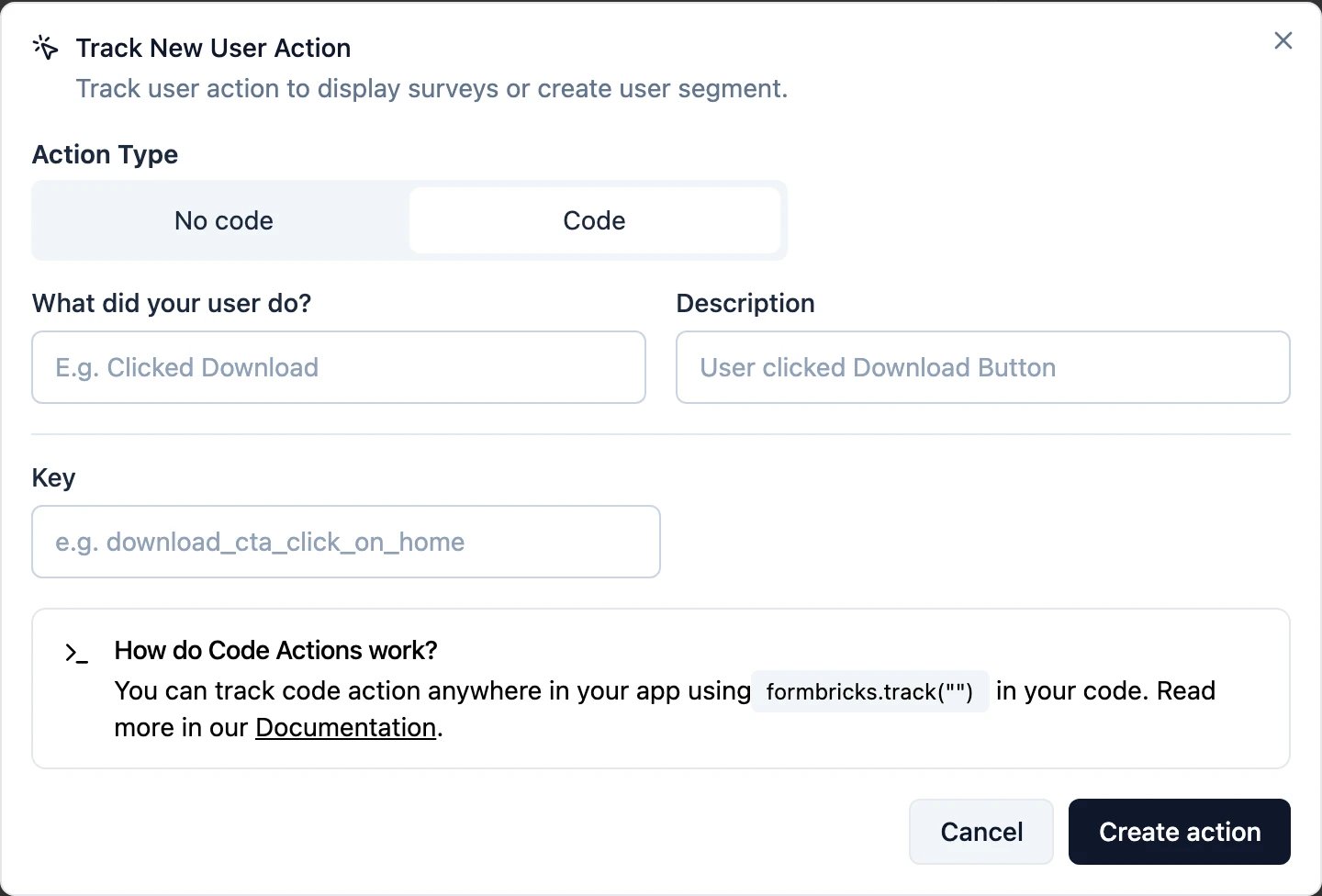
2
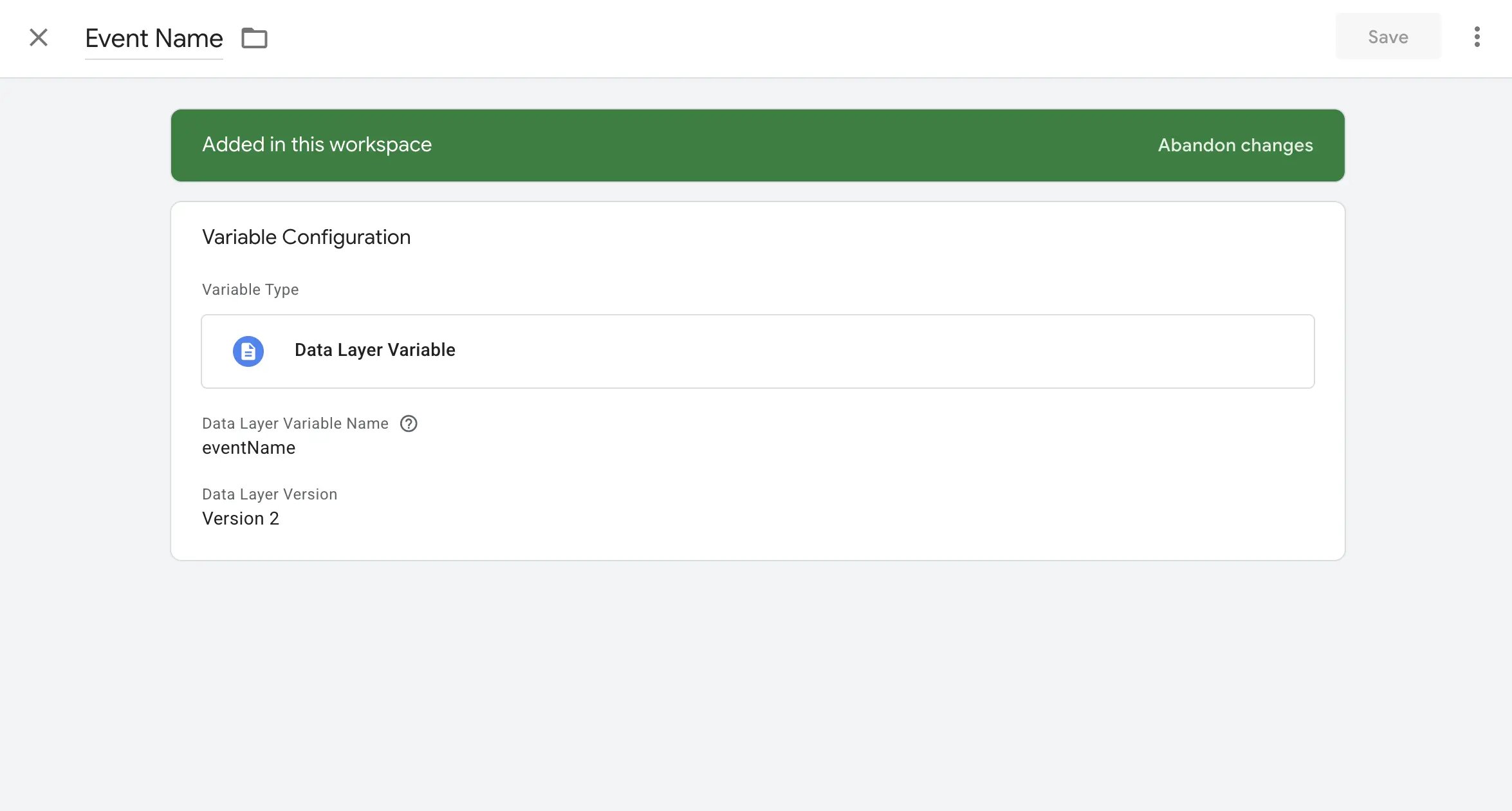
Create GTM variable for Event Name
- Go to Variables on GTM dashboard
- Create new User-defined variable
- Name it “Event Name”
- Variable Type: Data Layer Variable
- Data Layer Variable: “eventName”
-
Save and publish
3
Create event tracking tag
New Custom HTML tag:
4
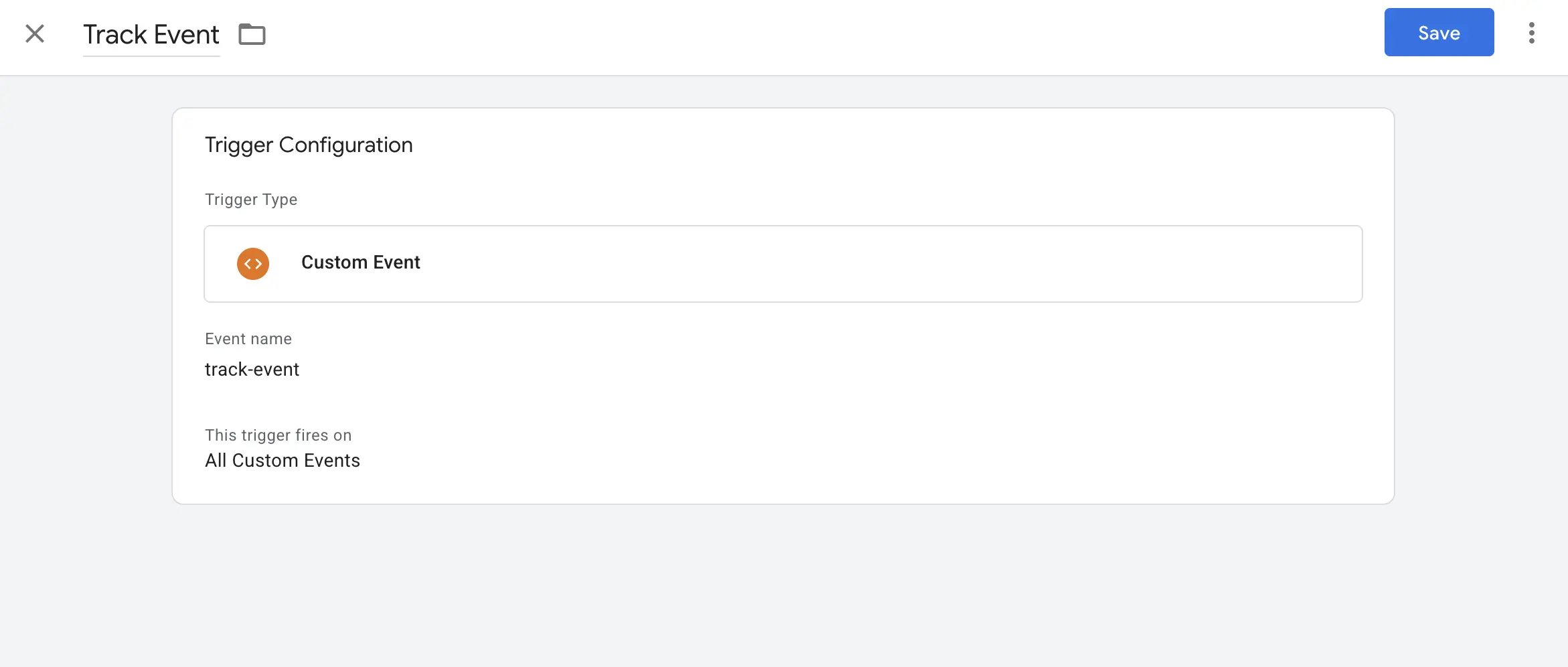
Create custom trigger
- Create a custom event trigger in GTM
- Trigger Type: Custom Event
-
Event name:
eventNameor name that matches with your event in code. - Attach this trigger to your event tracking tag
-
Save and publish
5
Fire events from your site
Set Embedded Data
setEmbeddedData() attaches context to the surveys displayed after it, without tying it to a trigger. A value stays in the bag for the rest of the page load, so it reaches every survey shown from then on until you remove the key. It is the GTM-native way to get a page type, a plan or a campaign onto a response. Read the full reference for the semantics; this is the tag manager wiring.
1
Declare the fields on the survey
In the Formbricks editor, add a Hidden Field for every key you intend to push. A key no survey
declares is dropped and logged, never stored.
2
Create Data Layer Variables for your values
One per key, e.g. a Data Layer Variable reading
pageType, and another reading plan.3
Create the tag
New Custom HTML tag named “Formbricks - Embedded Data”:
4
Trigger it
Attach two triggers: All Pages, and a Custom Event trigger on
formbricks_setup_successful.Both are needed. The SDK script loads asynchronously, so on an ordinary page load the All Pages trigger
can run before window.formbricks exists — the tag returns having set nothing. The readiness trigger
covers that, and All Pages covers the pushes that happen once the SDK is already running. The tag is
safe to fire more than once: each call merges into the bag rather than replacing it.Passing every key unconditionally is the intended idiom here. A variable that resolves to
undefined on
the current page is skipped, so it cannot clear the value another page set. Push null when you
actually want to remove a key.Troubleshooting
Surveys not showing?- Use GTM Preview mode to check tag firing
- Add
?formbricksDebug=trueto your URL - Check browser console for errors
- Wait 1 minute for the Server Cache to refresh
- Verify Data Layer push syntax
- Check GTM variables are reading correct values
- Make sure the tag is also triggered by
formbricks_setup_successful, so it runs whichever of “user logged in” and “SDK ready” happens last
- Confirm
window.formbricksexists before calling track - Match event names exactly with Formbricks action names
- Check timing - Formbricks must be initialized first. Trigger on
formbricks_setup_successfulrather than polling for the global
- Confirm the survey declares a Hidden Field with exactly that name
- Add
?formbricksDebug=trueto the URL: everysetEmbeddedDatacall prints the keys it set and what the bag now holds - Remember the bag is snapshotted when the survey is displayed, so a value pushed after that lands on the next response