

What you will build
A four-question form — name, email, reason for contact, message — embedded on a page of your site.1. Create a link survey
Open Surveys, click New Survey and choose Start from scratch. Then open Settings → Survey Type and make sure Link survey is selected.Check it rather than assuming it. A new survey inherits its type from the workspace channel you picked
during onboarding, so a workspace set up for a website or app creates app surveys by default — only
a workspace with no channel set defaults to link.
2. Add the questions
Four questions, each a standard type documented in its own page:
Turn off the welcome card unless you want an extra click before the form, and edit the ending card to say what happens next: how soon someone will reply is the one thing every person filling in a contact form wants to know.
3. Embed it on your site
Open the survey’s Distribute dialog and choose Website embed.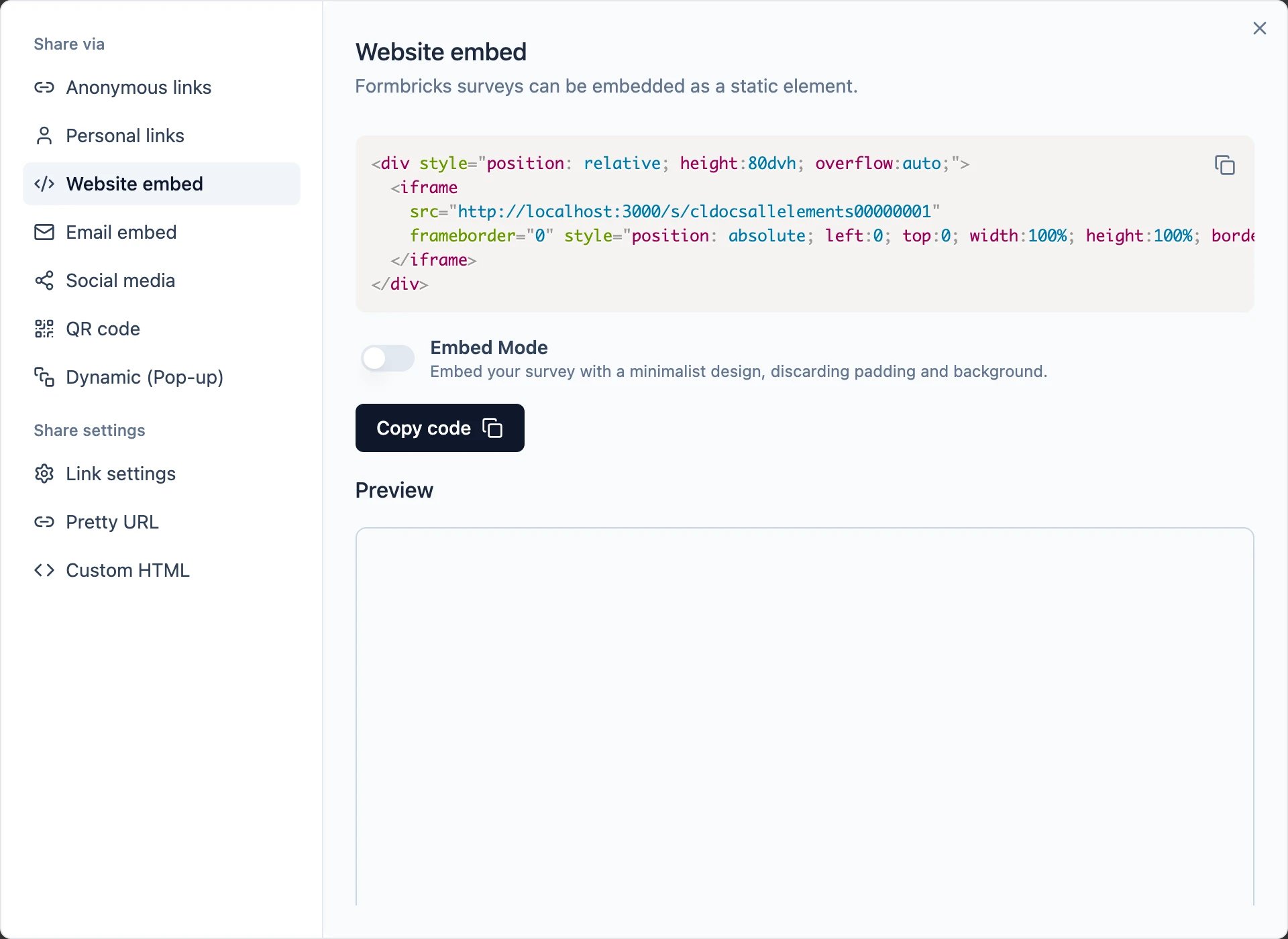
A contact form is a link survey, not an app survey. It does not need the Formbricks widget, and none
of the app survey targeting applies to it.
4. Handle what comes in
Submissions arrive in the survey’s Responses tab. Two things worth setting up before you announce the form:- A Workflow that emails an internal teammate — support, sales, whoever answers — on Response completed, so nothing waits on someone remembering to check the tab. The literal address you put in the Send email action has to belong to a member of this workspace; the workflow will not enable otherwise. To acknowledge the sender instead, point the recipient at the Email question rather than at a literal address.
- Tags, so sales and support enquiries stay separable.