

What are Tags?
Tags are labels that you can apply to individual survey responses. They allow you to:- Categorize responses by topic, sentiment, or any custom criteria
- Filter responses to find specific subsets of data
- Track and organize feedback across multiple surveys
- Simplify analysis and reporting workflows
Add tags to responses
1
Navigate to responses
Go to the Responses tab of your survey.
2
Open a response
Click on any response card to view the full response details.
3
Add a tag
At the bottom of the response card, click the Add Tag button.
4
Select or create a tag
- Select an existing tag from the dropdown list, or
- Type a new tag name and click + Add [tag name] to create a new tag
Remove tags from responses
To remove a tag from a response:- Open the response card
- Click the X icon on the tag you want to remove
Manage tags
Access the tag management page to view and organize all tags in your workspace.1
Open Tag settings
Go to Settings → Workspace → Tags.
2
View all tags
You’ll see a list of all tags in your workspace with their usage count showing how many responses have each tag applied.
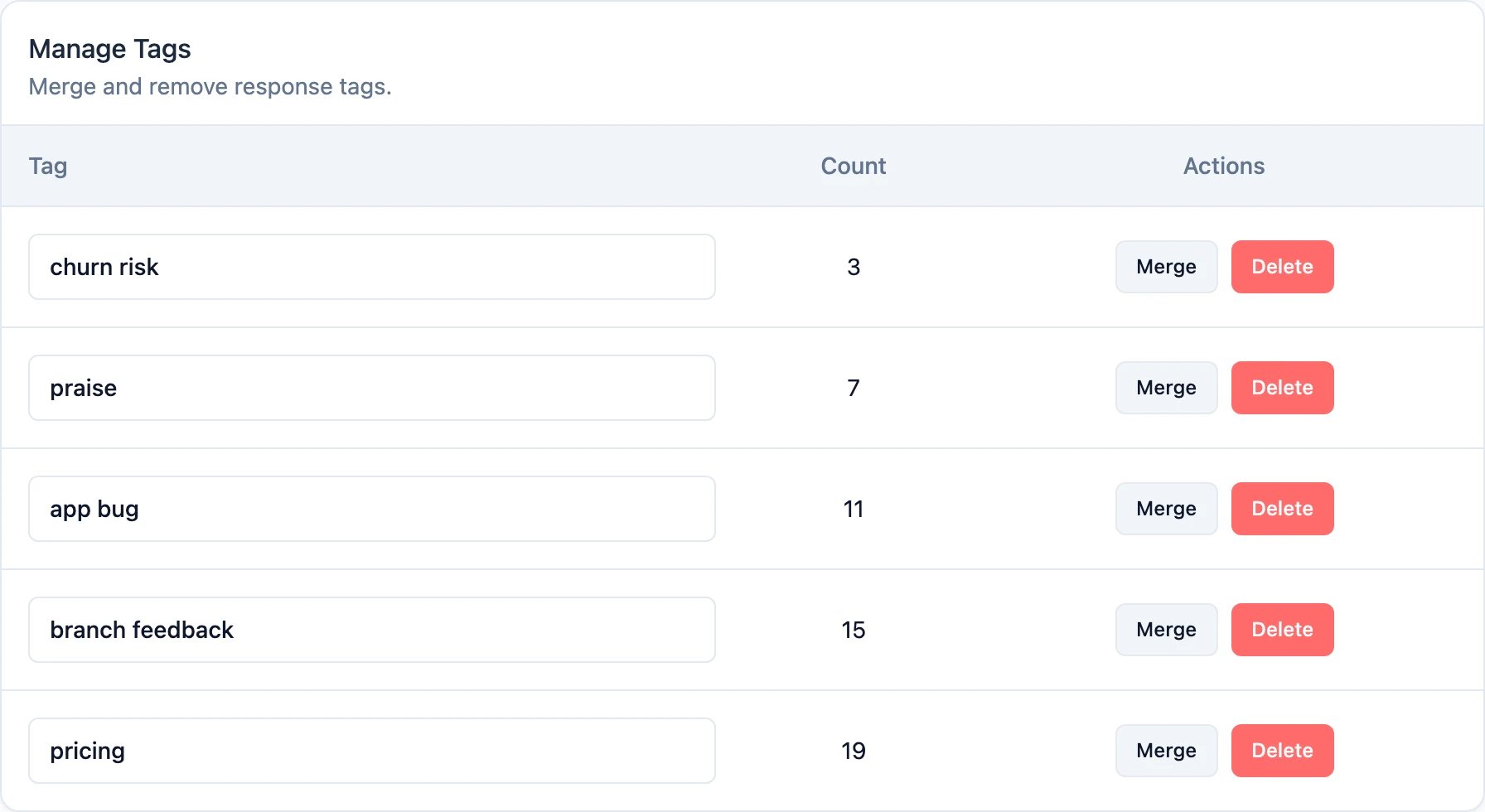
Edit tag names
- In the tag management page, click on the tag name field
- Edit the name directly
- Click outside the field or press Enter to save
Tag names must be unique within a workspace. If you try to use an existing tag name, you’ll receive an error.
Merge tags
Merging tags is useful when you have duplicate or similar tags that you want to consolidate.- In the tag management page, find the tag you want to merge
- Click the Merge into dropdown
- Select the destination tag
- Confirm the merge
Delete tags
- In the tag management page, find the tag you want to delete
- Click the Delete button
- Confirm the deletion
Filter responses by tags
Use tags to filter and find specific responses in your survey analysis.1
Open filters
In the Responses tab, click the Filter button.
2
Select tag filter
Scroll to the Tags section and select a tag from the dropdown.
3
Choose filter type
Choose whether to filter by:
- Applied: Show only responses that have this tag
- Not Applied: Show only responses that don’t have this tag
4
View filtered results
The response list will update to show only responses matching your tag filter.
Use cases
Here are some common ways to use tags:- Sentiment tracking: Tag responses as “positive”, “negative”, or “neutral”
- Follow-up needed: Mark responses that require action with a “follow-up” tag
- Feature requests: Categorize feedback by product area or feature
- Customer segments: Tag responses by customer type, industry, or plan level
- Priority levels: Mark critical issues with “urgent” or “high-priority” tags
- Review status: Track which responses have been reviewed with “reviewed” or “pending” tags
Permissions
Tag management requires appropriate permissions:- View tags: All users with access to the Workspace can view tags on responses
- Add/remove tags on responses: Users with read-write access can apply and remove tags
- Manage tags (create, edit, merge, delete): Users with Workspace team read-write permission or organization owner/manager roles
Need help? Reach out in Github Discussions