

round(@q1 + @q2 * 2) for a score, concat("segment-", @plan) for auto-coding, or daysBetween(@signup_date, now()) for days since a date.
You add and edit Set value steps on the Flow tab.
Adding a step
Under a block on the Flow tab, open Add logic and choose Set value. The new step always runs after the block is submitted, and reads Always on the outline. A new step starts with Expression off, on Assign: choose the calculated field to set and the value it gets, a typed value, an answer or another field. Switch on Expression to work the value out with an expression instead. To set the value only for some respondents, use Add a condition on the step: it then runs only when the condition matches. Removing the condition makes it always run again. With Expression off, a step reads field, operator and value, such as score + 1. For a number field, the operator list shows each operator with its symbol: Add, Subtract, Multiply, Divide and Assign. For a text field it offers Assign and Append, which adds the value to the end of the field’s text; the outline reads it as append “-vip” to segment.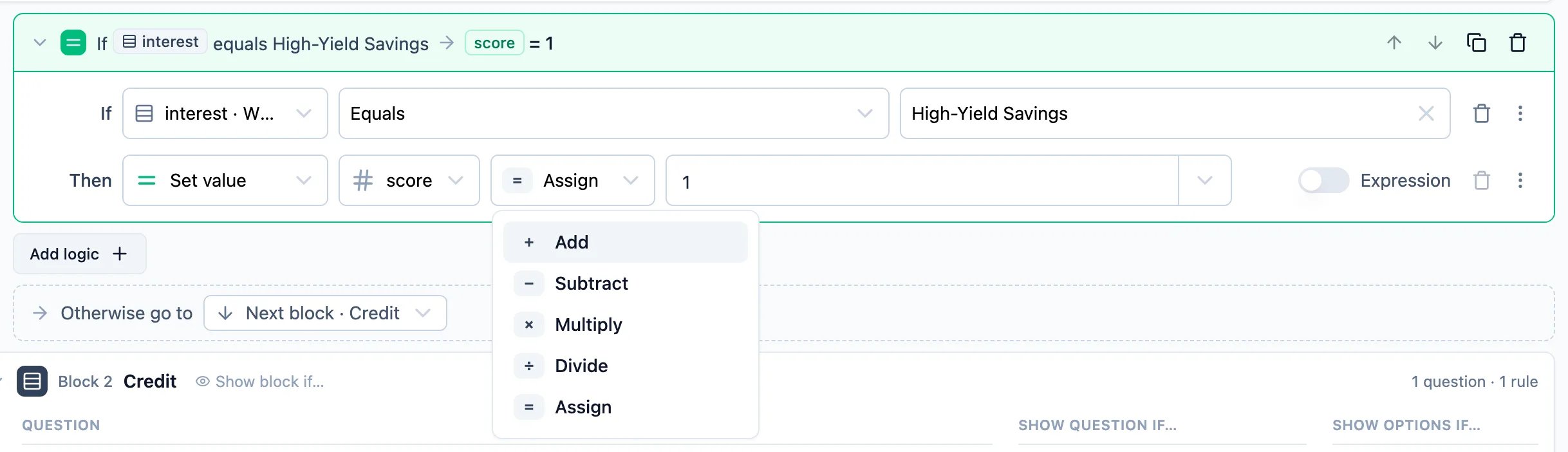
Writing an expression
- Numbers and text. Type numbers as they are (
2,1.5) and put text in quotes ("gold"). A date in quotes, such as"2026-03-01", counts as a date where a date is expected. - Answers and fields. Type
@or use the @ button to insert an answer or a field. Questions are named by their question code, Embedded Data fields by their name, and auto-captured fields such aslanguageby theirs. A name with spaces is written in braces:@{Plan tier}. - Operators.
+,-,*and/work as in a calculator, with*and/first. Use brackets to change the order. - Functions. Click a function chip to insert it, or type its name.
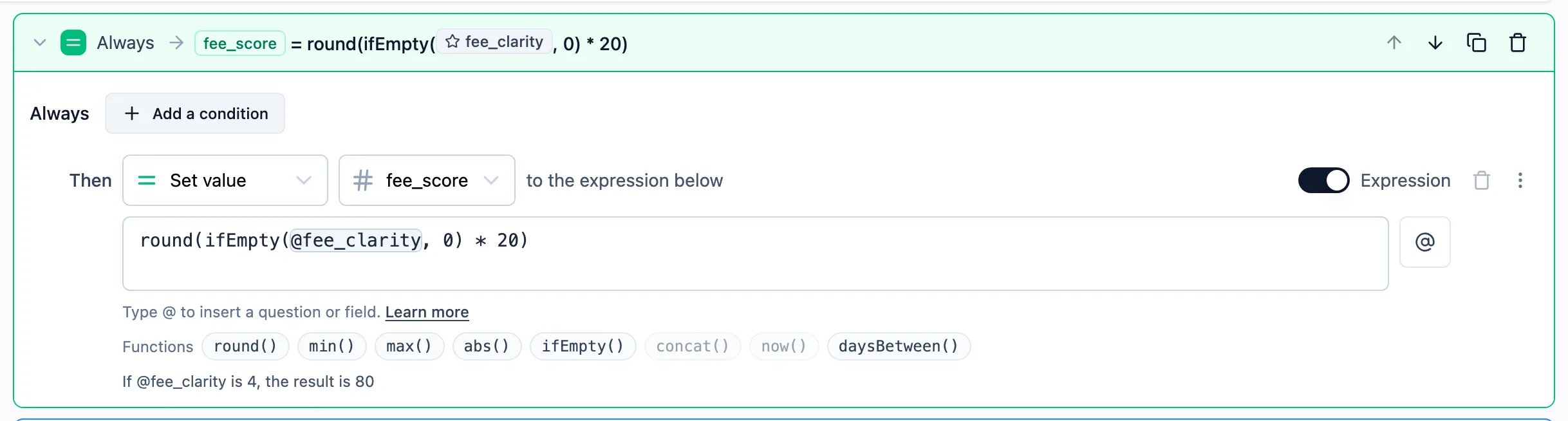
What an answer is in an expression
Other question types can’t be used in an expression. An Embedded Data field has the type you gave it.
Functions
Empty values
- Empty in, empty out. When a question wasn’t answered or a field isn’t set, an expression that uses it is empty. Use
ifEmptyto set a default:ifEmpty(@q1, 0) + 1. - Dividing by zero gives empty.
- A value that isn’t a number counts as empty where a number is needed.
- Setting a field to empty clears it, so the response doesn’t keep an old value.
0.
Dates
A calculated field can be a date. Set it withnow() to record when the respondent reached a step, and use it in daysBetween() to count days, for example the days since a date passed in a URL parameter. Dates are stored as ISO 8601 timestamps in UTC, and they appear in exports like every other field.
With the Expression switch off, a date field is set to a date picked from the calendar, a date question’s answer, or another date field. Anything more, such as now() or a date worked out with a function, needs the expression box. The calendar next to the expression box writes a picked date in quotes, such as "2026-11-05", into the expression.

daysBetween() counts calendar days in UTC, not 24-hour periods: from 23:59 to 00:01 the next day is one day.
Checks when you save
An expression is checked when you save or publish the survey. It is refused, with the exact place marked, when:- it uses text where a number is needed, such as an open text answer in
+ - a function gets the wrong number of values, or a function doesn’t exist
- it names a question or field the survey doesn’t have
- its result doesn’t fit the field: a number field takes a number, a text field text, a date field a date
- it nests deeper than 12 levels or has more than 200 parts
Through the API
The Management API and MCP store the same expression as a tree, which is what the survey runs. A Set value step is acalculate action with operator: "assign" and an expression value:
conditions is an empty and group. The survey evaluates expressions without eval, so they work on websites with a strict Content Security Policy.
While upgrading a self-hosted instance
During a rolling upgrade to 6.2, the pods still on the previous release don’t know three things a survey saved in that window may hold, and reject the survey wherever they validate it until the upgrade ends:- a Set value step with an expression (the
expressionvalue) - a Mark response as Low quality action
- a condition on a calculated date field, even one set only by its default value: the previous release looks the field up in the older
variableslist, which doesn’t list date fields