

Hidden fields are the ingested half of Embedded Data — the values
that arrive from outside the survey. Nothing renames and nothing changes for surveys you already run; see
Hidden Fields & Variables for what is new around them.
How to Add Hidden Fields
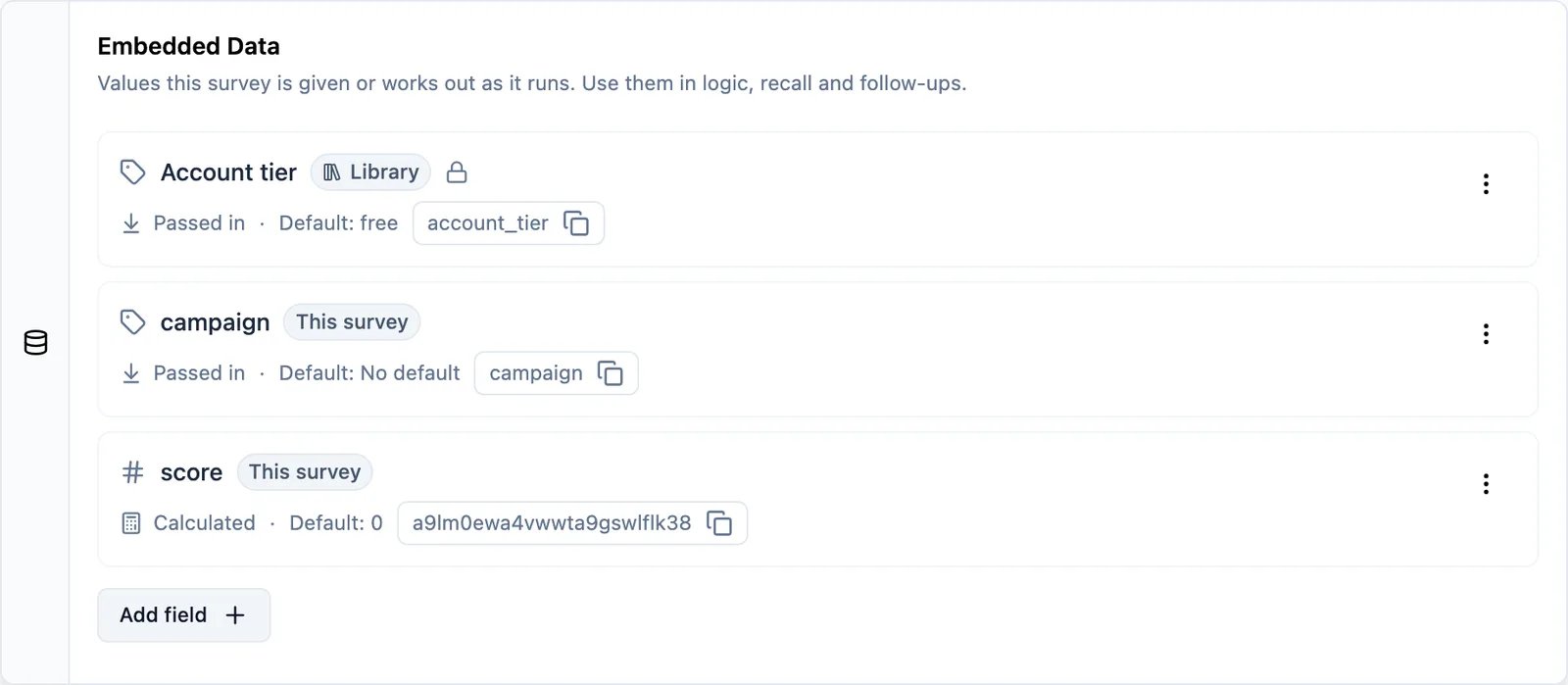
- Open the survey in the editor, stay on the Questions tab and scroll to the bottom. You will find the Embedded Data card.
- Choose Add field, then Create new field. Give it a Name, leave the source on Passed in, and set its type, default or lock. Add as many as you need.
Naming
A passed-in field has a Name and a Key, and only the Key is an identifier. The Name is free text — call the fieldPlan tier if that is what your team calls it — and you can rename it whenever you like. The Key is the URL parameter the value arrives under, and what recall and logic resolve; it fills itself in from the Name and cannot change once the field exists. Your export column header is the Name, so renaming a field renames its column.
Keys follow one rule everywhere — the editor and the management API refuse the same ones:
- A new key must start with a lowercase letter and then contain only lowercase letters, numbers and underscores:
^[a-z][a-z0-9_]*$. Sopage_type, notpageTypeorPage Type. - Reserved names are refused in any casing. These are the link-survey system params and internal ids:
userId,source,suid,end,start,welcomeCard,hidden,verifiedEmail,multiLanguage,embed,verify,suToken,lang,preview,startAt,skipPrefilled,offlineSupport. A field named exactly like one of them is never filled from a survey URL, whatever the casing of the parameter: that parameter belongs to the survey link. An older survey that declares a case variant such asSourcekeeps being filled by that exact spelling (?Source=), never by the reserved one (?source=); the mismatch logs a browser console warning naming the spelling that fills the field. - Auto-captured field names are refused too: every survey can already read those by name without declaring them, and a second field under the same name would be ambiguous in recall and logic. The full list:
source,url,country,action,browser,os,deviceType,ipAddress,finished,language,locale,responseId,surveyId,durationSeconds,startedAt,finishedAt,pagePath,pageReferrer,utmSource,utmMedium,utmCampaign,utmTerm,utmContent,screenWidth,screenHeight,viewportWidth,viewportHeight,timezone. - A passed-in and a calculated field may not answer to the same address, in any casing, for the same reason: recall and logic resolve one namespace. Adding a calculated field
planto a survey whose passed-in field is keyedplan(or the reverse) is refused.
Addresses a survey already declares keep working: they load, collect values and can be re-saved
unchanged — only adding such a name to a new field is refused. The same goes for a passed-in and a
calculated field that already share one; the card marks those rows rather than blocking the save. Deleting a grandfathered field spends the reprieve: once it is gone from the saved
survey, the name can no longer be re-added. One consequence: re-creating a survey from an exported document
fails with a 400 when the export declares a refused name. Rename that field in the payload before importing.
Set Hidden Field via URL
Single Hidden Field:Set Hidden Fields via SDK
Attach the values once and every survey displayed afterwards picks them up, until you remove the key or the page reloads:setEmbeddedData for merge and clearing semantics, and
Mobile SDKs for the mobile call syntax.
The older per-trigger form still works, and an explicit value there still wins over an ambient one:
View Hidden Fields in Responses
These hidden fields will now be visible in the responses tab just like other fields in the Summary as well as the Response Cards, and you can use them to filter and analyze your responses.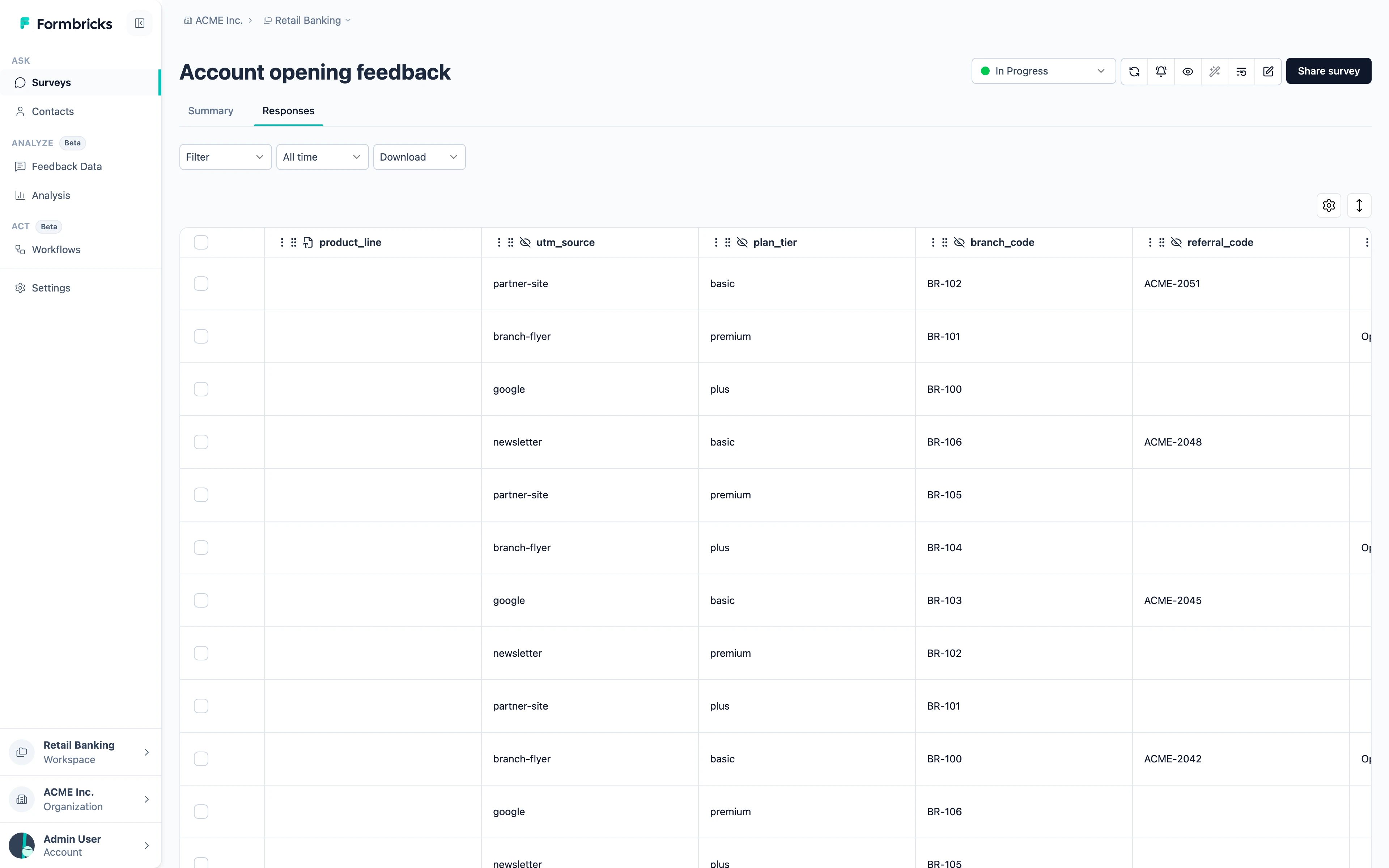
Use Cases
- Tracking Source: You can add a hidden field to track the source of the survey. For a detailed guide on Source Tracking, check out the Source Tracking guide.
- User Metadata: You can add hidden fields to capture user metadata such as user ID, email, or any other user-specific information.
- Survey Metadata: You can add hidden fields to capture other metadata, e.g. the screen from which the survey was filled, or any other app specific information.