

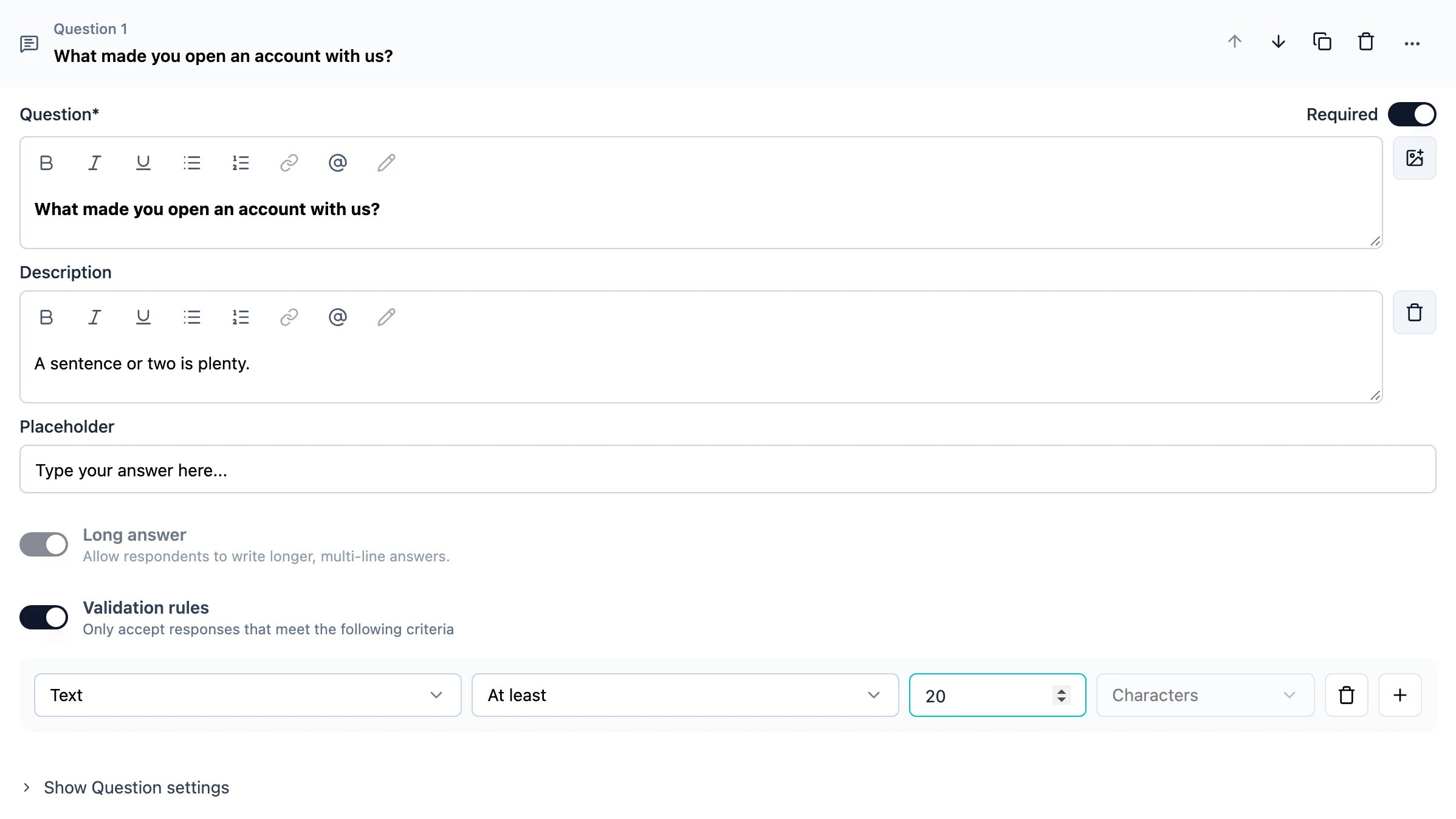
How Validation Rules Work
Validation rules are evaluated when a respondent submits their answer. If the answer doesn’t meet the validation criteria, an error message is displayed and the respondent must correct their input before proceeding. You can combine multiple validation rules using All are true or Any is true logic:- All are true: All rules must pass for the response to be valid
- Any is true: At least one rule must pass for the response to be valid
Available Validation Rules by Question Type
Free Text Questions
Free text questions support different validation rules based on the input type:Text Input Type
Email Input Type
Email input automatically validates email format. Additional rules available:- At least, At most (characters)
- Matches Regex Pattern, Is, Is not
- Contains, Does not contain
URL Input Type
URL input automatically validates URL format. Additional rules available:- At least, At most (characters)
- Matches Regex Pattern, Is, Is not
- Contains, Does not contain
Phone Input Type
Phone input automatically validates phone number format. Additional rules available:- At least, At most (characters)
- Matches Regex Pattern, Is, Is not
- Contains, Does not contain
Number Input Type
Multiple Choice (Multi-Select) Questions
Picture Selection Questions
Date Questions
Each date rule has a Date mode that decides how its bounds are set:
- Specific date: a fixed calendar date in YYYY-MM-DD format (e.g., 2025-01-15). The bound itself is not accepted, so “Is later than 2025-01-15” first accepts 2025-01-16.
- Relative to submission: a number of days before or after the day the response is submitted, counted in calendar days or working days (Monday to Friday). The bound day itself is accepted, so “3 working days before submission” on a Tuesday accepts the previous Thursday. Rolling windows such as “no earlier than 3 days ago” stay correct without anyone editing the survey.
For Is later than, Is earlier than and Is between rules combined with All are true, the date picker only offers the dates the rules allow. Working days change how the offset is counted, not which days can be picked: a weekend inside the window stays selectable.
Matrix Questions
Ranking Questions
File Upload Questions
File size limits are configured separately in the question settings using the “Maximum file size” option.
Address Questions
Each address field (Address Line 1, Address Line 2, City, State, ZIP, Country) can have its own validation rules:- At least, At most (characters)
- Matches Regex Pattern
- Is, Is not
- Contains, Does not contain
Contact Info Questions
Each contact field can have specific validation rules: First Name, Last Name, Company:- At least, At most (characters)
- Matches Regex Pattern, Is, Is not
- Contains, Does not contain
Adding Validation Rules
1
Open the Question Settings
Click on the question you want to validate to open its settings panel.
2
Navigate to Validation rules
Find the Validation rules switch in the question’s settings and turn it on. The first rule appears with it.
3
Add another rule
The
+ at the end of a rule row adds one below it; the bin removes one.4
Configure the Rule
Select the rule type from the dropdown and enter the required value (if applicable).
5
Set Logic (Optional)
If you have multiple rules, choose whether they should be combined with “All are true” or “Any is true” logic.
6
Save Your Survey
Click “Save” to apply the validation rules to your survey.
Error Messages
Formbricks automatically generates user-friendly error messages based on your validation rules. Error messages are displayed below the input field when validation fails. Example error messages:- “Must be at least 10 characters”
- “Must be a valid email address”
- “Please select at least 2 options”
- “Date must be after 2025-01-01”
Multi-Language Support
Validation rules work with multi-language surveys. Error messages are automatically displayed in the respondent’s selected language.Combining Multiple Rules
When using multiple validation rules: All are true: Use when all conditions must be met.- Example: Text must be at least 10 characters AND contain “@email.com”
- Example: Date is earlier than 2025-01-01 OR is later than 2025-12-31