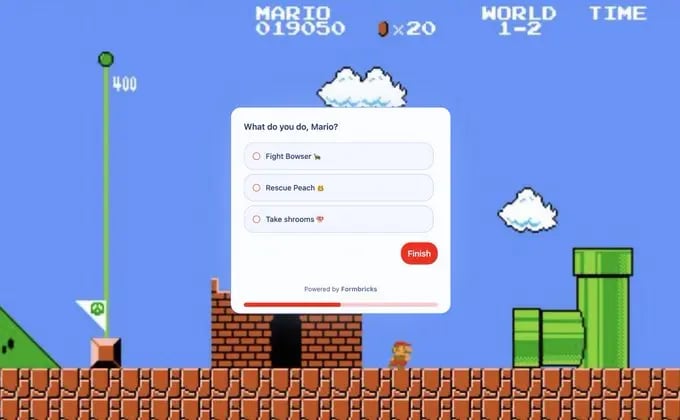
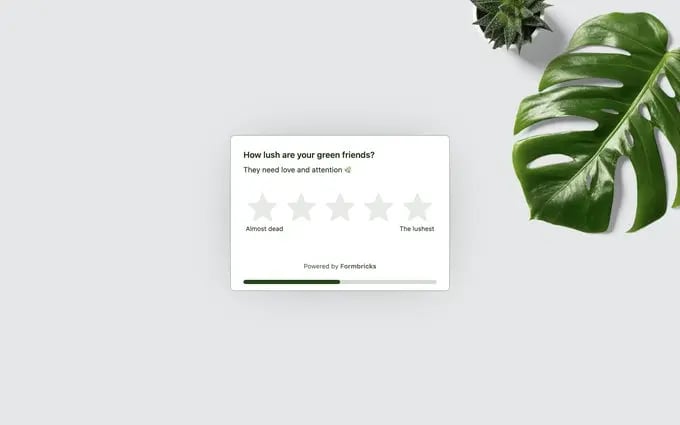
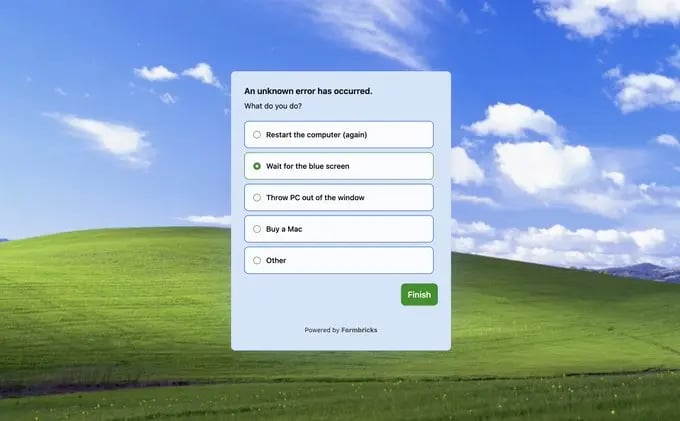
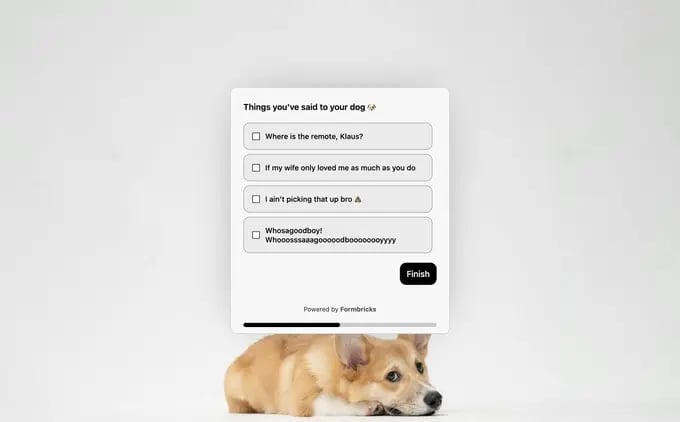
To set a styling theme for all surveys, please see the Styling Theme manual.
Overwrite Styling Theme
-
In the Survey Editor of the survey you want to style, open the Styling tab. The four sections below are greyed out. Until you override it, this survey follows the workspace theme.
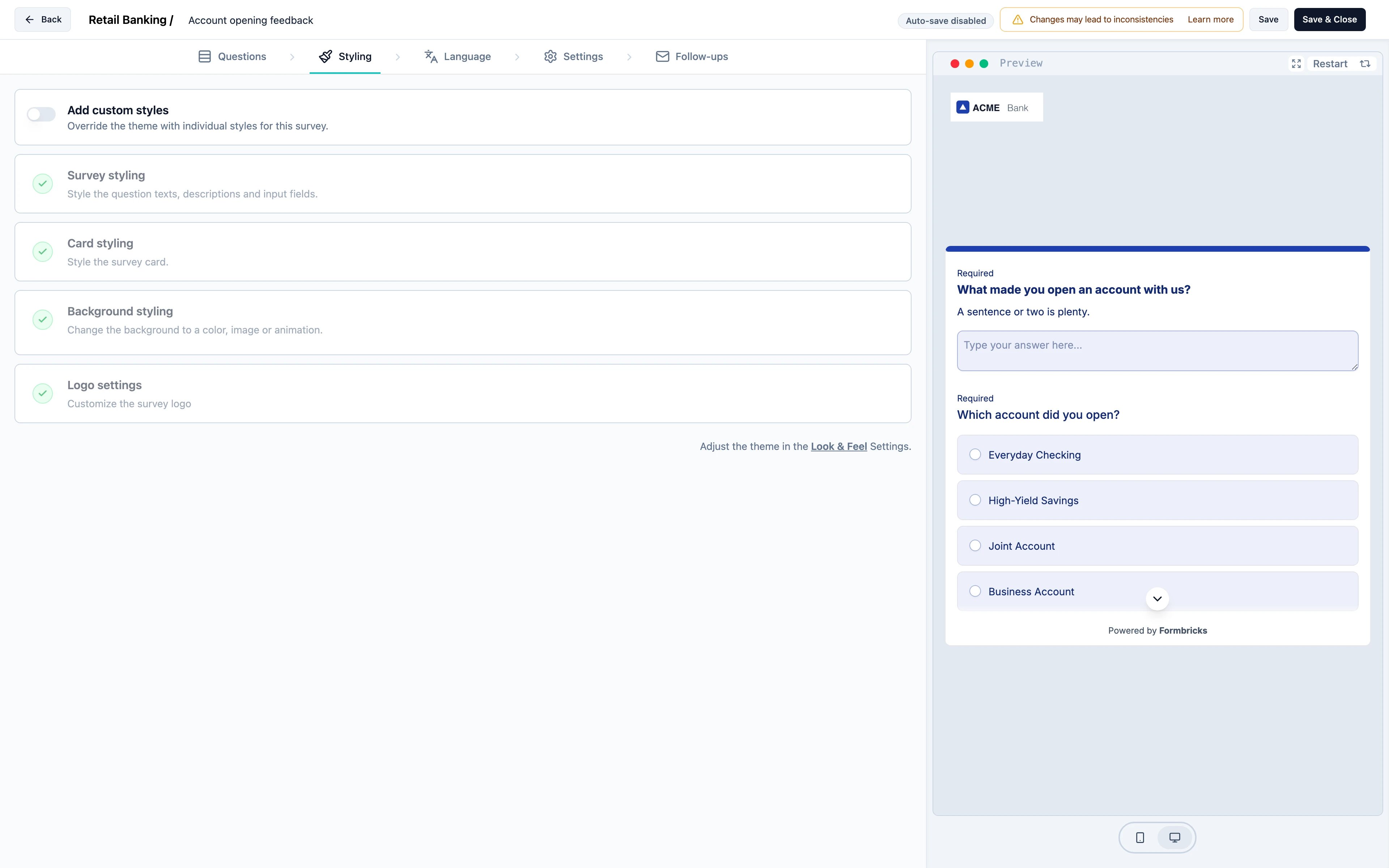
-
Switch on Add custom styles. The sections become editable, and every change applies to this survey alone.
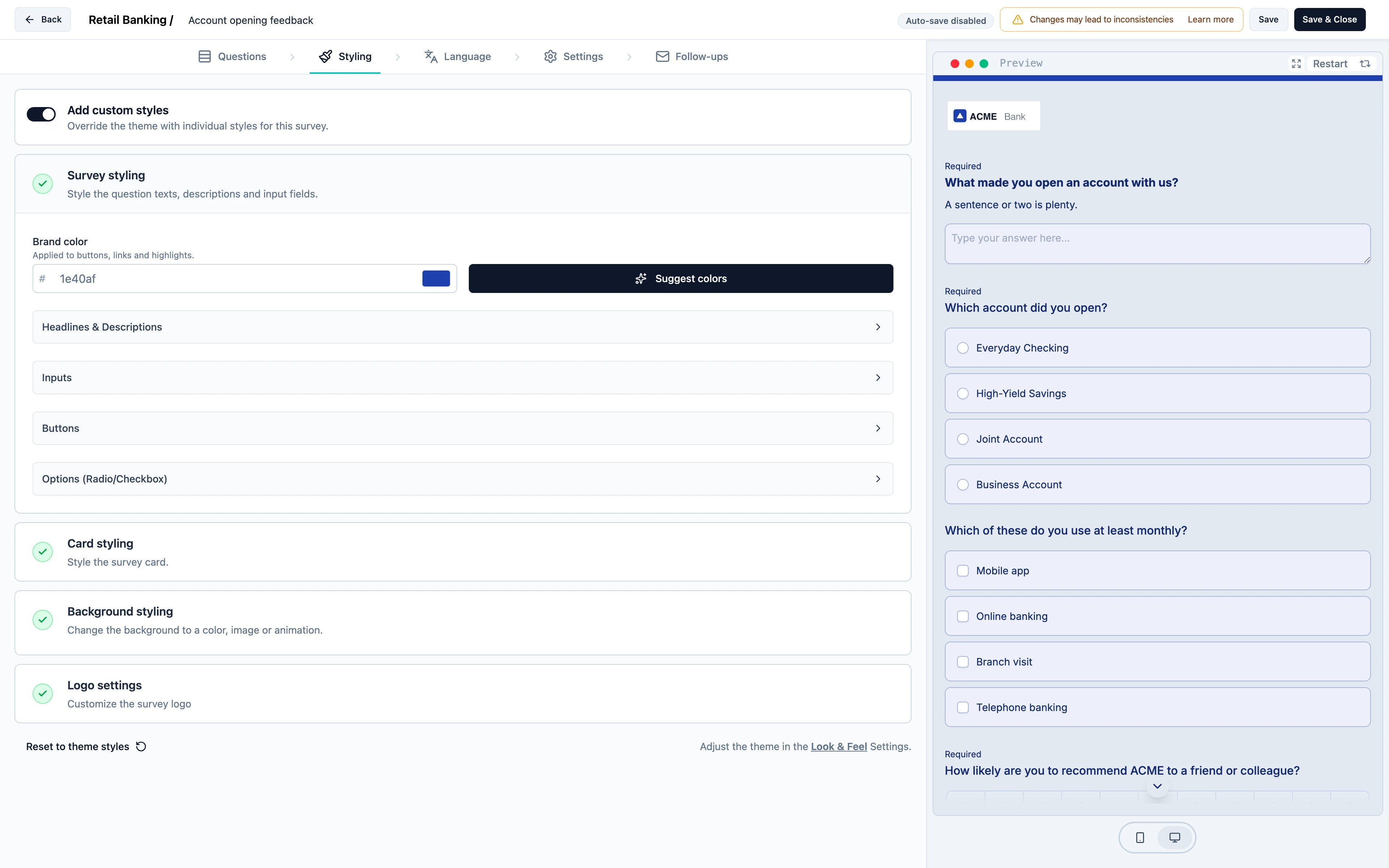
- Survey styling — question text, descriptions and input fields.
- Card styling — the card the survey sits on.
- Background styling — a colour, an image or an animation behind it.
- Logo settings — whether the workspace logo shows on this survey.
- Hit Save. To change the theme for every survey instead, use Styling Theme.
Overwrite CSS Styles for App & Website Surveys
You can overwrite the default CSS styles for app and website surveys by adding the following CSS to your global CSS file (e.g.,globals.css):
Do not change the CSS variable names, as Formbricks uses them to identify styling elements. You can adjust the values to fit your design. Below are sample values for reference: