

Setting the dates
- Open the survey in the editor and go to the Settings tab.
- Open Response Options.
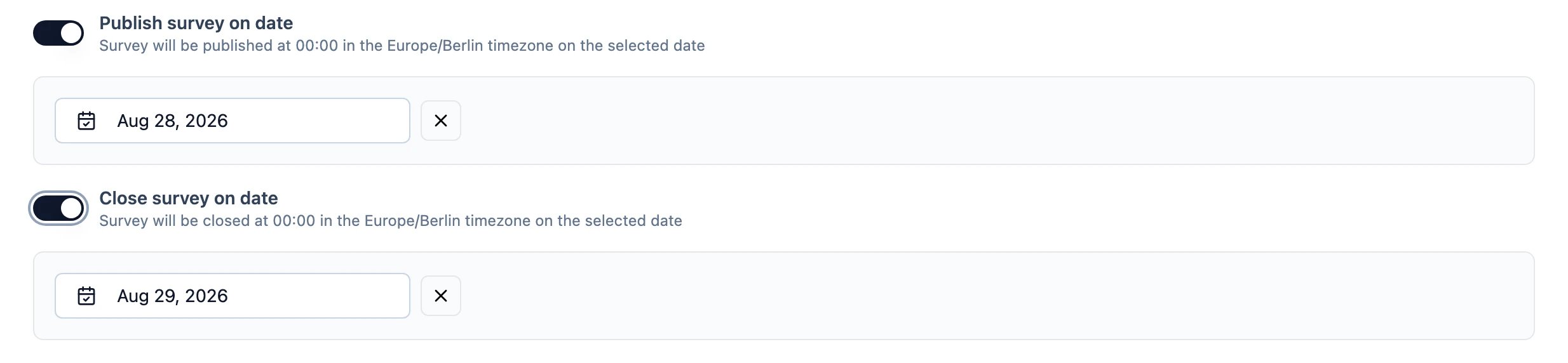
- Turn on Activate survey on date, Close survey on date, or both, and pick a date for each.
What the dates mean
Both actions happen at a fixed time of day, in a fixed time zone, on the date you choose — not at the moment you set them.- Before its activation date, the survey shows as Scheduled in the survey list and the status dropdown. It is a paused survey with a future activation date rather than a status of its own, so pausing and scheduling are the same underlying state.
- A survey that reaches its close date stops accepting responses, exactly as if you had closed it by hand. Existing responses are untouched.
- Removing a date with the × next to it cancels that half of the schedule.
The time of day and the time zone are properties of the Formbricks instance, not of the survey. The editor tells you which apply — for example “Survey will be activated at 00:00 in the Europe/Berlin timezone on the selected date”.
Self-hosting
Self-hosted instances can change when scheduled surveys open and close:
Set them to match the time zone your respondents live in, so “closes on the 30th” means what your team means by it. The editor’s summary text updates to show the values in force.
Scheduling depends on the job runner. See Job Runner if scheduled surveys are not opening or closing on time.