

Reading the outline
Read the outline from top to bottom. That is the order a respondent moves through the survey.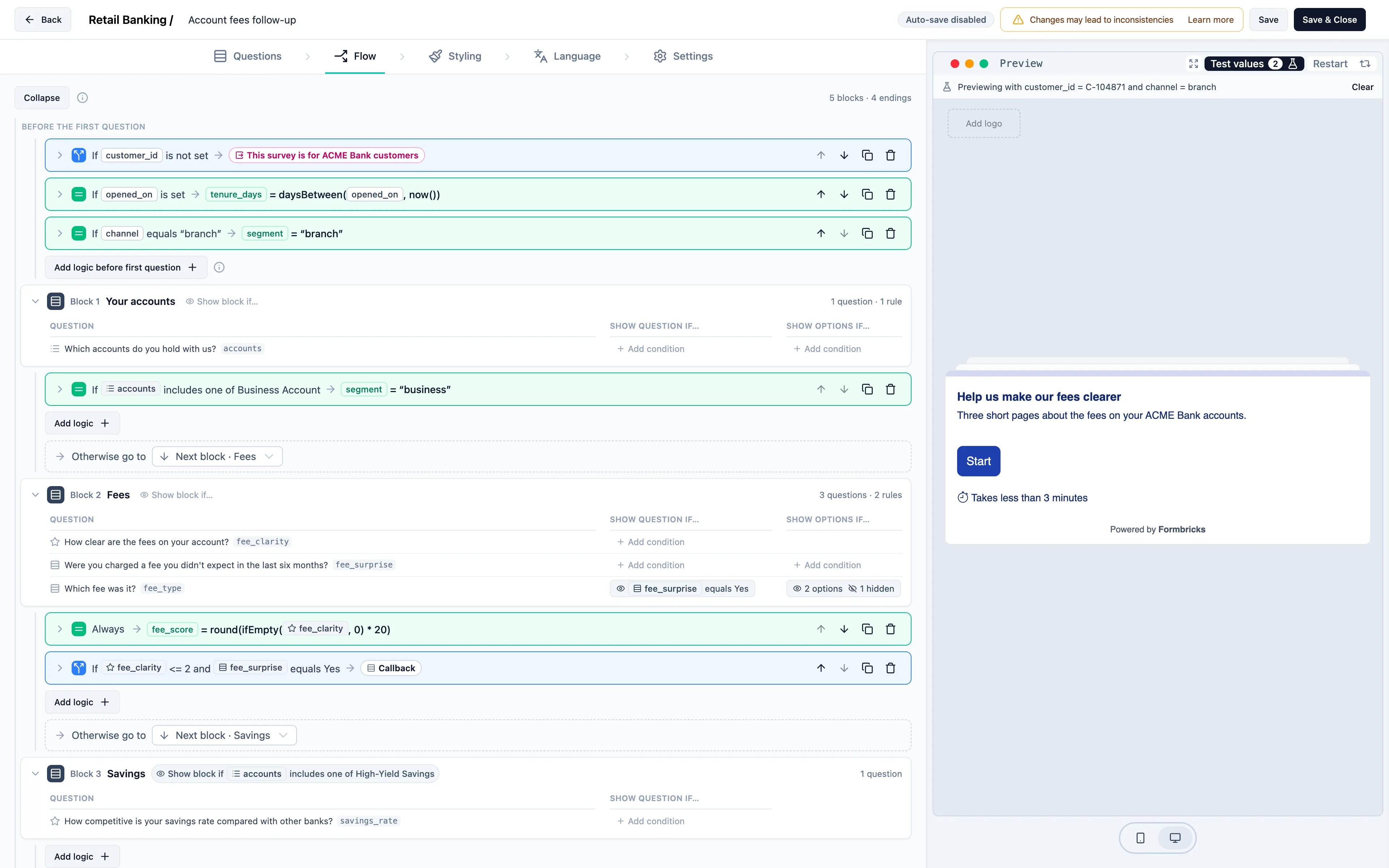
- Blocks. Each block is one page of the survey. Its row shows its number, its name (or Untitled), and how many questions and rules it has. Hover a folded block and click Add logic to open it and add a rule.
- Questions. An open block lists its questions in a table: each with its type icon, its text and its question code, the name rules and expressions use.
- Show if. A block shown only to some respondents carries a Show block if … badge that reads its condition; a question shows its condition in the Show question if… column. See Show If.
- Options. The Show options if… column says how many of a question’s options are shown only to some respondents (N options) and how many are Hidden (N hidden). Click it, or Add condition on a question with options, to edit them. See Show if on options.
- Rules. The rows indented under a block run after the respondent submits that block. Each row reads as a sentence on one line, for example If “services” includes one of Apple TV+ → Require an answer to “apple_reason”. Hover a row cut short to read the whole sentence.
- Each kind of rule has its own colour and icon, the same on its row, in Add logic and in the rule’s action list: blue for Jump to, green for Set value, which changes a calculated Embedded Data field, violet for Require answer and orange for Mark response as Low quality, for example If “hours” > 112 → Mark response as Low quality.
- A rule with several kinds of action takes the colour of its first action.
- A rule with several actions shows the first one and +N for the others, and where it jumps comes last, as a pill: score + 10 +1 Block 4. Open the row to see every action.
- Everyone else. A block’s last line, Otherwise go to, says where respondents go when none of the rules jumped. It is the next block unless you choose another block or an ending.
- Jumps that land elsewhere. A jump, or an Otherwise go to, into a block whose show-if reads only questions the jump passes gets a warning under it, such as Block 3 will always be skipped on this path: its show-if reads “services”, which this jump skips. Those questions have no answer on that path, so the show-if never matches and respondents go to the block after it. Jump to an earlier block, or change the show-if.
- Endings. The endings are listed last, each with a pink icon. A redirect ending shows the address it sends respondents to.

Editing logic
Click any rule row to open its settings right there on the outline. The rule editor is the same one described in Conditional Logic, and reads like the row: If what to test, an operator and a value, Then one or more actions. The buttons at the right of a rule’s row, as on a question card, let you:- Move up and Move down, because rules are checked from top to bottom and the first jump that matches wins.
- Duplicate it, with the copy placed right below it.
- Delete it. Deleting a block’s last rule also resets where everyone else goes, back to the next block.
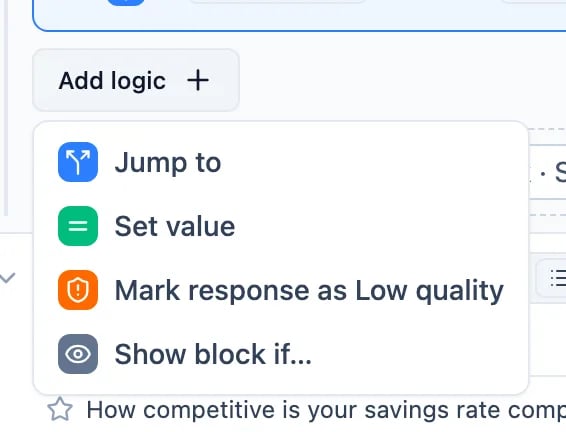
- Jump to starts a rule that sends respondents to a later block or an ending.
- Set value starts a step that sets a calculated field from an expression. It always runs until you give it a condition with Add a condition. See Set Value and Expressions.
- Mark response as Low quality starts a rule that marks the response Low quality when it matches. The respondent sees nothing. See Mark as low quality.
- Show block if… shows the block only to the respondents a condition matches. An open block also shows Show block if… in its header, and Show question if… next to each question, to show a single question only to some respondents. See Show If.
Rules before the first question
The outline starts with Before the first question. Rules here run as soon as the survey loads, before the welcome card, so you can screen respondents or route them before they answer anything. They also run when a respondent opens the survey through a start-at link, so a screener can’t be skipped that way.
- URL parameters and hidden fields, for example a
panel_idyour panel provider adds to the link - calculated Embedded Data fields
- response details the browser knows, such as the page URL or the survey language
- Screen out: jump to an ending. The respondent sees only that ending, not the welcome card or any question.
- Jump to a block: start the respondent on a later block. With a welcome card, the welcome card still shows first and leads to that block. A jump also takes priority over a start-at link.
- Set value: change a calculated field. Its value is saved with the response when the respondent submits the first page.
- Mark response as Low quality: flag the response, for example for a panel source you don’t trust, while the respondent answers as usual. The response is marked when the respondent submits the first page, or straight away when another rule screens them out. See Mark as low quality.
What a screen-out records
A screen-out leaves a finished response straight away, even though no question was answered. It holds the ending the respondent was sent to, the URL parameters and hidden fields that caused it, and any values the rules set, so you can check your screener in the responses.For now, a screened-out response counts as Completed: it appears in your completed responses and counts toward Close survey after N responses. Keep this in mind when you set a response limit on a survey with a screener.
Trying a screener in the preview
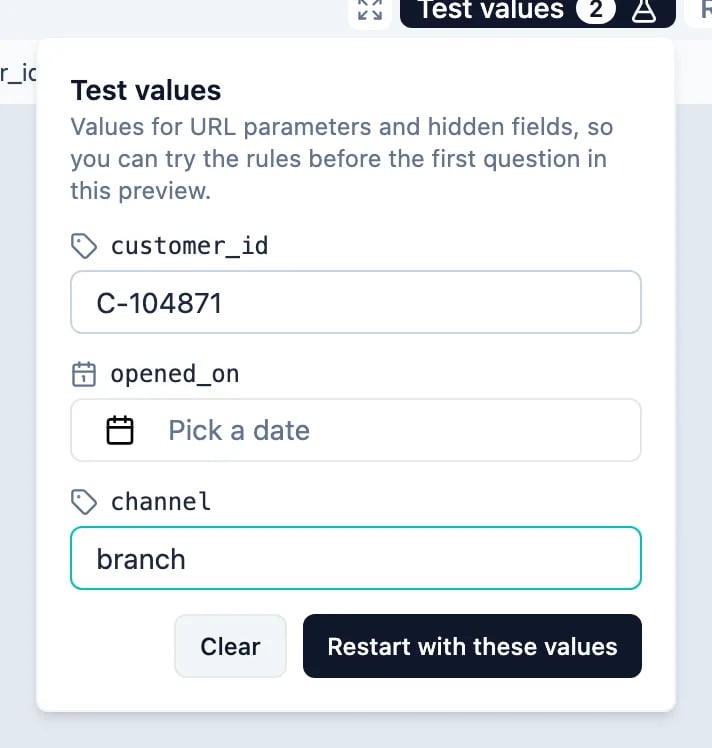
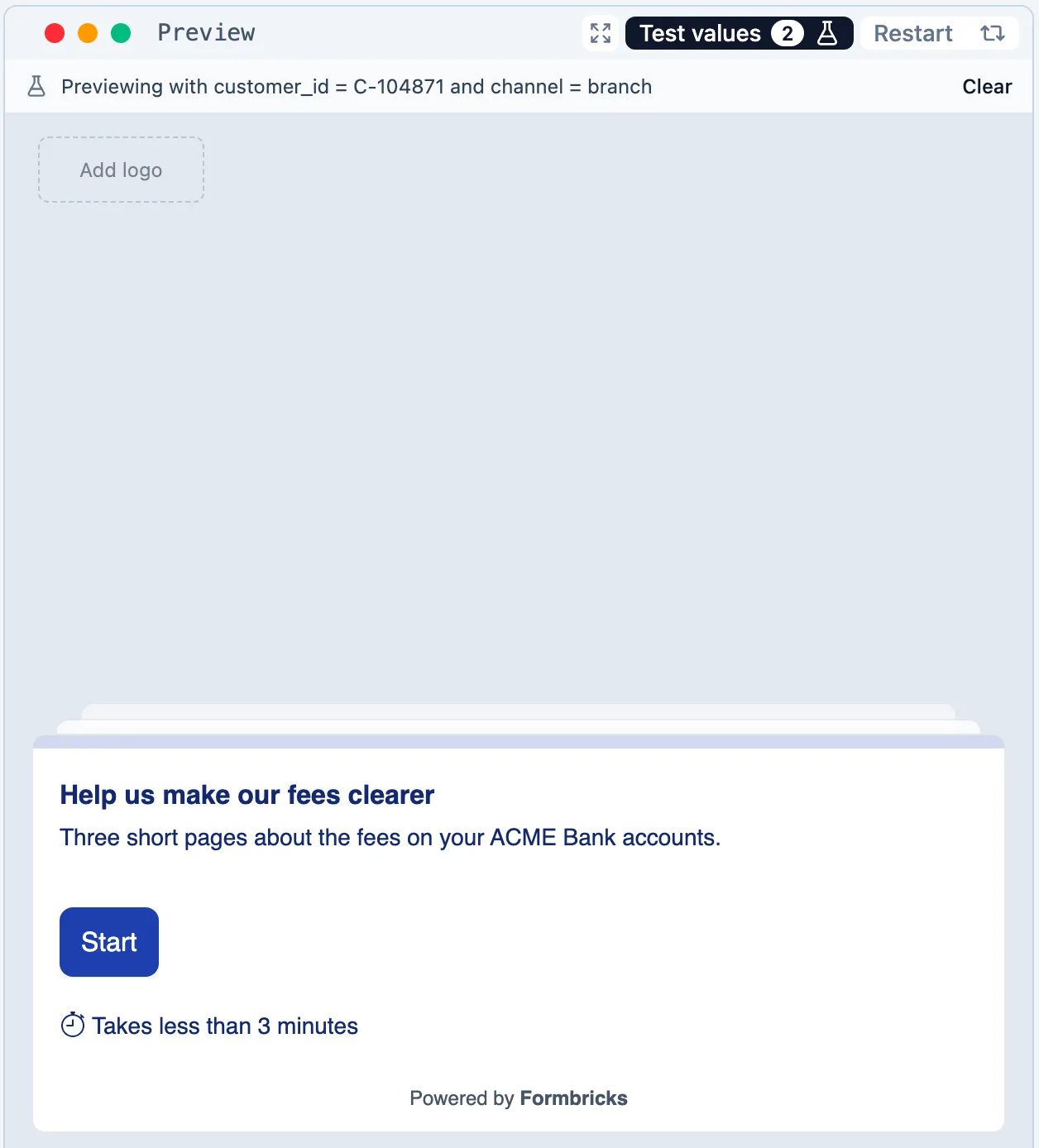
The editor preview has a Test values button next to Restart. Enter values for the survey’s URL parameters and hidden fields, then click Restart with these values: the preview starts over as if the link had carried them, so you see exactly where a respondent with those values goes. Clear removes them. The values only affect the preview. When a rule or a show-if reads the page URL, Test values also has aurl field: the preview runs as if the survey were shown on that page, instead of on the editor’s own address. It isn’t offered when a hidden field or URL parameter of the survey is itself named url.
?panel_id=12345, as before.
When something is wrong
If a rule is incomplete or points at something that no longer exists, saving or publishing the survey opens the Flow tab, opens the block and the rule the error message names, scrolls to it and outlines it in red. A folded block with a flagged rule is outlined in red too. The red outline goes away as soon as the rule is fixed.Logic written through the API
Surveys built through the Management API or MCP can carry logic too. Everything a survey holds shows up on the outline, so you can check what an AI or an integration wrote before you publish. A row marked Read-only holds something the Flow tab can show but cannot edit yet. Its other rules stay editable.Where logic used to be
Logic used to sit at the foot of each block on the Questions tab, under Conditional Logic. It has moved to the Flow tab, and your existing rules appear there with nothing for you to do. The first time you open the editor after the change, the Questions tab shows a Logic has moved to the Flow tab notice with an Open Flow button. Once you have opened the Flow tab, the notice no longer shows in that browser.