

How do Actions work?
1
User performs action
The user performs an action in your application.
2
Formbricks widget detects action
The embedded widget (SDK) detects the action, if you set up a No Code
Action or a Code
Action to do so.
3
Check for survey trigger
If a survey is set to trigger on that action, Formbricks checks if the user or visitor qualifies.
4
Check for user or visitor qualification
If a Cooldown Period applies and the user or visitor was shown a survey inside it, this one will not be shown, to prevent survey fatigue. Three things about that gate are easy to get wrong: the interval is whatever you configured, not a fixed one; a survey can set its own, which overrides the workspace value, and a survey set to ignore the cooldown skips the check entirely; and it counts displays of any survey, not answers to this one — so declining to answer, or being shown a different survey, still starts the clock.Also, if this user or visitor has seen this specific survey before, Formbricks might not show it as this is dependent on the Recontact Options.
5
Show survey
If all conditions match, the survey is shown.
Important: Any changes to actions, surveys, or environment configuration will take up to 1 minute to
reflect in your app/website due to server-side caching. This includes new actions, modified action
configurations, and survey trigger updates.
Setting up no-code Actions
Formbricks offers an intuitive No-Code interface that allows you to configure actions without needing to write any code.No Code Actions are not available for surveys in mobile apps. No Code Action tracking are heavily
dependent on JavaScript and most mobile apps are compiled into a different programming language. To track
user actions in mobile apps use Code
Actions.
1
Open Settings → Workspace → User Actions
Every action in the workspace is listed here, no-code and code alike.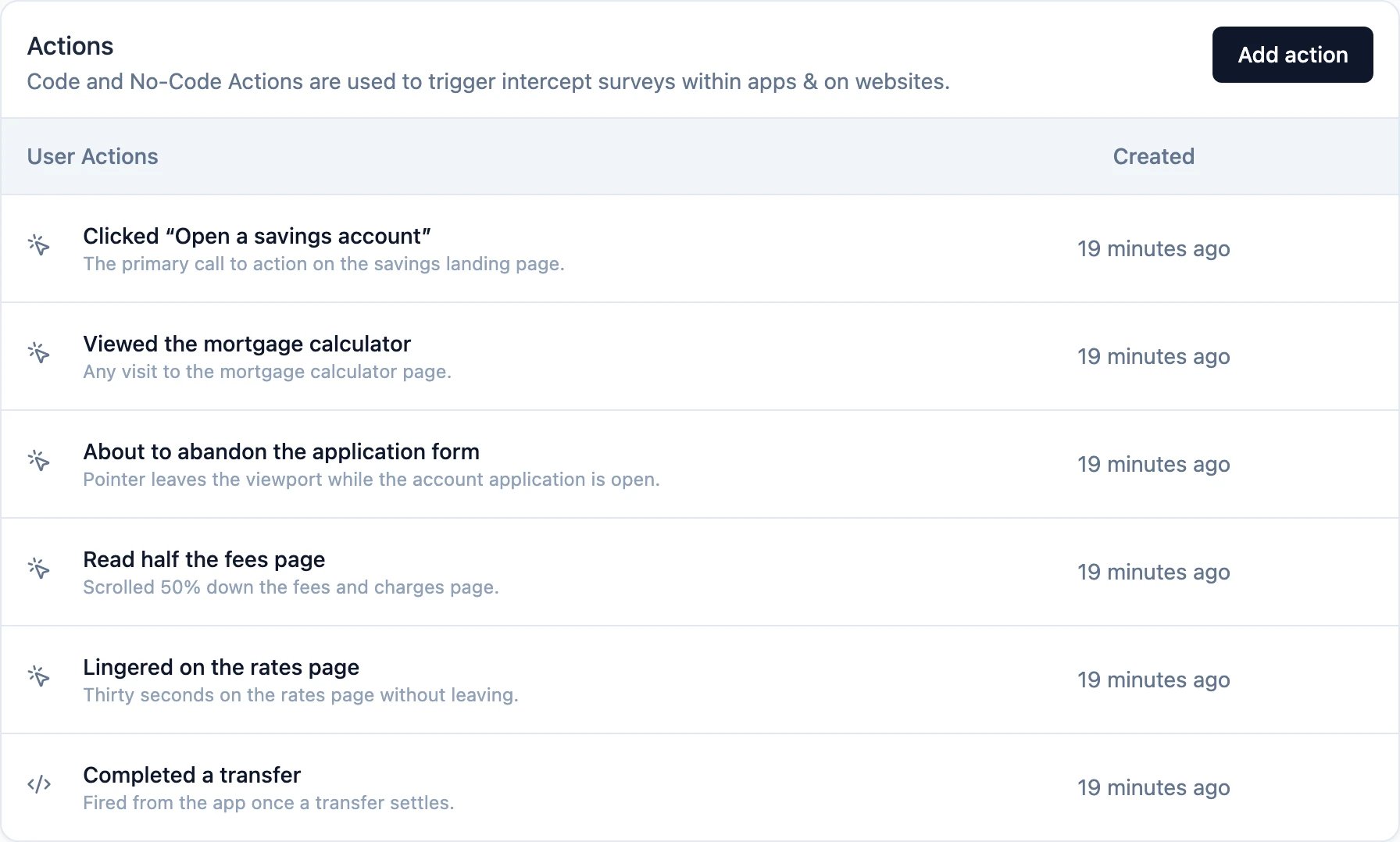
2
Click Add action
Name the action, say what the user is doing, and — optionally — limit it to certain pages.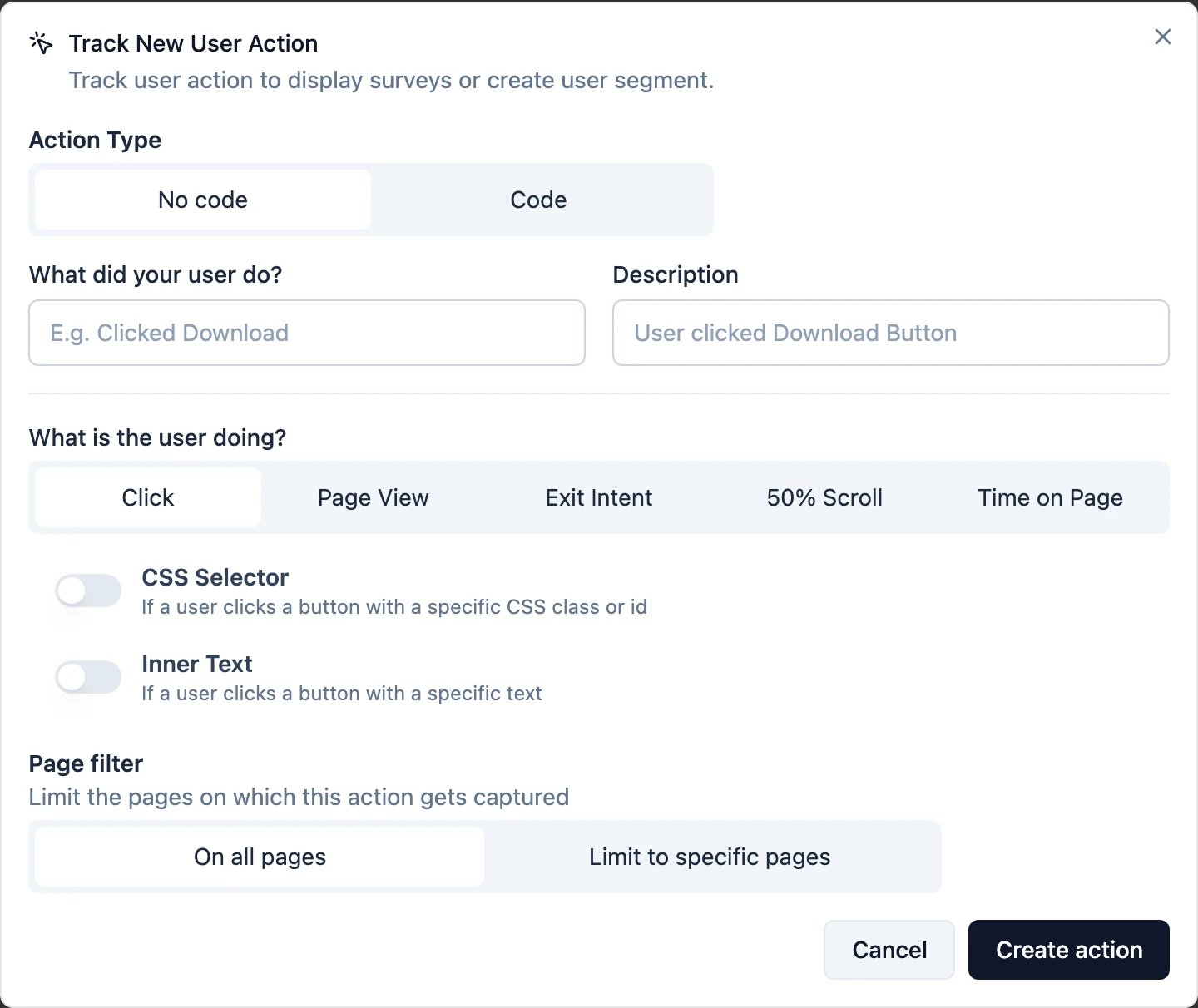
1. Click
Fires when a user clicks a specific element. Define the element by its CSS Selector, its Inner Text, or both — with both switched on, the click has to match both to count.- Inner Text: matches the text of the clicked element, such as a button label.
- CSS Selector: matches a class, an id, or any other CSS selector. See CSS Selector below for how to write one.
CSS Selector
A CSS selector tells Formbricks which element to watch. The symbol in front of the name says what kind of name it is:
Chain several parts without spaces to make a selector more specific, as in
button.btn-primary.large. A click on an icon or label inside a matched element counts as a click on that element.
To find the id or class of a button on your site:
1
Inspect the element
Right-click the button in your browser and choose Inspect.
2
Read its id or class
In the highlighted HTML, look for
id="…" or class="…". Prefer an id: it is unique on the page.3
Add the symbol
Put
# in front of an id, or . in front of a class name, and paste it into the CSS Selector field. A class attribute with several names separated by spaces holds several classes: join the ones you want with dots, as in .btn.btn-primary.2. Page View
Fires when a user opens a page. On its own it fires on every page; combine it with a page filter to narrow it down.3. Exit Intent
Fires when a user looks about to leave — the pointer leaves the viewport. It is how you catch someone before they abandon a form.4. 50% Scroll
Fires once a user has scrolled halfway down a page. A rough proxy for “read it”.5. Time on Page
Fires after a user has stayed on a page for a number of seconds that you set.Page filter
Every no-code action can be limited to certain pages. Leave it on On all pages, or switch to Limit to specific pages and add one or more URL rules:- exactMatch: Triggers the action when the URL exactly matches the specified string.
- contains: Activates when the URL contains the specified substring.
- startsWith: Fires when the URL starts with the specified string.
- endsWith: Executes when the URL ends with the specified string.
- notMatch: Triggers when the URL does not match the specified condition.
- notContains: Activates when the URL does not contain the specified substring.
- matchesRegex: Activates when the URL matches the pattern from the specified string.
Triggering a survey with an Action
An action does nothing until a survey listens for it. In the survey editor, open Settings → Survey Trigger and add one. A survey can listen for several actions; any one of them is enough to show it.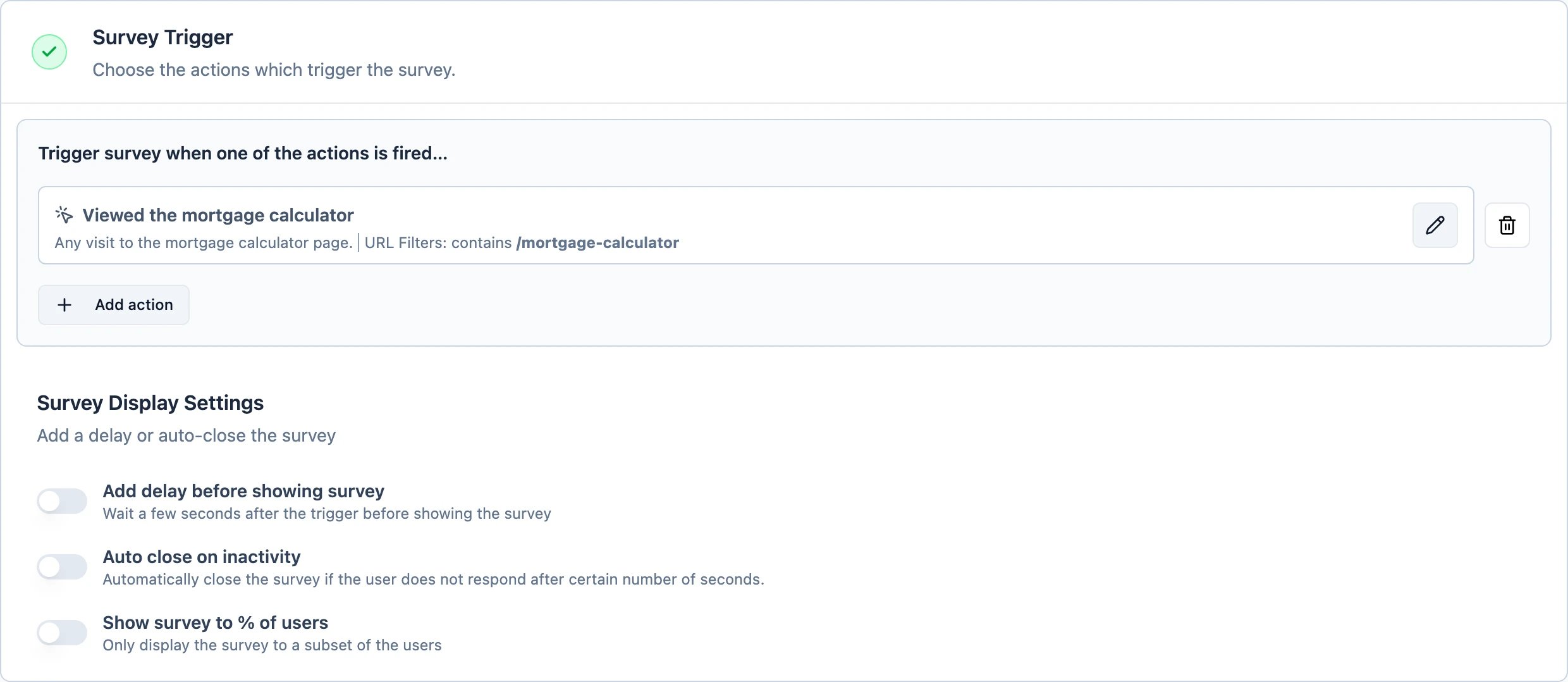
Setting up code Actions
For more granular control, you can implement actions directly in your code:1
Configure action in Formbricks
First, add the action via the Formbricks web interface to make it available for survey configuration. Switch the dialog to Code and give the action a key — that key is the string your code will send.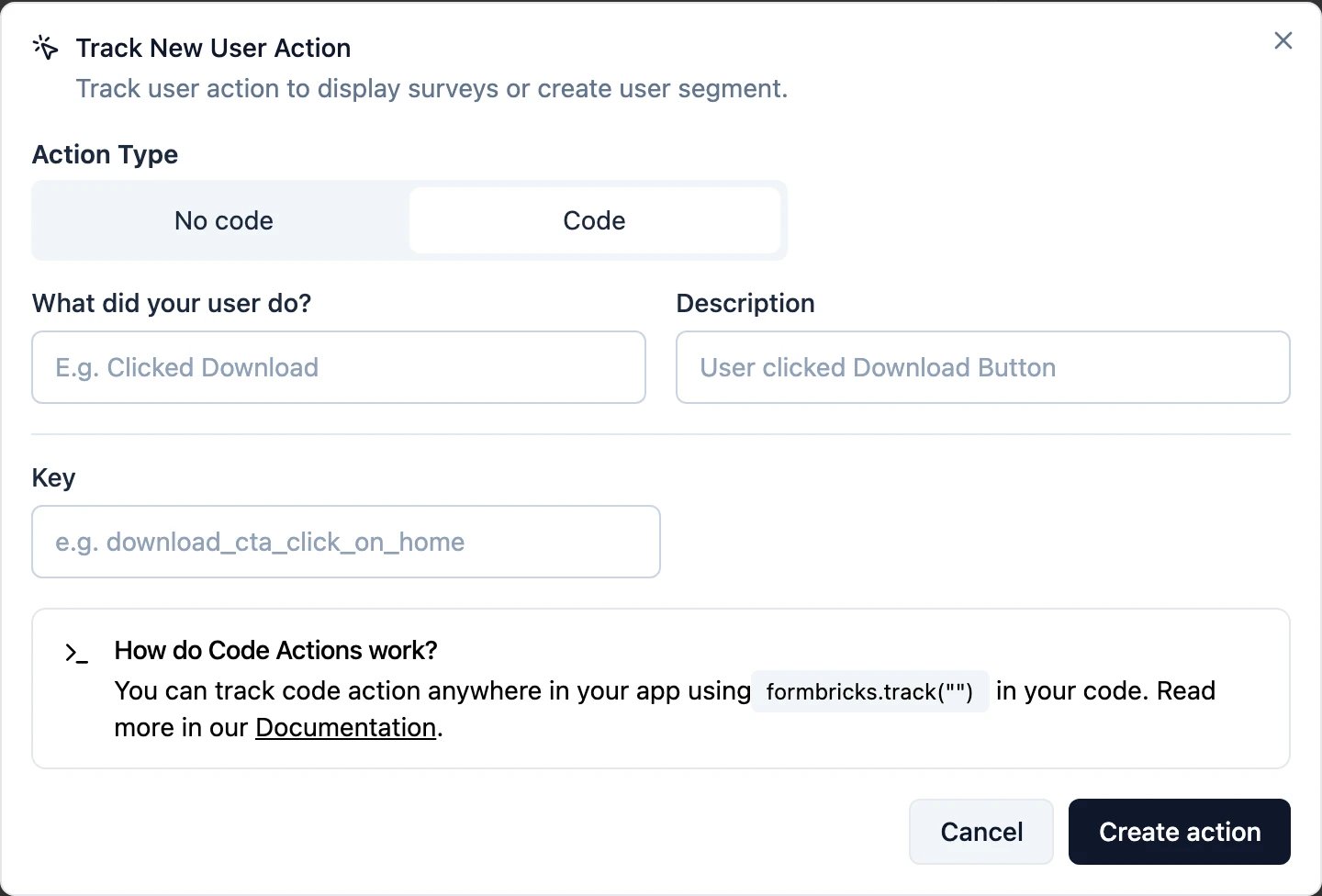
2
Add action tracking to your code
Use formbricks.track() to send an action event to Formbricks:Here is an example of how to fire an action when a user clicks a button: