

Attribute-based Targeting is part of the Enterprise Edition.
When to use Attribute-based Targeting?
Attribute-based Targeting helps you achieve a number of goals:- Relevance: Keep survey content relevant to respondents.
- Cohort-analysis: Survey specific user cohorts only.
- Statistical Relevance: When surveying a smaller subset of users, statistical relevance is reached with a lot less responses.
How does Attribute-based Targeting work?
1
Create a segment
Go to Contacts → Segments and click 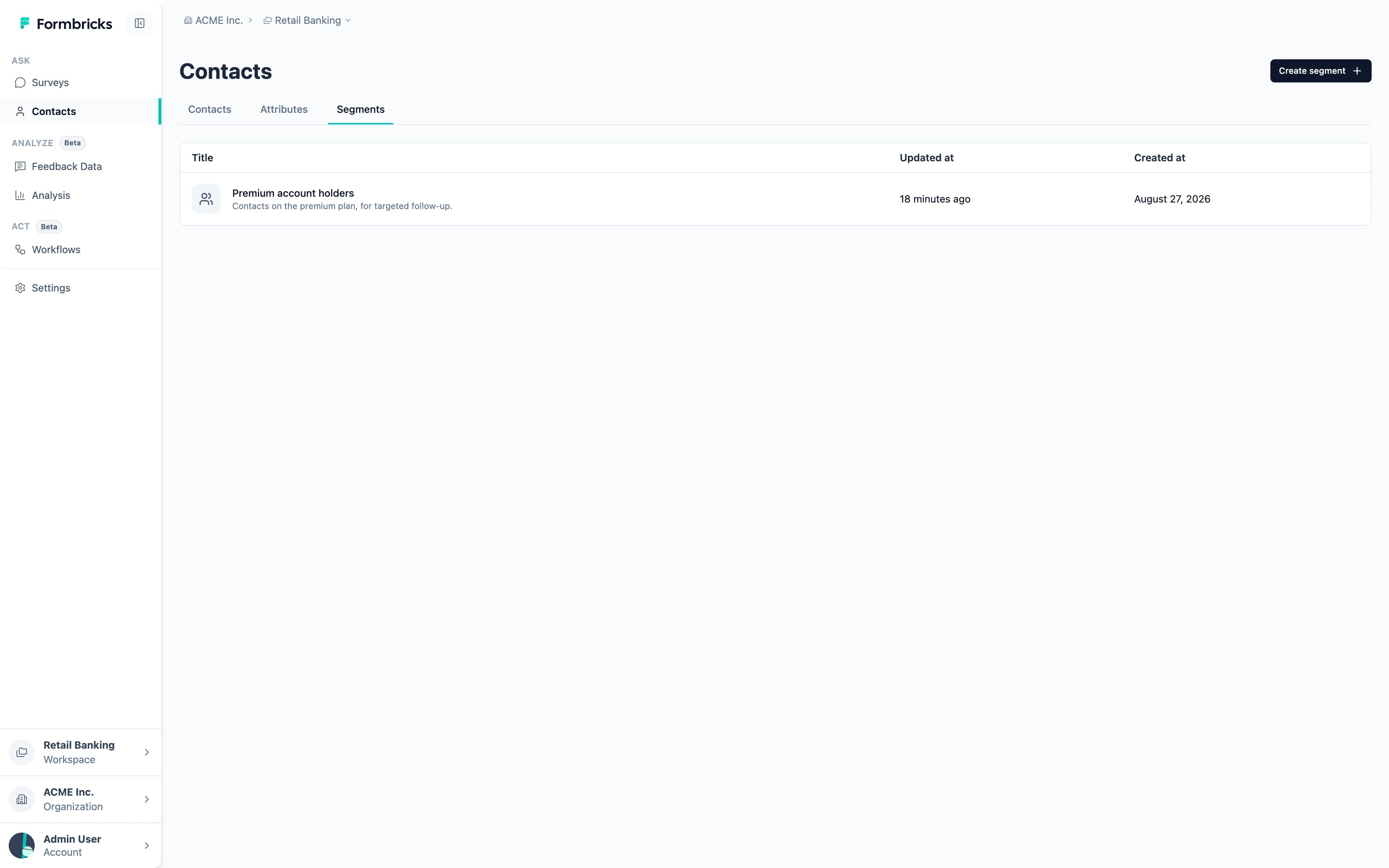
Create segment.2
Configure it
Open the segment and switch to its Settings tab. Everything under Targeting decides who is in it.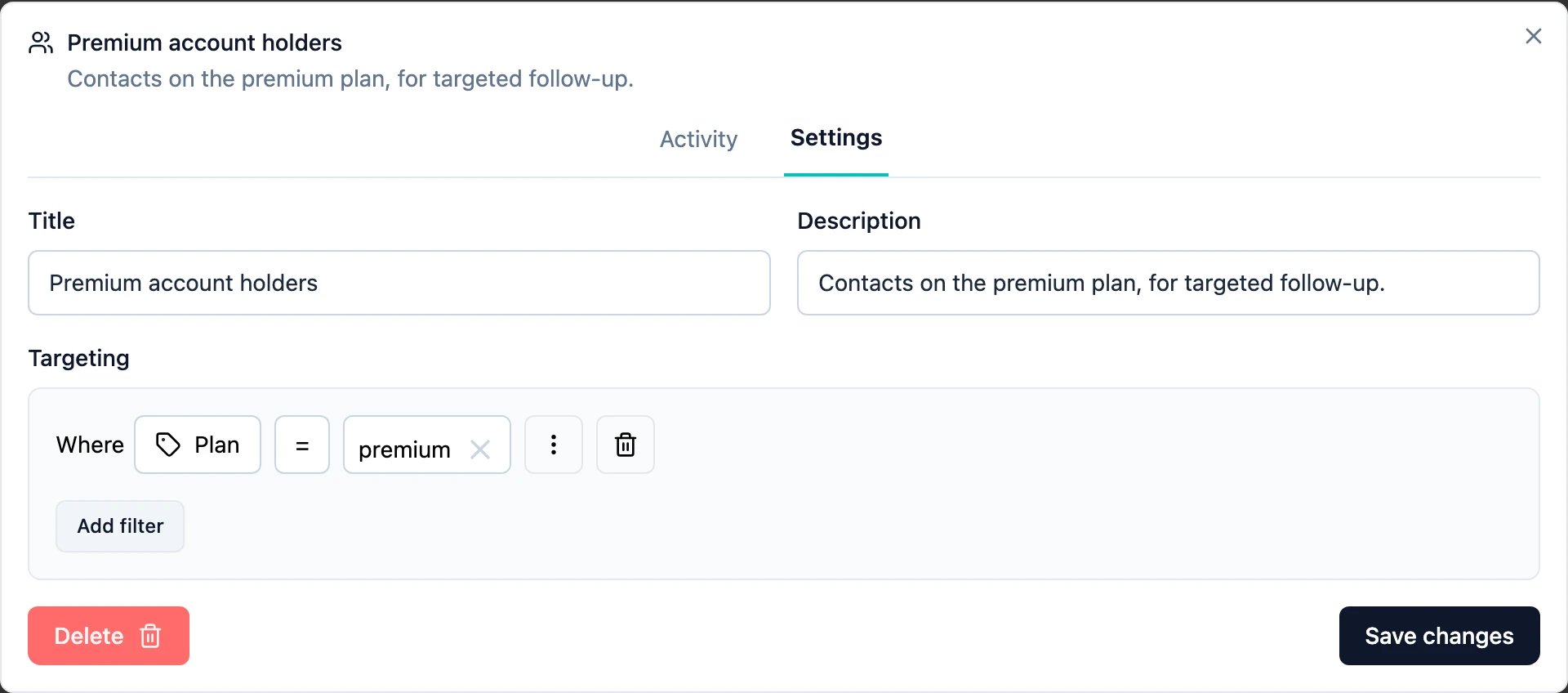
3
Create a Website & App survey
A segment can only target a survey that runs inside your product. In the survey editor, open Settings → Survey Type.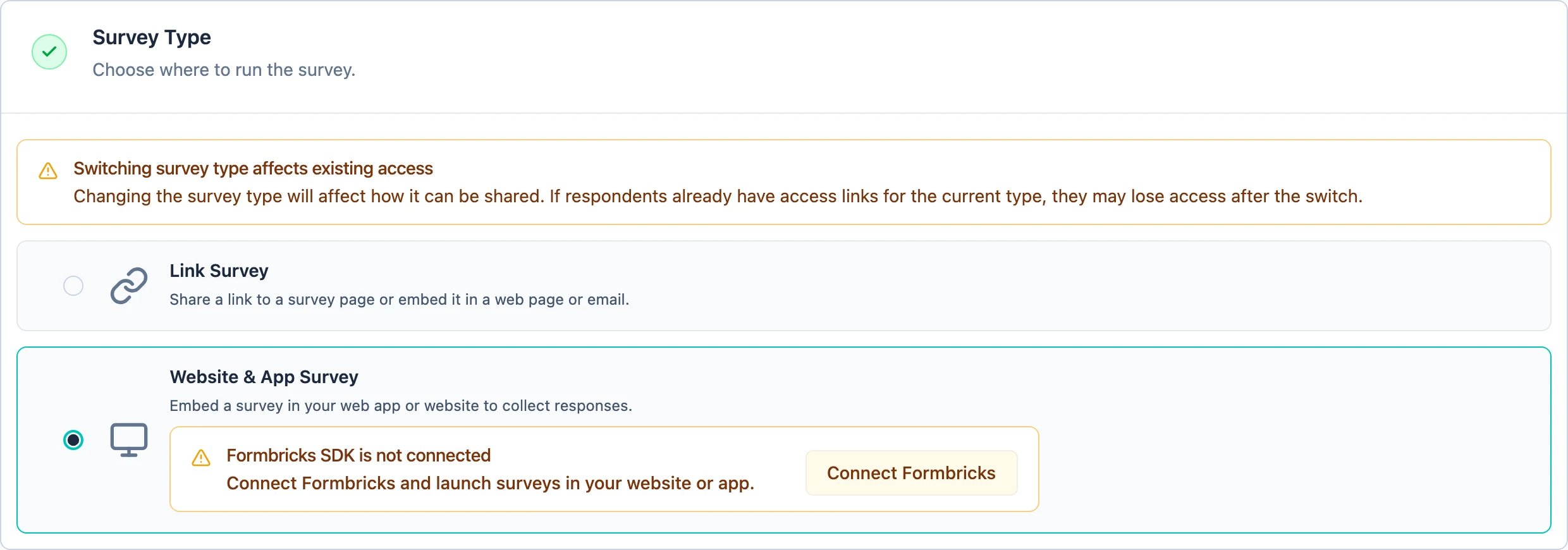
4
Choose the segment
Still in Settings, open Target Audience and pick the segment.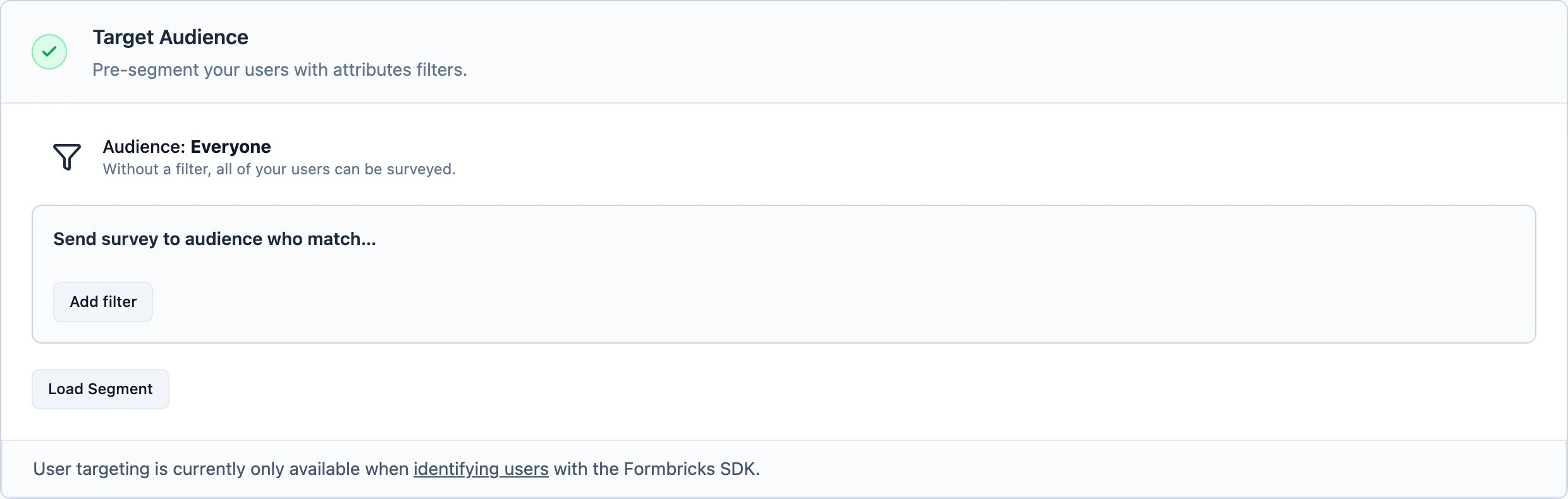
Activate your survey
Segment Configuration
Add filter opens one list holding every kind of filter a segment can use.
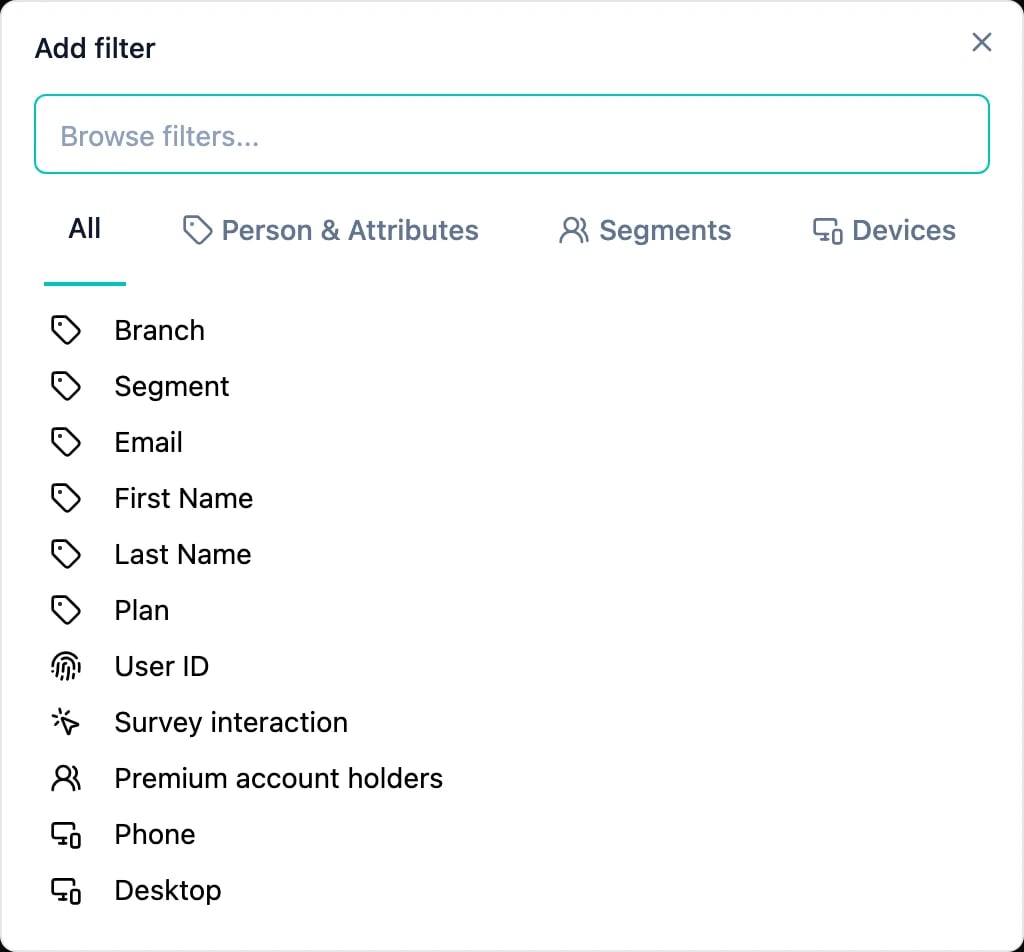
- Attributes: If the value of a specific attribute matches, the user becomes part of the Segment.
- Segments: You can nest Segments meaning that if a user is or is not part of another Segment, they can be included or excluded.
- Devices: If a user uses a Phone or Desktop, you can include or exclude them.
- Survey Interactions: Include or exclude Contacts based on whether they have seen, started, or completed a survey within a recent time window. See Survey Display Logic for details and use cases like per-survey cooldowns and follow-up funnels.
AND or OR, and a filter group wraps several of them so the two can be mixed without ambiguity — the same reason brackets exist in arithmetic.