

- Ending card — shows a message, and optionally a button, inside the survey.
- Redirect to URL — skips the message and sends the respondent straight to another page.
Elements
Note
The headline of the card, for example “Thank you!”. This is the only required field.Description
An optional line below the headline, for example “We appreciate your feedback.” Remove it with the trash icon, add it back with Add description. Both fields support rich text and Recall, so you can greet respondents with an answer they gave earlier. You can also add an image or video to the card.Button
Turn on Show Button to add a call to action below your message. This is how you move respondents on to a booking page, a community, a discount code, or a review page.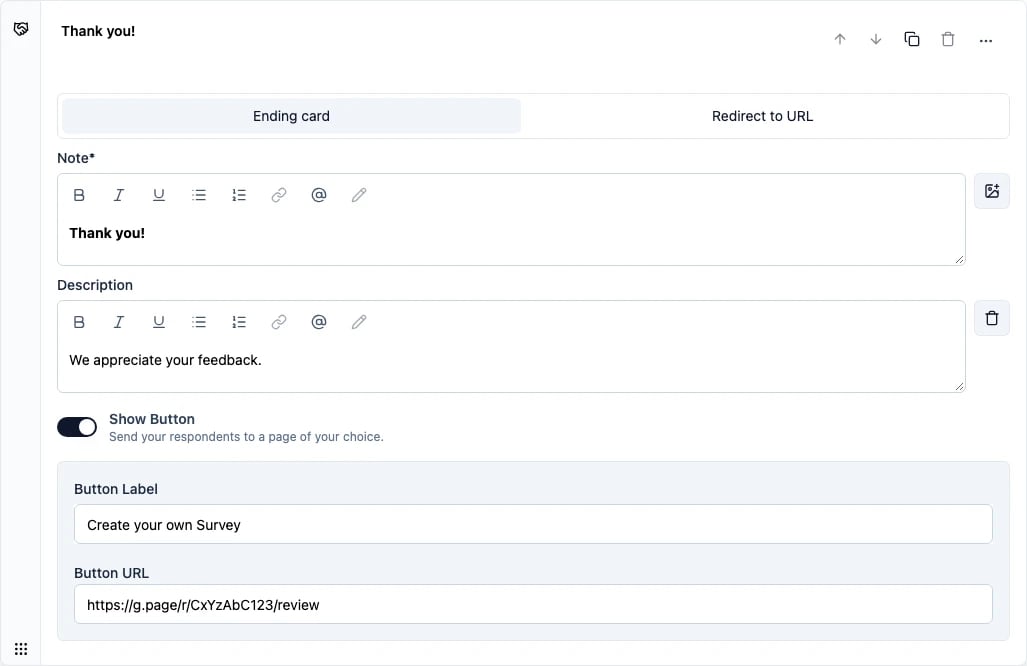
- Button Label — the text on the button, for example “Leave a Google review”.
- Button URL — where the button leads. Recall is supported here too, so you can build a link that carries an answer from the survey into the target URL.
Redirect to URL
Choose Redirect to URL when respondents should land on another page immediately after submitting, without a thank you screen.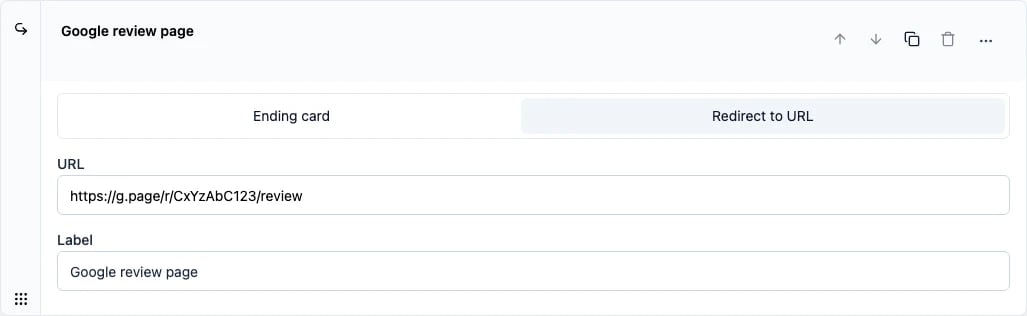
- URL — the page respondents are sent to. Recall is supported.
- Label — an internal name for this ending, so you can tell your endings apart in the editor and in your logic. Respondents never see it.
On Formbricks Cloud, custom external URLs in the Button URL and Redirect fields require a paid plan. This helps us prevent phishing. On self-hosted instances there is no such restriction.