

Self-Hosted Only: Pretty URLs are available exclusively on self-hosted Formbricks instances. This feature is not available on Formbricks Cloud.
What is a Pretty URL?
By default, every survey is accessible at a URL containing its auto-generated ID, e.g.yourdomain.com/s/cm1abc123xyz. A Pretty URL lets you replace that with a short, human-readable slug of your choice:
suId and lang are forwarded as well.
Setting Up a Pretty URL
1
Open the Distribute modal
Navigate to your survey’s Summary page and click the Distribute button in the top toolbar.
2
Go to the Pretty URL tab
In the Distribute modal, select the Pretty URL tab.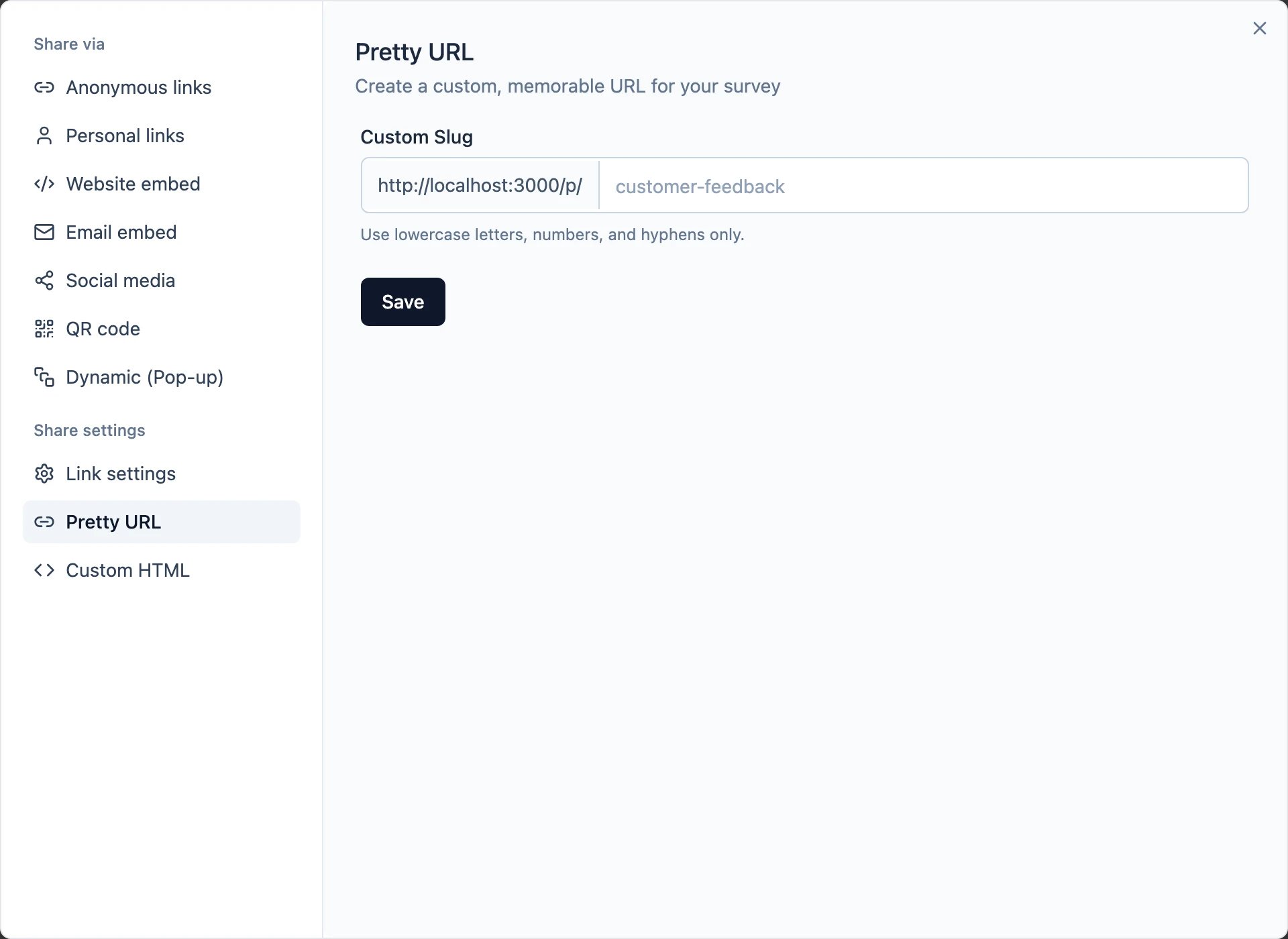
3
Enter a slug
Type your desired slug in the input field. Slugs may only contain lowercase letters, numbers, and hyphens (e.g.
customer-feedback, q4-nps-2024).The full URL is shown in real time below the input so you can confirm how it will look.4
Save
Click Save. The slug is now live. Anyone visiting the pretty URL is immediately redirected to your survey.
Managing Pretty URLs
Once a slug is saved, the Pretty URL tab shows the active link with two actions:- Copy: copies the full pretty URL to your clipboard.
- Remove: deletes the slug (after a confirmation prompt). The survey remains accessible via its original
/s/[surveyId]URL.
Viewing All Pretty URLs in Your Organization
All surveys that have a pretty URL assigned are listed in one place:- Go to Settings → Organization → Domain.
- Open the Pretty URLs section.