

There is no native Salesforce integration yet. Connect Formbricks to Salesforce with Make (recommended), n8n, or a custom webhook.
Prerequisites
- A Formbricks survey that collects email addresses
- A Salesforce edition with API access (Enterprise, Unlimited, Developer, or Professional with the API add-on)
- A Make or n8n account, unless you build a custom webhook
Method 1: Make.com (recommended)
Make is a registered Salesforce app, so you only need to log in and click Allow. No Salesforce app setup is required.1
Set Question IDs
Give each question a meaningful 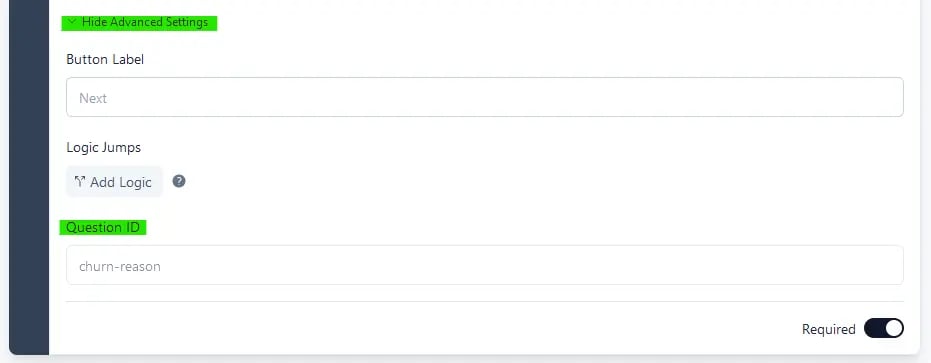
questionId so mapping is easier. These can only be changed before publishing; for a published survey, duplicate it first.2
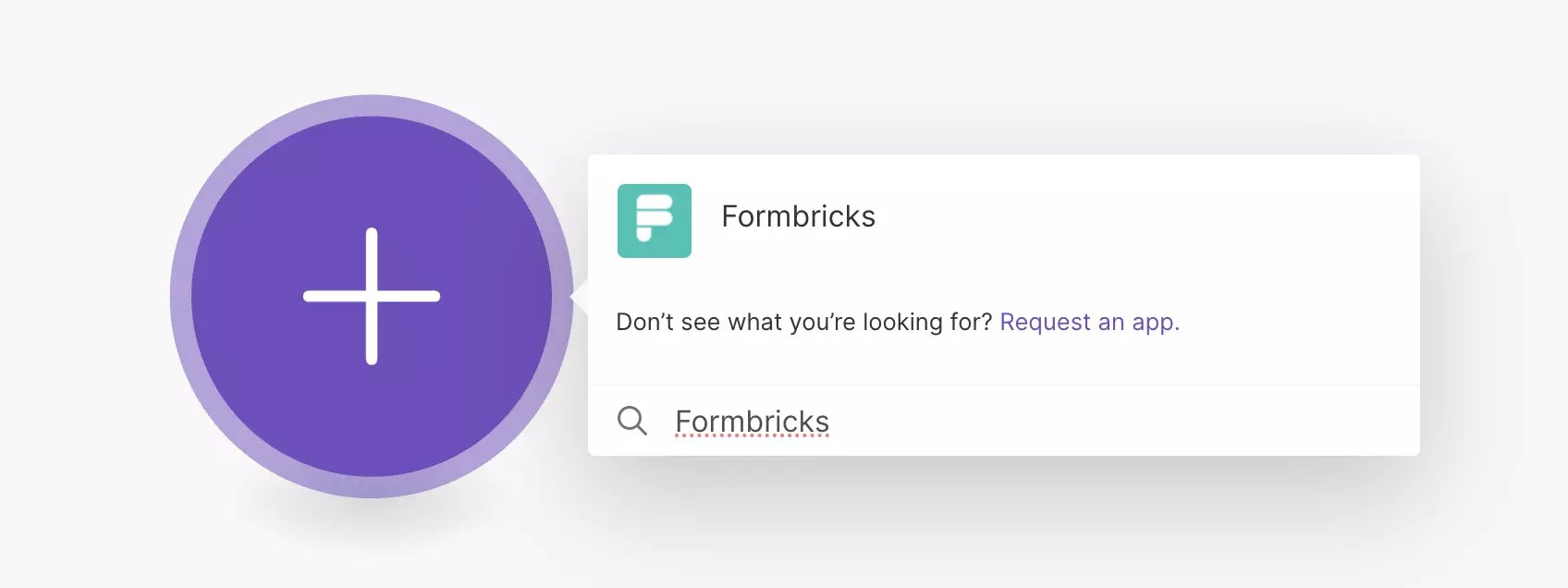
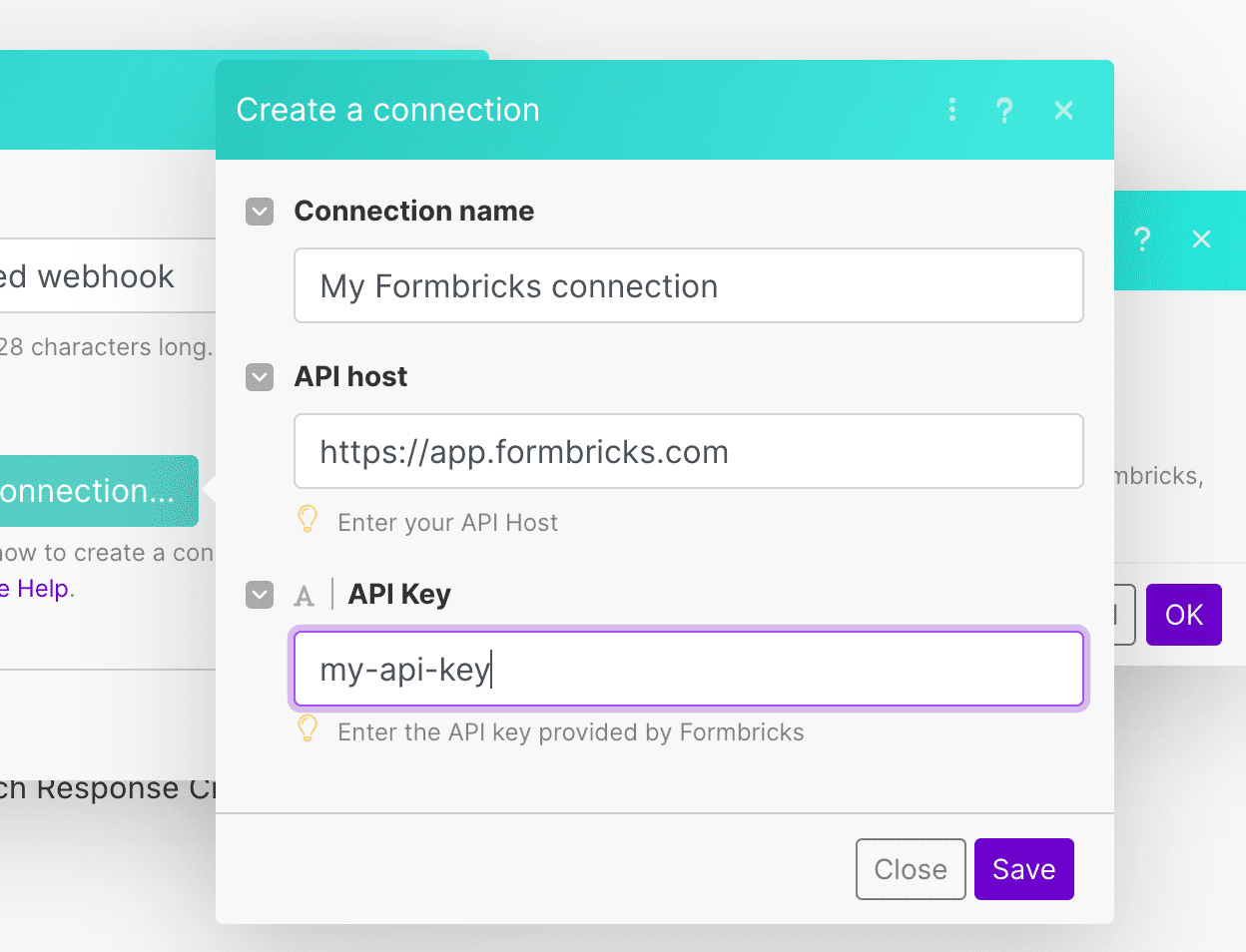
3
Add the Salesforce Module
Add Salesforce → Create a Record. Next to Connection, click Add, log in, and click Allow. Set Type to Contact for existing customers, or Lead for new prospects.
4
Map Fields
5
Avoid Duplicates
Salesforce doesn’t match on email by default. Add a Search Records module before the create step and route existing matches to Update a Record.
6
Test and Activate
Submit a test response, confirm the record in Salesforce, and turn on the scenario.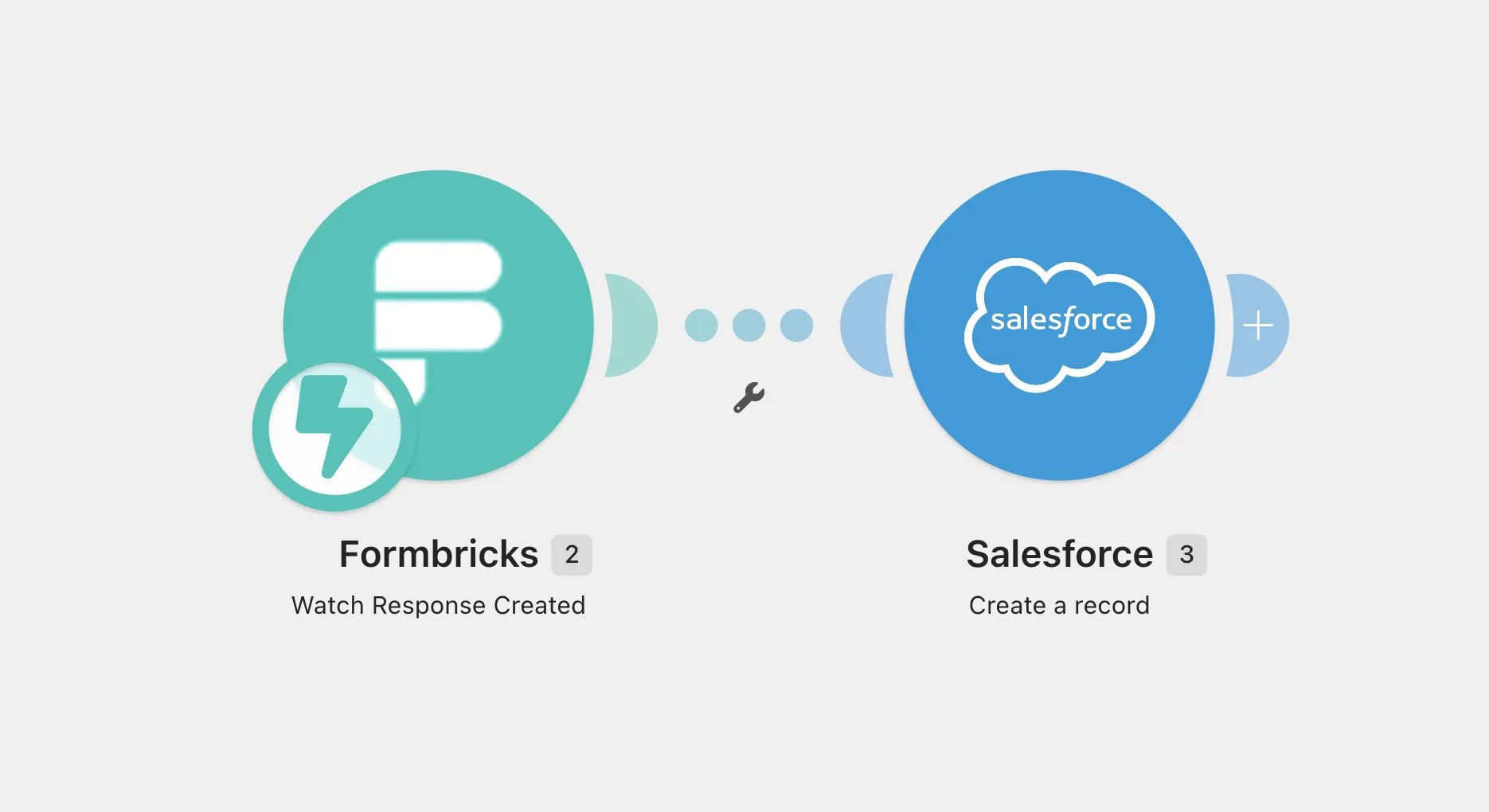
Method 2: n8n
The built-in Salesforce node works on n8n Cloud and self-hosted, but needs a Salesforce app for OAuth login. The Formbricks trigger is a community node for self-hosted n8n; on n8n Cloud, use a Webhook node as the trigger with a Formbricks webhook pointing at it. The Webhook node nests the request underbody, so use $json.body.data.data.* in place of $json.data.data.* in the expressions below.
1
Add the Formbricks Trigger
Install 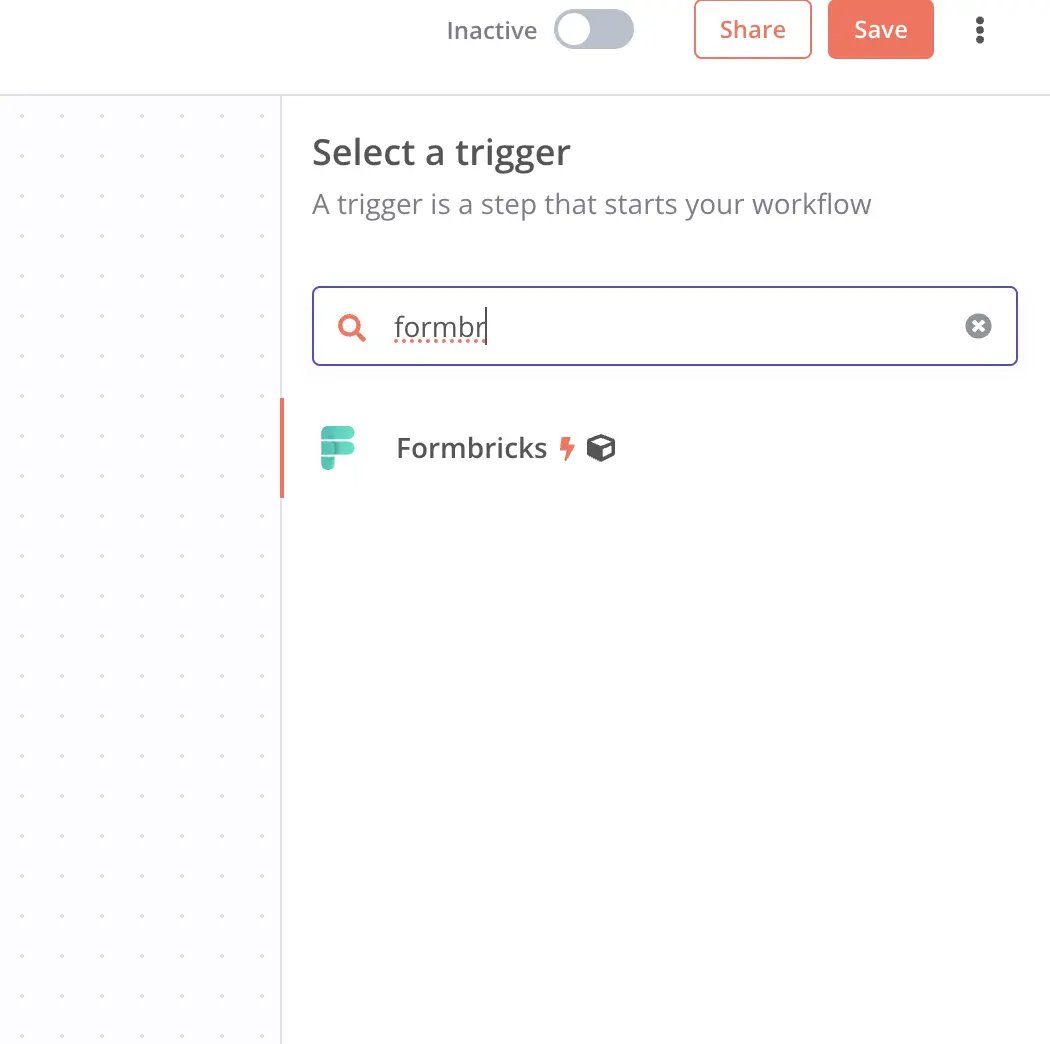
@formbricks/n8n-nodes-formbricks via Settings → Community Nodes. Then add the Formbricks trigger node, connect your API key and host, select Response Finished, and choose your survey.2
Create a Salesforce App
In Salesforce, go to Setup → App Manager → New External Client App (or New Connected App). Enable OAuth, set the callback URL n8n shows you (
https://<your-n8n-domain>/rest/oauth2-credential/callback), and add the api and refresh_token, offline_access scopes. Copy the Consumer Key and Secret.3
Add the Salesforce Node
Choose Contact → Create or Update, create a Salesforce OAuth2 credential with the key and secret, and click Connect my account.
4
Map Fields
Create or Update needs an external ID field to match on, such as a custom
Email__c field on Contact marked as External ID and Unique. Set Match Against to Email__c and Value to Match to {{ $json.data.data.email }}, then map:5
Test and Activate
Click Listen for event, submit a test response, confirm the record in Salesforce, and activate the workflow.
Method 3: Custom webhook (advanced)
Use this only if you want to avoid Make or n8n. Your handler authenticates with the OAuth 2.0 Client Credentials Flow.Set up an External Client App
1
Create the App
Go to Setup → App Manager → New External Client App, and set Distribution State to Local.
2
Configure OAuth
Enable OAuth, use any callback URL (e.g.
https://login.salesforce.com/services/oauth2/callback), and select only the api scope. Enable Client Credentials Flow and save.3
Set the Run As User
In External Client Apps Manager → your app → Policies, set Run As to an active, full-license user with API Enabled and create/edit access on Contact.
4
Copy the Credentials
On the Settings tab, click Consumer Key and Secret and copy them. Changes can take a few minutes to apply.
Build the handler
1
Create a Formbricks Webhook
Go to Configuration → Integrations → Manage Webhooks → Add Webhook, enter your endpoint URL, select Response Finished, and choose your surveys.
2
Write the Handler
- Read the answers from
data.data(keyed byquestionId). - Get a token:
POST https://YOUR_DOMAIN.my.salesforce.com/services/oauth2/tokenwithgrant_type=client_credentials. - Create the Contact:
POST /services/data/vXX.0/sobjects/Contact. - To avoid duplicates, query by email first and
PATCHany match, or upsert via an external ID:PATCH /sobjects/Contact/Email__c/[email protected].
3
Deploy and Test
Deploy the handler to a public URL, submit a test response, and confirm the record in Salesforce.
Troubleshooting
No record created- Check that you’re mapping the correct email
questionId. - Contacts require
LastName; Leads also requireCompanyunless your org uses Person Accounts.
- Add a search-then-update step, or upsert on an external ID.
no client credentials user enabled: set a valid Run As user under Policies.no valid scopes defined: make sure theapiscope is selected; Client Credentials ignoresfullandrefresh_token.- Expired token or blocked IP: request a new token on 401, and check Trusted IP Ranges.
- Check the URL is public, Response Finished is selected, and the survey is linked.
Need help? Ask in GitHub Discussions.