Nailed down your survey?? Any changes in the survey cause additional work in the Scenario. It makes sense to first settle on the survey you want to run and then get to setting up Make.
Step 1: Check your question codes
Every question has a question code, such asq1 or nps, and the dataByQuestionCode group of the trigger output shows your answers under these codes. You can read and change the code in the Settings tab of a question, under Recode, before you activate the survey. Once the survey is active, codes are locked, so the scenario you build on them keeps working.
Question codes start with a lowercase letter and use lowercase letters, digits and
_. Pick short, readable names such as nps or visit_reason. Learn more in Question codes and answer codes.The Question ID of a question is generated and cannot be changed. If you need it, choose Copy question ID in the question’s ⋯ menu.
Step 2: Setup Make.com
Visit Make.com to start a new scenario.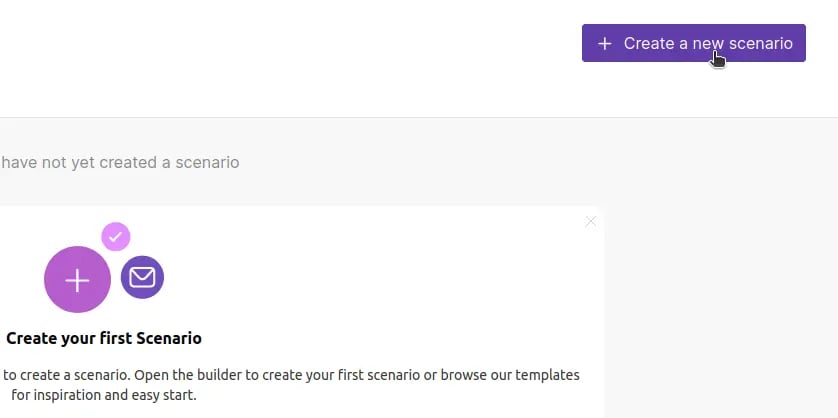
Formbricks:
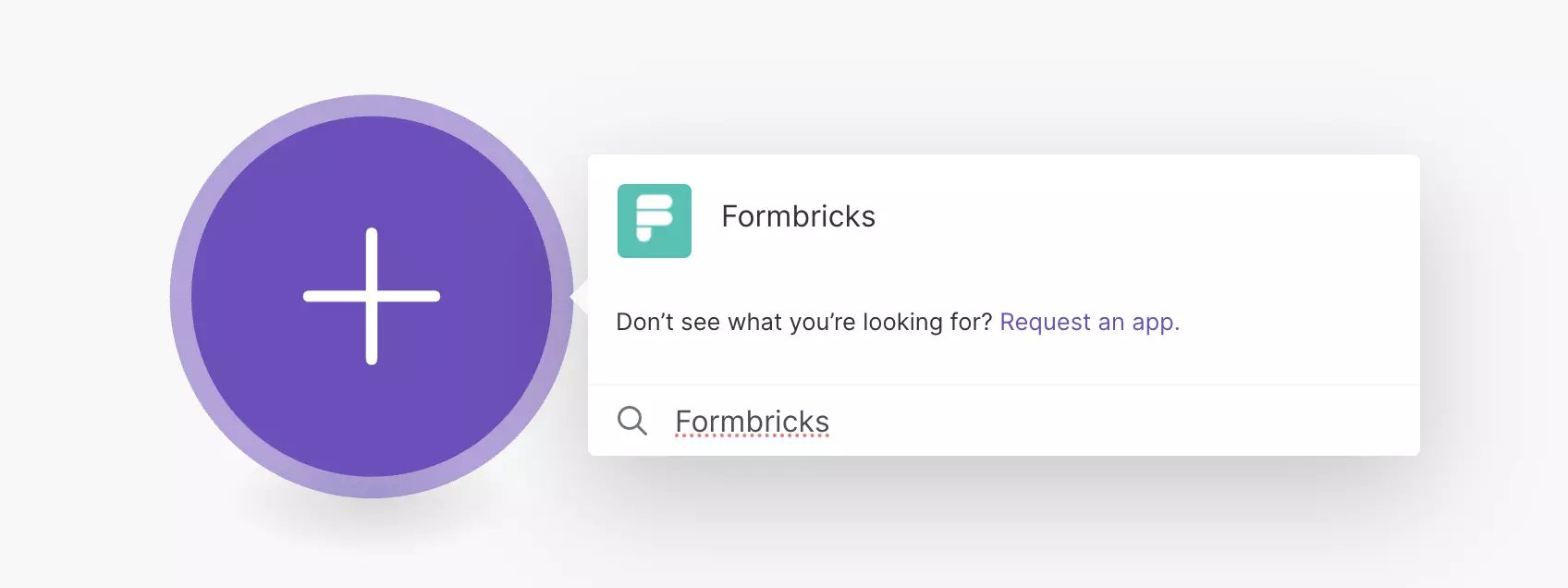
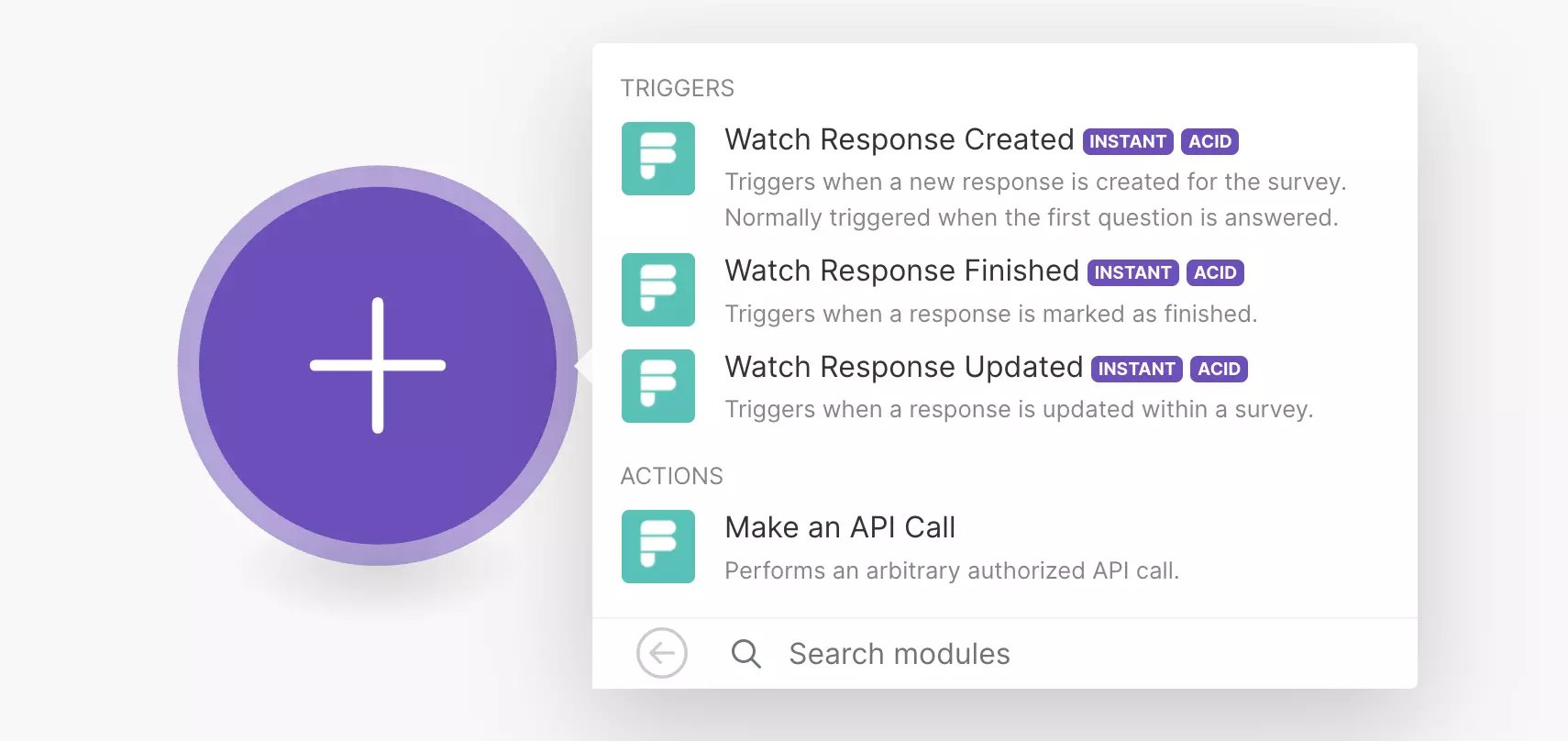
Step 3: Connect Formbricks with Make
Click “Create a webhook”: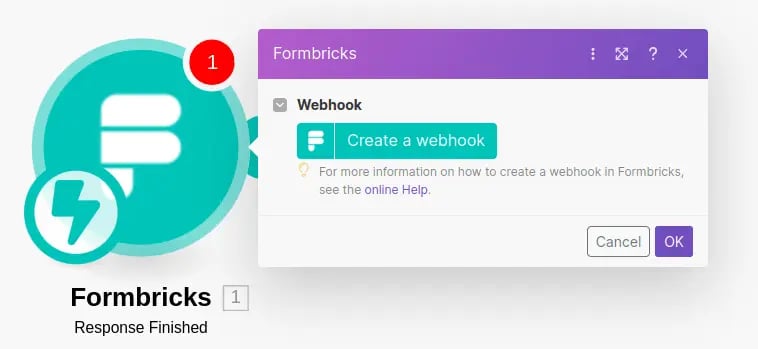
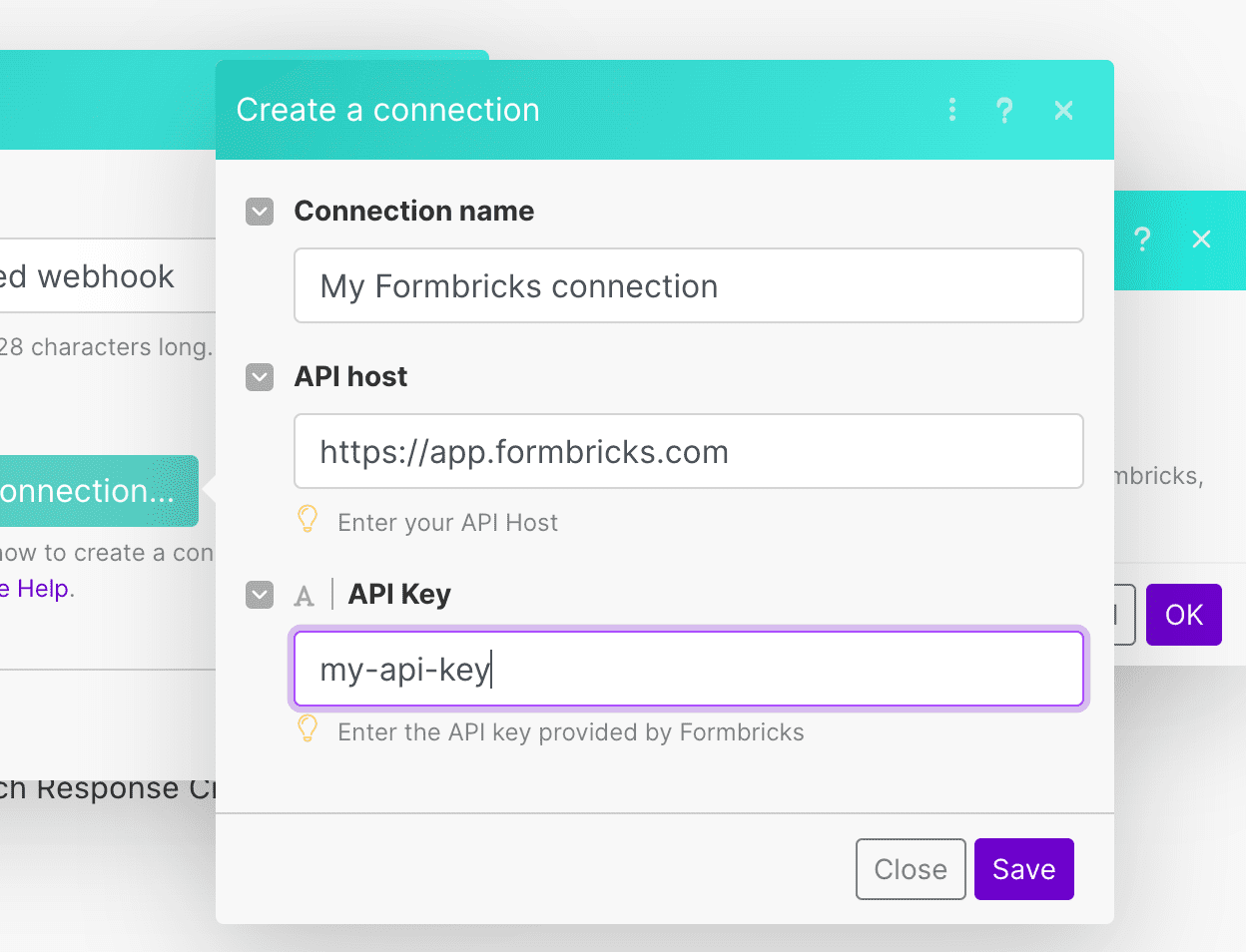
Step 4: Select Survey
Choose from your created surveys: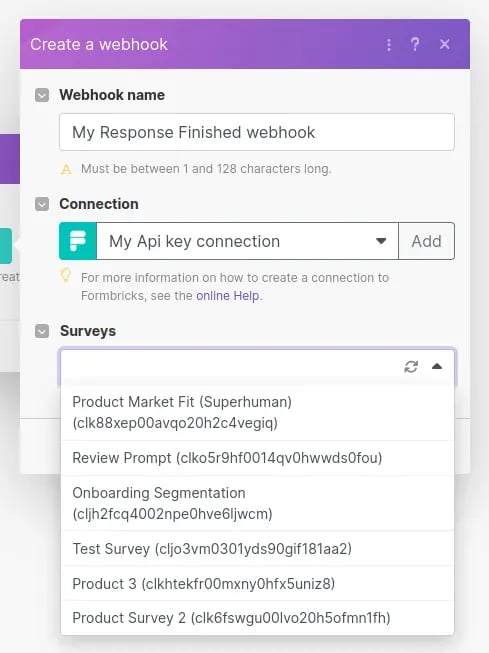
Step 5: Send a test response
You need a test response for Make setup.
Step 6: Set up Google Sheet
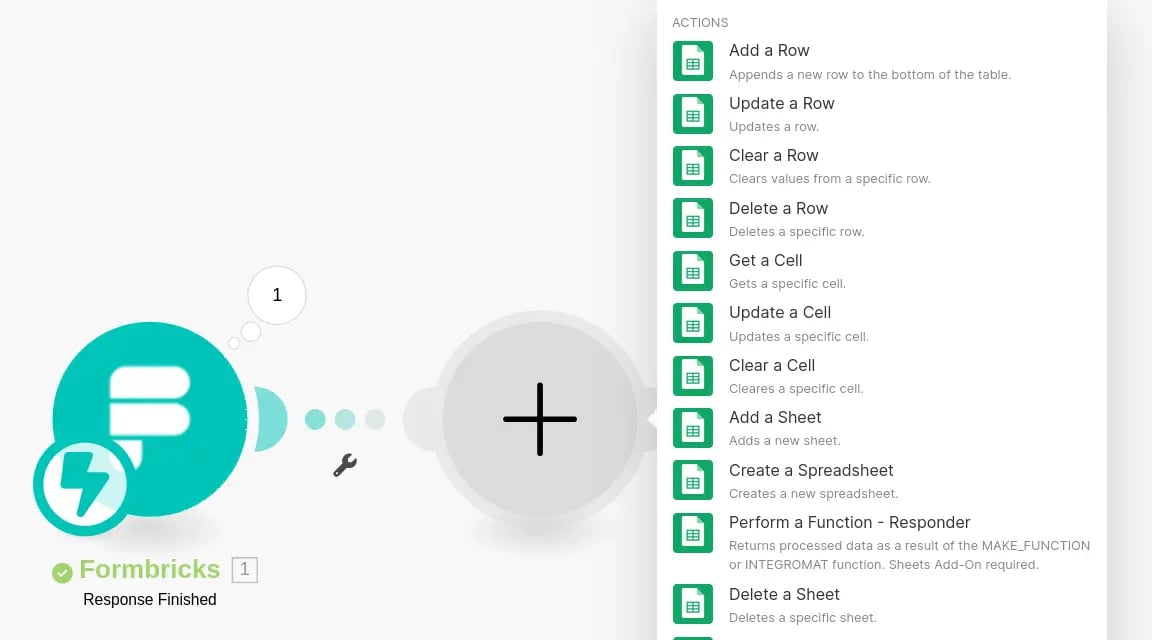
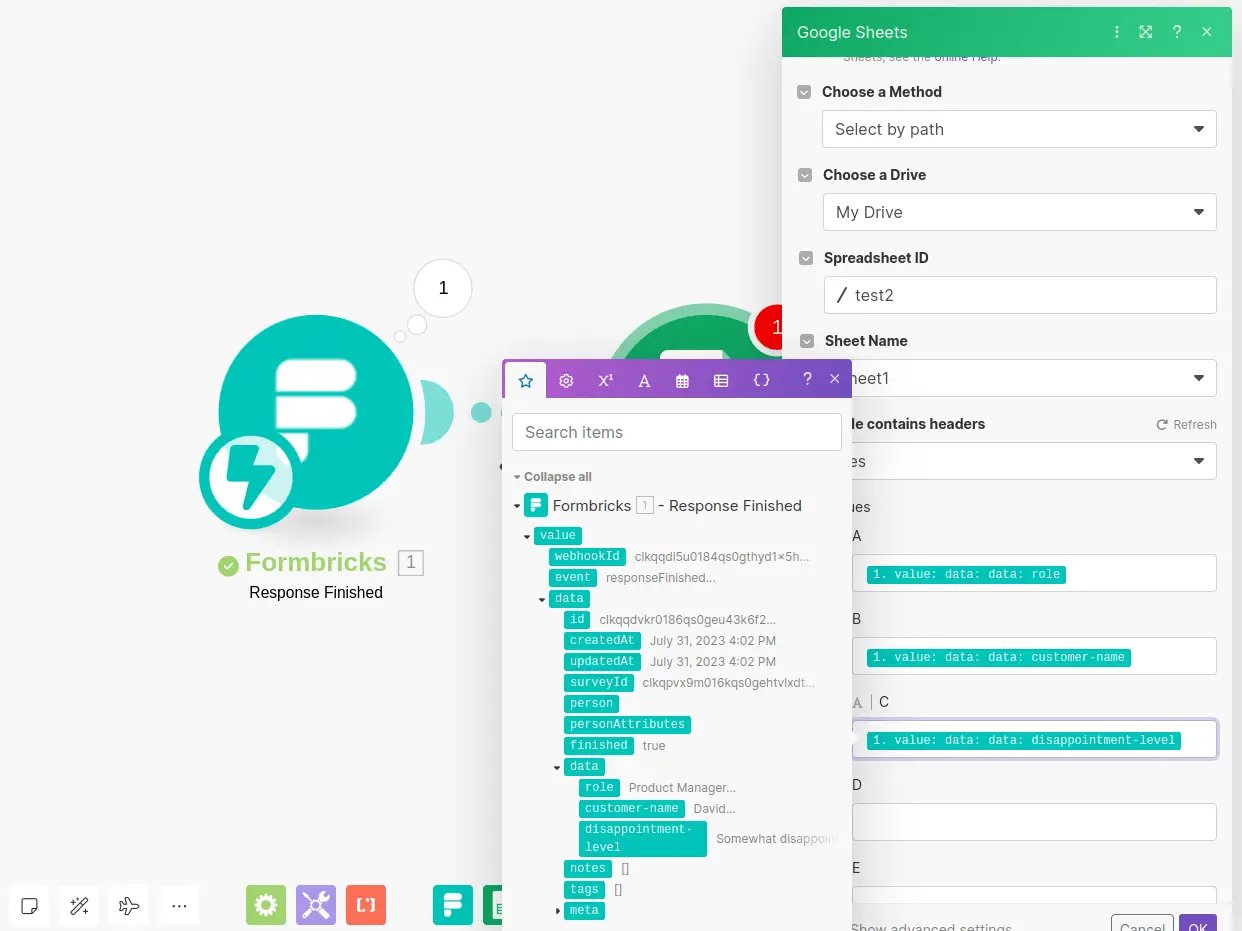
Decide on the desired action for the data. Here, we’ll send submissions to a Google Sheet: