

Okta OIDC is part of the Formbricks Enterprise Edition
Prefer SAML? Okta works either way — follow SAML with Identity Providers instead. OIDC is the simpler of the two: it needs no XML metadata file on the Formbricks side.
Requirements
- An Okta org with administrator access to the Admin Console.
- A self-hosted Formbricks instance with a valid Enterprise license.
- The Formbricks callback URI:
{WEBAPP_URL}/api/auth/oauth2/callback/openid
Setting up Okta OIDC
1
Create a new app integration in Okta
- Sign in to the Okta Admin Console.
- Go to Applications → Applications in the sidebar.
- Click Create App Integration.
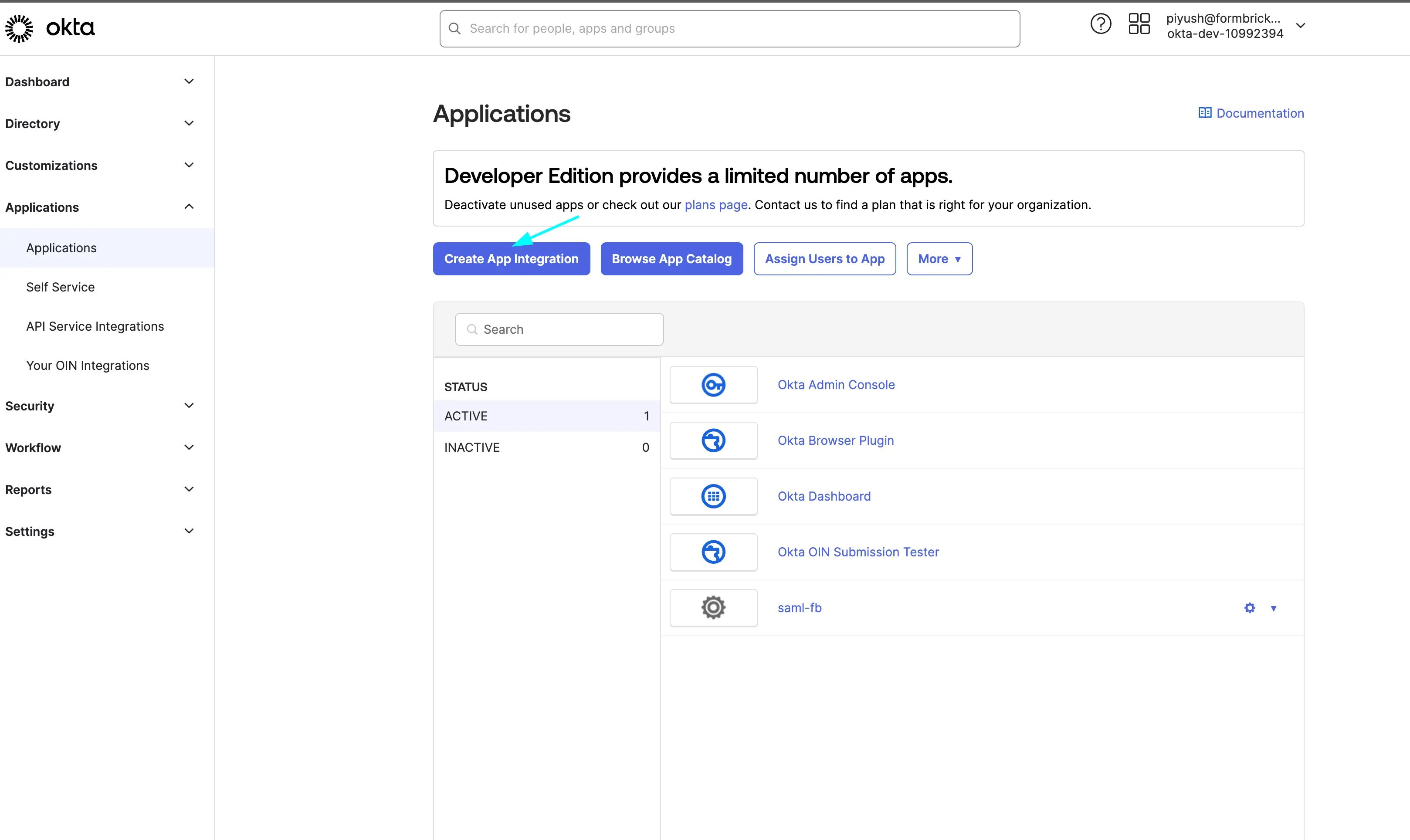
2
Choose OIDC and Web Application
In the Create a new app integration dialog:
- Sign-in method:
OIDC - OpenID Connect - Application type:
Web Application
Web Application, not Single-Page Application. Formbricks completes the authorization code exchange on the server with a client secret, so it needs a confidential client. A SPA integration issues no secret and sign-in will fail.
3
Configure the app integration
Replace
your-formbricks-domain.com with your actual Formbricks URL, then click Save.Formbricks sends PKCE on every authorization request. Okta accepts PKCE on confidential web apps, so the Require PKCE as additional verification checkbox can be left either way.
4
Copy the client credentials
On the app’s General tab, find the Client Credentials section and copy:
- Client ID
- Client secret (under Client Secrets)
If Client authentication shows
Public client / PKCE only rather than Client secret, the app was created as a SPA or native integration. Create a Web Application integration instead — Formbricks needs the secret.5
Assign users or groups
- Open the app’s Assignments tab.
- Click Assign → Assign to People or Assign to Groups, and assign everyone who should be able to sign in to Formbricks.
6
Determine the issuer URL
Okta can mint tokens from two kinds of authorization server, and the issuer URL differs:
The org authorization server works on every Okta plan and is the simpler choice. Custom authorization servers require API Access Management (integrator and developer orgs ship a
default one); find their exact issuer under Security → API → Authorization Servers, in the Issuer URI column.Verify the issuer by opening
{OIDC_ISSUER}/.well-known/openid-configuration in your browser. It returns a JSON document with the OIDC endpoints. Formbricks builds that URL by appending to OIDC_ISSUER, so do not add a trailing slash.7
Configure Formbricks environment variables
Add the following to your Formbricks
.env file or docker-compose.yml:Formbricks Env for Okta OIDC
8
Restart and test
- Restart your Formbricks instance.
- The login page now shows a button labelled with your
OIDC_DISPLAY_NAME. - Click it to authenticate through Okta.
To disable email/password login entirely and force all users through Okta, set
EMAIL_AUTH_DISABLED=1. This hides the email/password form on the login page.Automatic user provisioning
By default, new SSO users must be invited by an organization admin before they can access Formbricks. To let Okta users join automatically and land in a team, add:Automatic User Provisioning
Finding your team ID
- Log in to Formbricks as an admin.
- Go to Settings → Organization → Teams.
- Click Manage Team on the team you want to use as the default.
- The Team ID is displayed in the modal.
The Teams feature requires the Role-Based Access Control (RBAC) add-on on your Enterprise license. If you don’t see the Teams section under Settings → Organization, contact Formbricks support to enable it.
Full configuration example
Complete Okta OIDC Configuration
Troubleshooting
Okta shows 'The redirect_uri parameter must be a Login redirect URI'
Okta shows 'The redirect_uri parameter must be a Login redirect URI'
The Sign-in redirect URIs entry on the Okta app does not match what Formbricks sends. It must be exactly
{WEBAPP_URL}/api/auth/oauth2/callback/openid — same scheme and host, no trailing slash.If you’re on v5.1 or earlier, the path is {WEBAPP_URL}/api/auth/callback/openid (without /oauth2) instead.Okta shows 'User is not assigned to the client application'
Okta shows 'User is not assigned to the client application'
The signed-in Okta user is not assigned to the app integration. Open the app’s Assignments tab and assign the user, or the group they belong to.
Sign-in fails and the logs mention discovery or the issuer
Sign-in fails and the logs mention discovery or the issuer
Formbricks reads
{OIDC_ISSUER}/.well-known/openid-configuration, so that URL must be reachable from the Formbricks server:- Check that
OIDC_ISSUERhas no trailing slash. - Check that you used the org domain, not
your-org-admin.okta.com. - On a custom authorization server, the issuer includes the
/oauth2/...path.
Users see 'No access to Workspaces' after login
Users see 'No access to Workspaces' after login
The user was added to the organization but not assigned to a team. Verify that:
AUTH_SSO_DEFAULT_TEAM_IDis set correctly (the env variable name isAUTH_SSO_DEFAULT_TEAM_ID, notDEFAULT_TEAM_ID).- The Team ID is a valid cuid that exists in your database.
- The team is linked to a Workspace via Workspace Teams settings.