

Manage the lifecycle
Use the status menu in the builder to enable, disable, archive, or unarchive a workflow. You can also archive or unarchive it from the options menu in the Workflows list.Find and restore archived workflows
Archived workflows are excluded from the Workflows list by default. Open the Status filter and select Archived to show them. Select Unarchive to restore an archived workflow as a draft.Duplicate a workflow
Select Duplicate from a workflow’s options menu to create a draft copy of its definition. The copy does not inherit the source workflow’s run history.Delete a workflow
The Delete action appears after a workflow is archived.Monitor runs
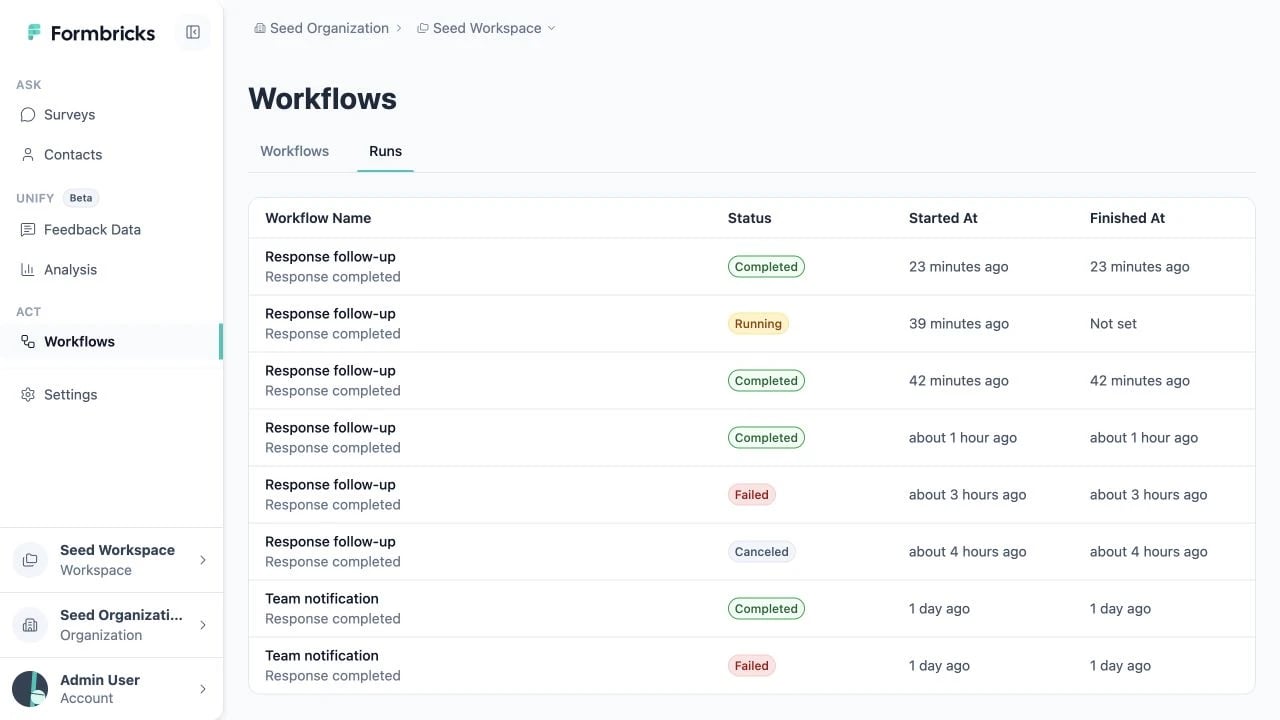
- Select Workflows > Runs to see runs across the workspace. This view includes the workflow name.
- Open a workflow and select Runs to see only executions of that workflow.
Run statuses
Inspect run details and logs
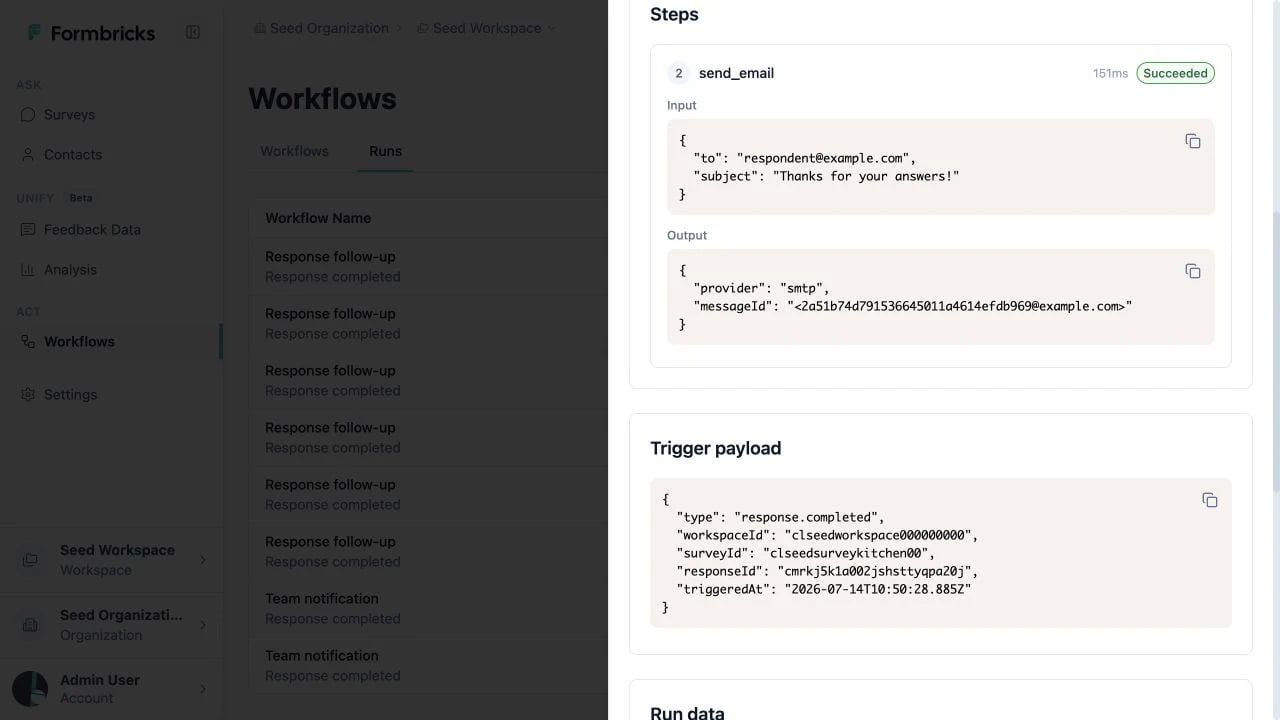
- Run ID, status, start and finish times, attempt number, and any run-level error
- A chronological list of step logs, including duration, input, output, and errors
- The trigger payload and accumulated run data
- A link back to the workflow
Permissions
Workflow status still limits editing for members with write or manage access: enabled and archived definitions
are read-only. Disable an enabled workflow or unarchive an archived workflow before changing its definition.