

Before you begin
You need write or manage access to the workspace. For the Response completed example, you also need a survey in the same workspace as the workflow. If you use Send email and the message should go to an address collected from a response, configure at least one compatible recipient source in the survey, such as an email question, contact information, email verification, or a hidden field.Create a workflow
1
Open Workflows
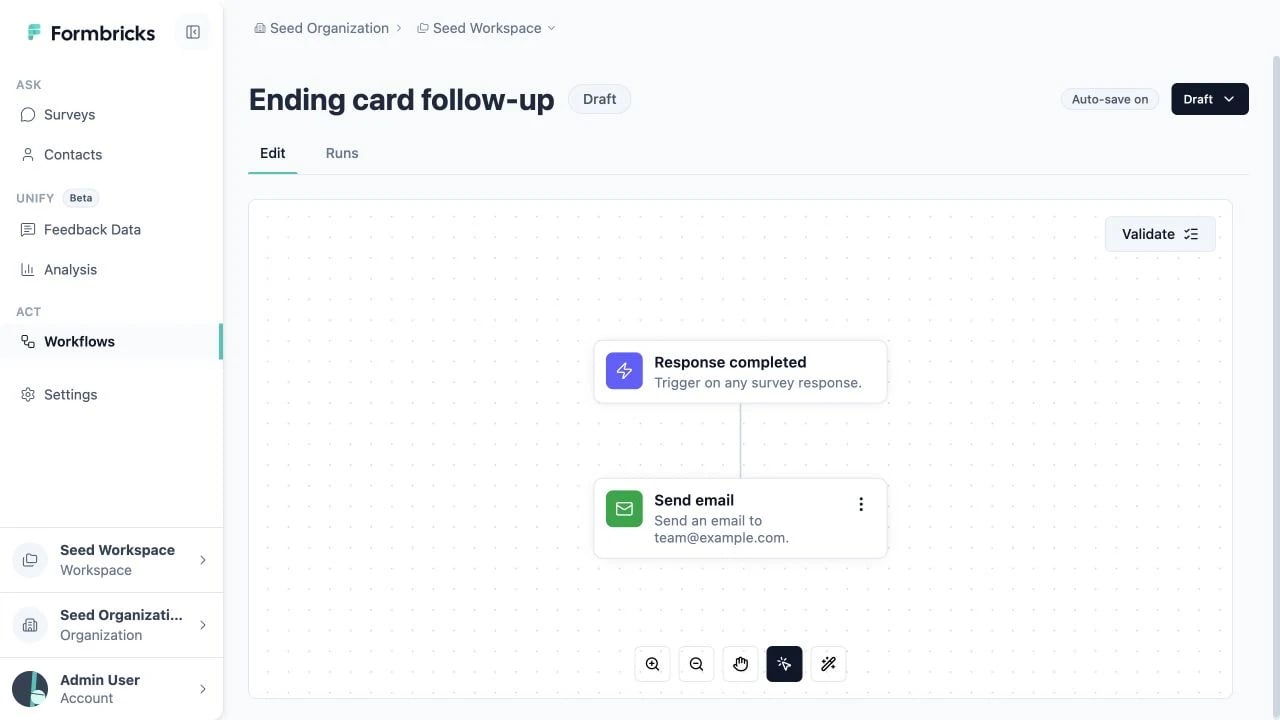
Select Workflows in the workspace navigation, then select New workflow. Formbricks creates a
draft and opens the builder. Rename the workflow using the title at the top of the page.
2
Add a trigger
Select Add trigger, then choose a trigger from the list, such as Response completed. Select the
trigger card to open its configuration.
3
Add an action
Select the + below the trigger, then choose an action from the list, such as Send email. Select the
action card to open its configuration.
Configure the Response completed trigger
If you choose the Response completed trigger, select the survey whose completed responses should start the workflow. Changing the linked survey clears any ending card and email recipient configuration that belonged to the previous survey. Under Ending cards, choose one of these scopes:- All endings runs the workflow for every completed response, including ending cards added later.
- Specific endings runs it only when the respondent reaches one of the selected ending cards.
Configure the Send email action
If you choose the Send email action, complete these fields in its configuration panel:
The Send to options can include:
- The verified email address, when email verification is enabled for the survey
- An Open Text question configured for email input
- The email field of a Contact Info question
- A hidden field
- A workspace member, including yourself
Personalize the body
Type@ in the Body editor to insert recall values from the linked survey. You can recall answers,
variables, and hidden fields to personalize the message for each run. Learn more about the available sources
in Recall Data.
Include response data
Turn on Attach response data to include the triggering survey response with the email. You can then also turn on Include variables and Include hidden fields.Check validity or enable
The status button in the upper-left corner shows whether the editor’s client-side checks consider the workflow Valid or Invalid. Select it whenever you want Formbricks to manually verify that the current workflow definition is valid and executable. For the Response completed example, the manual check also confirms that required configuration is present and that the linked survey and selected ending cards still exist.Running the manual check is optional and side-effect-free. It does not create a run or execute an action. It
is available for draft, enabled, and disabled workflows, but not archived workflows, and it requires
workspace write access.
Enabling verifies that the workflow is executable. A workflow with incomplete or outdated configuration
cannot be enabled.