> ## Documentation Index
> Fetch the complete documentation index at: https://formbricks.com/docs/llms.txt
> Use this file to discover all available pages before exploring further.
# Manage and monitor workflows
> Manage workflow statuses, duplicate or delete workflows, and inspect runs and step logs.
Use workflow statuses to control when automations run and use run history to investigate every execution.
## Manage the lifecycle
Use the status menu in the builder to enable, disable, archive, or unarchive a workflow. You can also archive
or unarchive it from the options menu in the Workflows list.
| Status | Behavior |
| ------------ | ------------------------------------------------------------------------------------------------------------------ |
| **Draft** | Editable and not running. New workflows and unarchived workflows use this status. |
| **Enabled** | Runs when its configured trigger fires and its conditions match. The definition is read-only until you disable it. |
| **Disabled** | Stops starting new runs and can be edited and enabled again. |
| **Archived** | Disabled, read-only, and hidden from the default list. It can be unarchived. |
### Find and restore archived workflows
Archived workflows are excluded from the Workflows list by default. Open the **Status** filter and select
**Archived** to show them. Select **Unarchive** to restore an archived workflow as a draft.
### Duplicate a workflow
Select **Duplicate** from a workflow's options menu to create a draft copy of its definition. The copy does
not inherit the source workflow's run history.
### Delete a workflow
The **Delete** action appears after a workflow is archived.
Deleting a workflow permanently removes the workflow and all of its run history. This cannot be undone.
## Monitor runs
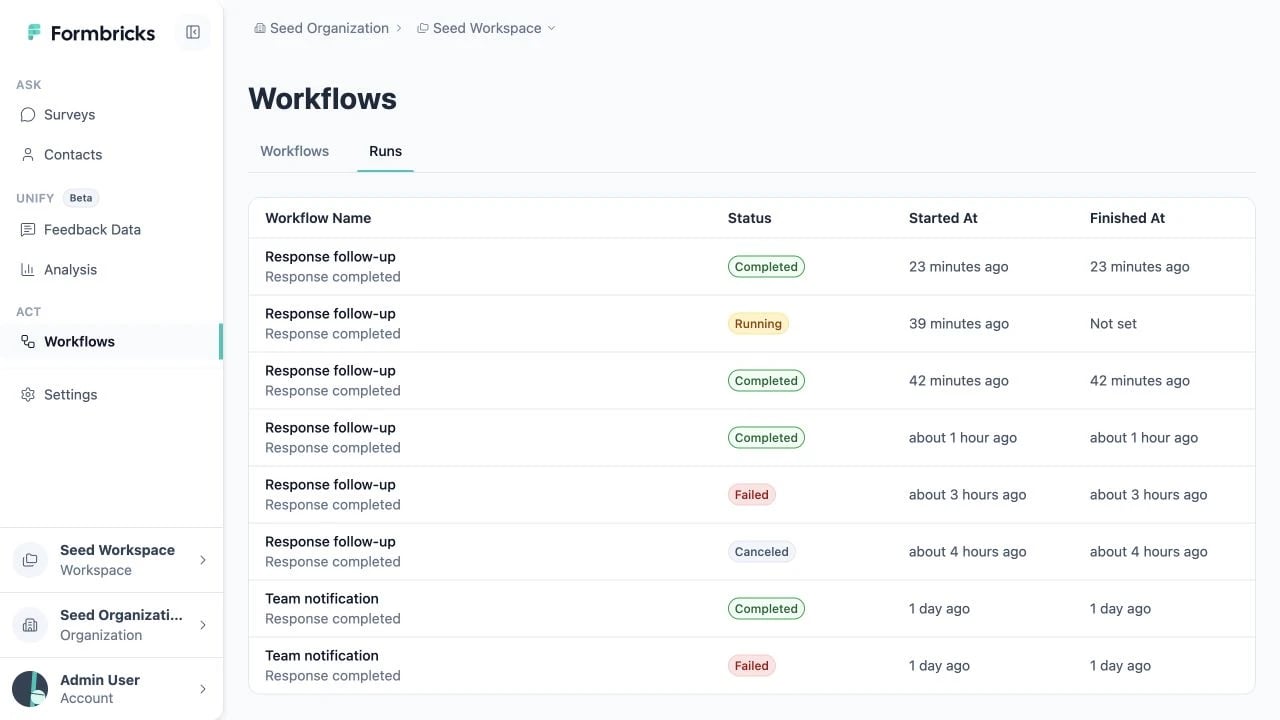 There are two ways to inspect runs:
* Select **Workflows** > **Runs** to see runs across the workspace. This view includes the workflow name.
* Open a workflow and select **Runs** to see only executions of that workflow.
Each table row shows the trigger, run status, start time, and finish time. Select a row to open its details.
### Run statuses
| Status | Meaning |
| ------------- | ------------------------------------------- |
| **Queued** | The run is waiting to start. |
| **Running** | The workflow is currently executing. |
| **Completed** | All required steps finished successfully. |
| **Failed** | The workflow could not finish successfully. |
| **Canceled** | The run stopped before it completed. |
### Inspect run details and logs
There are two ways to inspect runs:
* Select **Workflows** > **Runs** to see runs across the workspace. This view includes the workflow name.
* Open a workflow and select **Runs** to see only executions of that workflow.
Each table row shows the trigger, run status, start time, and finish time. Select a row to open its details.
### Run statuses
| Status | Meaning |
| ------------- | ------------------------------------------- |
| **Queued** | The run is waiting to start. |
| **Running** | The workflow is currently executing. |
| **Completed** | All required steps finished successfully. |
| **Failed** | The workflow could not finish successfully. |
| **Canceled** | The run stopped before it completed. |
### Inspect run details and logs
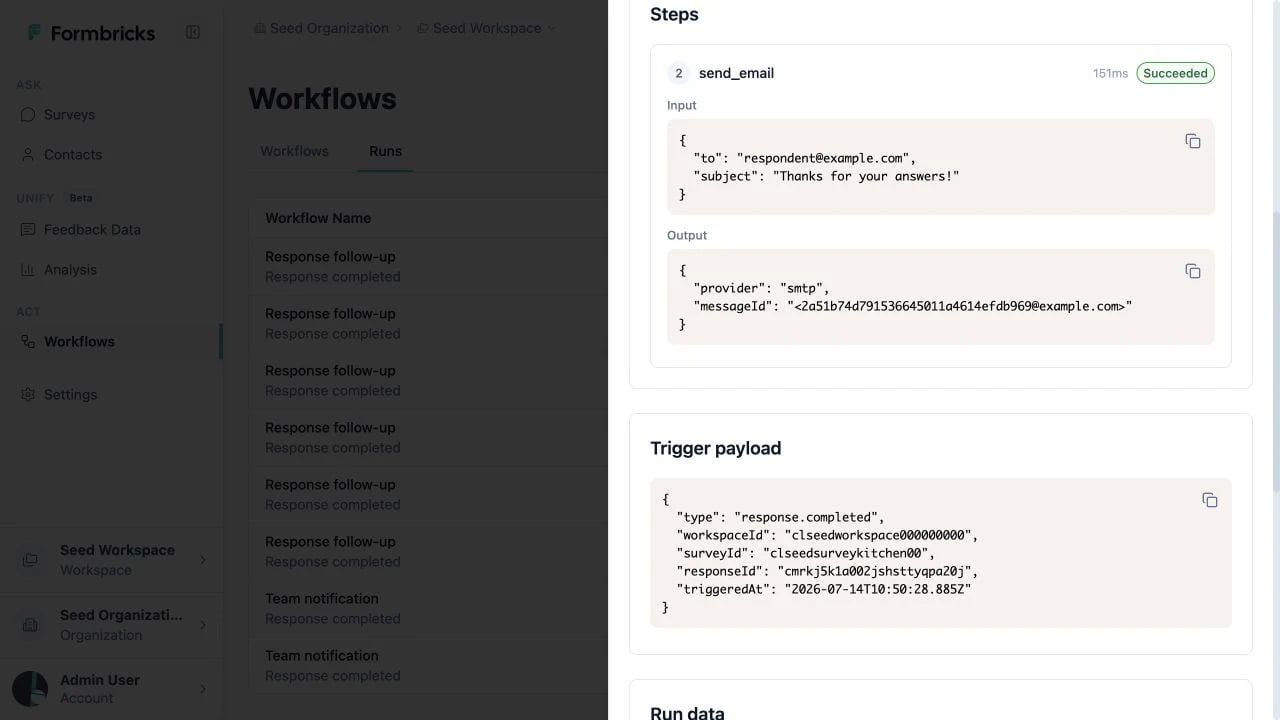 The run details drawer includes:
* Run ID, status, start and finish times, attempt number, and any run-level error
* A chronological list of step logs, including duration, input, output, and errors
* The trigger payload and accumulated run data
* A link back to the workflow
Each step log has its own status: **Pending**, **Running**, **Succeeded**, **Failed**, or **Skipped**. A failed
step includes its error to help you identify the configuration or delivery problem.
## Permissions
| Workspace access | Available workflow operations |
| ------------------- | ------------------------------------------------------------------------------------------------------------------------------ |
| **Read-only** | List and open workflows, inspect their configuration, and view workspace-wide or workflow-specific runs. |
| **Write or manage** | Create, configure, validate, enable, disable, archive, unarchive, duplicate, and delete workflows, in addition to read access. |
Workflow status still limits editing for members with write or manage access: enabled and archived definitions
are read-only. Disable an enabled workflow or unarchive an archived workflow before changing its definition.
The run details drawer includes:
* Run ID, status, start and finish times, attempt number, and any run-level error
* A chronological list of step logs, including duration, input, output, and errors
* The trigger payload and accumulated run data
* A link back to the workflow
Each step log has its own status: **Pending**, **Running**, **Succeeded**, **Failed**, or **Skipped**. A failed
step includes its error to help you identify the configuration or delivery problem.
## Permissions
| Workspace access | Available workflow operations |
| ------------------- | ------------------------------------------------------------------------------------------------------------------------------ |
| **Read-only** | List and open workflows, inspect their configuration, and view workspace-wide or workflow-specific runs. |
| **Write or manage** | Create, configure, validate, enable, disable, archive, unarchive, duplicate, and delete workflows, in addition to read access. |
Workflow status still limits editing for members with write or manage access: enabled and archived definitions
are read-only. Disable an enabled workflow or unarchive an archived workflow before changing its definition.