> ## Documentation Index
> Fetch the complete documentation index at: https://formbricks.com/docs/llms.txt
> Use this file to discover all available pages before exploring further.
# Framework Guides
> Easily add the Formbricks App Survey SDK to your app with guides for different frameworks.
Integrate the **Formbricks App Survey SDK** into your app using multiple options. Explore the available choices below. If you need something else, open a [**GitHub Discussion**](https://github.com/formbricks/formbricks/discussions), and we’ll be happy to help!
**Important for Self-Hosted Setups:**
**Multi-Domain Setup:** If you are using the multi-domain setup, the `appUrl` parameter in all SDK configurations should point to your **public domain** (PUBLIC\_URL environment variable). This is the domain where surveys and public-facing content are served, which may be different from your admin interface domain (WEBAPP\_URL).
**Single Domain Setup:** If you are using the single domain setup, the `appUrl` parameter in all SDK configurations should point to your **admin domain** (WEBAPP\_URL environment variable).
All you need to do is add three lines of code to your HTML script, and that's it!
Load our JavaScript library with your Workspace ID, and you're ready to
go!
Natively add us to your Next.js app, with support for both App Router and Pages Router setups.
Learn how to use Formbricks' Vue.js SDK to integrate your surveys into Vue.js applications.
Easily integrate our SDK with your React Native app for seamless survey
support.
Use our iOS SDK to quickly integrate surveys into your iOS
applications.
Integrate surveys into your Android applications using our native Kotlin
SDK.
Add surveys to your Flutter app on iOS and Android with our Dart SDK.
## Prerequisites
Before getting started, make sure you have:
* A running web application with user authentication in your chosen framework.
* A Formbricks account with your **Workspace ID** and **API host**, available in the **Setup Checklist** under **Settings**.
## HTML
All you need to do is copy a `
```
### Required Customizations
| Name | Type | Description |
| ----------- | ------ | -------------------------------------- |
| workspaceId | string | Formbricks Workspace ID. |
| appUrl | string | URL of the hosted Formbricks instance. |
Now, visit the [Validate Your Setup](#validate-your-setup) section to verify your setup!
## React.js
Install the Formbricks SDK using one of the following package managers: `npm`, `pnpm`, or `yarn`.
Note that **`zod`** is required as a peer dependency and must also be installed in your app.
```javascript npm theme={null}
npm install @formbricks/js zod
```
```bash pnpm theme={null}
pnpm add @formbricks/js zod
```
```bash yarn theme={null}
yarn add @formbricks/js zod
```
Update your `App.js/ts` file to initialize Formbricks.
```javascript src/App.js theme={null}
// other imports
import formbricks from "@formbricks/js";
if (typeof window !== "undefined") {
formbricks.setup({
workspaceId: "",
appUrl: "", // use PUBLIC_URL if you are using multi-domain setup, otherwise use WEBAPP_URL
});
}
function App() {
// your own app
}
export default App;
```
### Required Customizations
| Name | Type | Description |
| ----------- | ------ | -------------------------------------- |
| workspaceId | string | Formbricks Workspace ID. |
| appUrl | string | URL of the hosted Formbricks instance. |
Now, visit the [Validate Your Setup](#validate-your-setup) section to verify your setup!
## Next.js
Next.js apps use either the **App Directory** or the **Pages Directory**. Since the Formbricks SDK runs on the client side, follow these steps based on your setup:
* **App Directory**: Create a new component in `app/formbricks.tsx` and call it in `app/layout.tsx`.
* **Pages Directory**: Initialize Formbricks directly in `_app.tsx`.
Code snippets for the integration for both conventions are provided to further assist you.
```bash npm theme={null}
npm install @formbricks/js zod
```
```bash pnpm theme={null}
pnpm add @formbricks/js zod
```
```bash yarn theme={null}
yarn add @formbricks/js zod
```
### App directory
```typescript app/formbricks.tsx theme={null}
"use client";
import { usePathname, useSearchParams } from "next/navigation";
import { useEffect } from "react";
import formbricks from "@formbricks/js";
export default function FormbricksProvider() {
const pathname = usePathname();
const searchParams = useSearchParams();
useEffect(() => {
formbricks.setup({
workspaceId: "",
appUrl: "", // use PUBLIC_URL if you are using multi-domain setup, otherwise use WEBAPP_URL
});
}, []);
useEffect(() => {
formbricks?.registerRouteChange();
}, [pathname, searchParams]);
return null;
}
```
```typescript app/layout.tsx theme={null}
// other imports
import FormbricksProvider from "./formbricks";
import { Suspense } from "react";
export default function RootLayout({
children,
}: {
children: React.ReactNode;
}) {
return (
{children}
);
}
```
### Pages directory
```javascript src/pages/_app.tsx theme={null}
// other import
import { useRouter } from "next/router";
import { useEffect } from "react";
import formbricks from "@formbricks/js";
if (typeof window !== "undefined") {
formbricks.setup({
workspaceId: "",
appUrl: "", // use PUBLIC_URL if you are using multi-domain setup, otherwise use WEBAPP_URL
});
}
export default function App({ Component, pageProps }: AppProps) {
const router = useRouter();
useEffect(() => {
// Connect next.js router to Formbricks
const handleRouteChange = formbricks?.registerRouteChange;
router.events.on("routeChangeComplete", handleRouteChange);
return () => {
router.events.off("routeChangeComplete", handleRouteChange);
};
}, []);
return ;
}
```
### Required Customizations
| Name | Type | Description |
| ----------- | ------ | -------------------------------------- |
| workspaceId | string | Formbricks Workspace ID. |
| appUrl | string | URL of the hosted Formbricks instance. |
First, initialize the Formbricks SDK to run only on the client side. To track page changes, register the route change event with the Next.js router.
Next, go to the [**Validate Your Setup**](#validate-your-setup) section to verify your setup!
## Vue.js
Integrating the Formbricks SDK with Vue.js is easy. We'll ensure the SDK is only loaded and used on the client side, as it's not meant for server-side use.
```bash npm theme={null}
npm install @formbricks/js
```
```bash pnpm theme={null}
pnpm add @formbricks/js
```
```bash yarn theme={null}
yarn add @formbricks/js
```
```javascript src/formbricks.js theme={null}
import formbricks from "@formbricks/js";
if (typeof window !== "undefined") {
formbricks.setup({
workspaceId: "",
appUrl: "", // use PUBLIC_URL if you are using multi-domain setup, otherwise use WEBAPP_URL
});
}
export default formbricks;
```
```javascript src/main.js theme={null}
// other imports
import formbricks from "@/formbricks";
const app = createApp(App);
app.use(router);
app.mount("#app");
router.afterEach((to, from) => {
if (typeof formbricks !== "undefined") {
formbricks.registerRouteChange();
}
});
```
### Required Customizations
| Name | Type | Description |
| ----------- | ------ | -------------------------------------- |
| workspaceId | string | Formbricks Workspace ID. |
| appUrl | string | URL of the hosted Formbricks instance. |
Now, visit the [Validate Your Setup](#validate-your-setup) section to verify your setup!
## React Native
Install the Formbricks React Native SDK using one of the package managers, i.e., npm, pnpm, or yarn.
```bash npm theme={null}
npm install @formbricks/react-native
```
```bash pnpm theme={null}
pnpm add @formbricks/react-native
```
```bash yarn theme={null}
yarn add @formbricks/react-native
```
Now, update your `App.js/App.tsx` file to initialize Formbricks:
```javascript src/App.js theme={null}
// other imports
import Formbricks from "@formbricks/react-native";
const config = {
workspaceId: "",
appUrl: "", // use PUBLIC_URL if you are using multi-domain setup, otherwise use WEBAPP_URL
};
export default function App() {
return (
<>
{/* Your app content */}
);
}
```
### Required Customizations
| Name | Type | Description |
| ----------- | ------ | -------------------------------------- |
| workspaceId | string | Formbricks Workspace ID. |
| appUrl | string | URL of the hosted Formbricks instance. |
Now, visit the [Validate Your Setup](#validate-your-setup) section to verify your setup!
## Swift
**Minimum iOS Version:** The Formbricks iOS SDK requires **iOS 16.4** or higher.
Install the Formbricks iOS SDK using the following steps:
**Swift Package Manager**
1. In Xcode choose **File → Add Packages…**
2. Enter your repo URL (e.g. `https://github.com/formbricks/ios.git`)
3. Choose version rule (e.g. "Up to Next Major" starting at `1.0.0`).
4. Import in your code:
```swift theme={null}
import FormbricksSDK
```
**CocoaPods**
1. Add the following to your `Podfile`:
```ruby theme={null}
platform :ios, '16.4'
use_frameworks! :linkage => :static
target 'YourTargetName' do
pod 'FormbricksSDK', '1.0.0 (or the latest version)'
end
```
2. Run `pod install` in your app directory
3. Import in your code:
```swift theme={null}
import FormbricksSDK
```
Now start using FormbricksSDK
```swift theme={null}
import FormbricksSDK
// 1. Build your config (you can also inject userId + attributes here)
let config = FormbricksConfig.Builder(
appUrl: "https://your‑app.bricks.com", // use PUBLIC_URL if you are using multi-domain setup, otherwise use WEBAPP_URL
workspaceId: "YOUR_WORKSPACE_ID"
)
.setLogLevel(.debug)
.build()
// 2. Initialize the SDK (once per launch)
Formbricks.setup(with: config)
// 3. Identify the user
Formbricks.setUserId("user‑123")
// 4. Track events
Formbricks.track("button_pressed")
// 5. Set or add user attributes
Formbricks.setAttribute("blue", forKey: "favoriteColor")
Formbricks.setAttributes([
"plan": "pro",
"tier": "gold"
])
// 6. Change language (no userId required):
Formbricks.setLanguage("de")
// 7. Log out (no userId required):
Formbricks.logout()
// 8. Clean up SDK state (optional):
Formbricks.cleanup(waitForOperations: true) {
print("SDK torn down")
}
```
### Required Customizations
| Name | Type | Description |
| ----------- | ------ | -------------------------------------- |
| workspaceId | string | Formbricks Workspace ID. |
| appUrl | string | URL of the hosted Formbricks instance. |
Now, visit the [Validate Your Setup](#validate-your-setup) section to verify your setup!
## Android
**Minimum Android Version:** The Formbricks Android SDK requires **Android 10 (API level 29)** or higher.
Install the Formbricks Android SDK using the following steps:
### Installation
Add the Maven Central repository and the Formbricks SDK dependency to your application's `build.gradle.kts`:
```kotlin theme={null}
repositories {
google()
mavenCentral()
}
dependencies {
implementation("com.formbricks:android:1.0.0") // replace with latest version
}
```
Enable DataBinding in your app's module build.gradle.kts:
```kotlin theme={null}
android {
buildFeatures {
dataBinding = true
}
}
```
### Usage
```kotlin theme={null}
// 1. Initialize the SDK
val config = FormbricksConfig.Builder(
"https://your-formbricks-server.com",
"YOUR_WORKSPACE_ID"
)
.setLoggingEnabled(true)
.setFragmentManager(supportFragmentManager)
.build()
// 2. Setup Formbricks
Formbricks.setup(this, config)
// 3. Identify the user
Formbricks.setUserId("user‑123")
// 4. Track events
Formbricks.track("button_pressed")
// 5. Set or add user attributes
Formbricks.setAttribute("test@web.com", "email")
Formbricks.setAttributes(mapOf(Pair("attr1", "val1"), Pair("attr2", "val2")))
// 6. Change language (no userId required):
Formbricks.setLanguage("de")
// 7. Log out:
Formbricks.logout()
```
### Required Customizations
| Name | Type | Description |
| ----------- | ------ | -------------------------------------- |
| workspaceId | string | Formbricks Workspace ID. |
| appUrl | string | URL of the hosted Formbricks instance. |
## Flutter
**Platform Support:** The Formbricks Flutter SDK targets **iOS and Android only**. Flutter Web and desktop are not supported.
Install the Formbricks Flutter SDK from [pub.dev](https://pub.dev/packages/formbricks):
```bash theme={null}
flutter pub add formbricks
```
### Usage
Mount the `Formbricks` widget once, high in your widget tree (e.g. alongside your app's home). It initializes the SDK on mount and renders any triggered survey in a modal overlay:
```dart theme={null}
import 'package:flutter/material.dart';
import 'package:formbricks/formbricks.dart';
class MyApp extends StatelessWidget {
const MyApp({super.key});
@override
Widget build(BuildContext context) {
return MaterialApp(
home: Stack(
children: [
const HomePage(),
// Initializes the SDK and hosts the survey overlay.
Formbricks(
appUrl: "", // use PUBLIC_URL if you are using multi-domain setup, otherwise use WEBAPP_URL
workspaceId: "",
),
],
),
);
}
}
```
Then drive the SDK through its static API from anywhere:
```dart theme={null}
// 1. Trigger a code action — shows a matching, eligible survey.
await Formbricks.track("button_clicked");
// 2. Identify the current user.
await Formbricks.setUserId("user_123");
// 3. Set or add user attributes.
await Formbricks.setAttribute("plan", "pro");
await Formbricks.setAttributes({"plan": "pro", "mrr": 99, "signup_date": DateTime.now()});
// 4. Set the survey language.
await Formbricks.setLanguage("de");
// 5. Reset to an anonymous session on sign-out.
await Formbricks.logout();
```
Prefer to initialize before any UI mounts? Call `Formbricks.setup(appUrl: ..., workspaceId: ...)` directly — the widget still needs to be in the tree to render surveys, but it won't re-run setup (setup is idempotent). All static methods are sequenced through an internal command queue, so calls run in submission order and return a `Future>`.
### Public API
| Method | Description |
| --------------------------------------------------- | ------------------------------------------------------------------------ |
| `Formbricks(appUrl:, workspaceId:, logLevel:)` | Host widget — initializes the SDK and renders triggered surveys. |
| `Formbricks.setup({appUrl, workspaceId, logLevel})` | Imperative initialization. Idempotent. |
| `Formbricks.track(String name)` | Fire a code action; shows a matching eligible survey. |
| `Formbricks.setUserId(String userId)` | Identify the contact. Switching ids resets the prior user's state first. |
| `Formbricks.setAttribute(String key, Object value)` | Set one attribute (`String` / `num` / `DateTime`). |
| `Formbricks.setAttributes(Map)` | Set several attributes at once. |
| `Formbricks.setLanguage(String language)` | Set the survey language. |
| `Formbricks.logout()` | Reset to an anonymous session. |
Attribute keys must be lowercase letters, numbers, and underscores, and start with a letter. `DateTime` values are sent as UTC ISO-8601 strings; numbers stay numbers. Identity and attribute changes are debounced (\~500 ms) and coalesced into a single backend request.
### Required Customizations
| Name | Type | Description |
| ----------- | ------ | -------------------------------------- |
| workspaceId | string | Formbricks Workspace ID. |
| appUrl | string | URL of the hosted Formbricks instance. |
Surveys render by loading `{appUrl}/js/surveys.umd.cjs` in a WebView, so that URL must be reachable from the device. Formbricks Cloud and standard self-hosted instances serve this script automatically. Config is persisted with `shared_preferences` and is **not encrypted at rest** — avoid putting sensitive PII in attribute values.
Now, visit the [Validate Your Setup](#validate-your-setup) section to verify your setup!
## Validate your setup
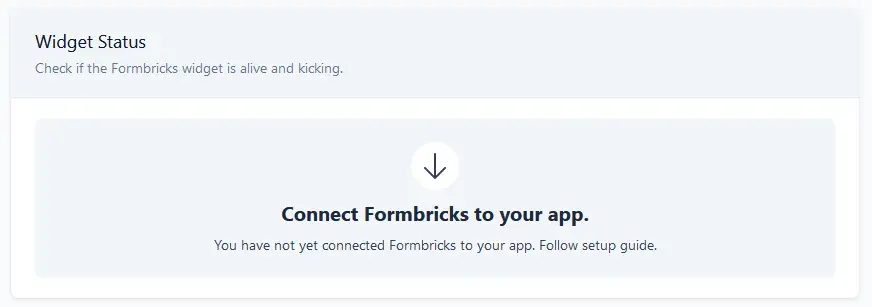
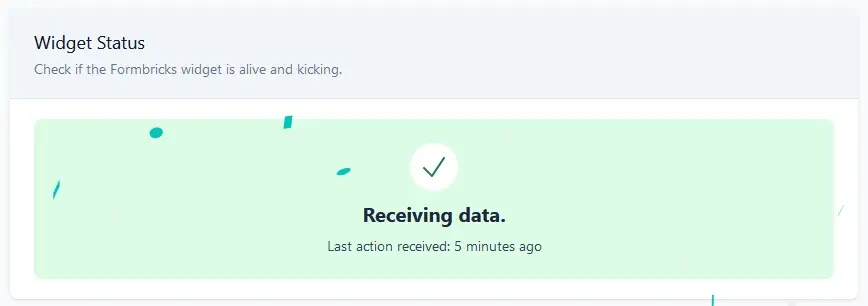
Once you've completed the steps above, validate your setup by checking the Setup Checklist in the Settings. The widget status indicator should change from this:
To this:
## Debugging Formbricks Integration
The debug mode is only available in the JavaScript SDK and works exclusively in the browser. It is not
supported in mobile SDKs such as React Native, iOS, Android, or Flutter.
Enabling debug mode in your browser can help troubleshoot issues with Formbricks. Here's how to activate it and what to look for in the logs.
### Activate Debug Mode
To enable debug mode, add `?formbricksDebug=true` to your app's URL (e.g., [`https://example.com?formbricksDebug=true)`](https://example.com?formbricksDebug=true\)).
#### View Debug Logs
1. Open your browser's developer tools:
* **Google Chrome/Edge**: Press `F12` or right-click and select "**Inspect" > "Console**".
* **Firefox**: Press `F12` or right-click and select "**Inspect Element" > "Console**".
* **Safari**: Press `Option + Command + C` to open developer tools and go to the "**Console**" tab.
#### Common Use Cases
Debug mode is helpful for:
* Verifying Formbricks initialization.
* Identifying issues with survey triggers.
* Troubleshooting unexpected behavior.
#### Debug Log Messages
Logs provide insights into:
* API calls and responses.
* Survey triggers and form interactions.
* Initialization errors.
If you're stuck, visit [**GitHub Discussions**](https://github.com/formbricks/formbricks/discussions) for assistance.
```
```