> ## Documentation Index
> Fetch the complete documentation index at: https://formbricks.com/docs/llms.txt
> Use this file to discover all available pages before exploring further.
# Field Library
> Declare a field once for the whole workspace, add it to any survey, and change it in one place. Or keep a field on the one survey that needs it.
Every Embedded Data field a survey collects is declared in one of two places, and the only difference is how far it reaches.
| | Survey field | Library field |
| - | - | - |
| Declared in | the survey editor's **Embedded Data** card | **Settings → Workspace → Embedded Data** |
| Used by | that one survey | any survey in the workspace that adds it |
| Editing it changes | that survey | every survey using it |
| Has a **key** | no | yes — workspace-unique, and how surveys find it |
Neither is a lesser version of the other. A field only one survey will ever have belongs on that survey; a field several surveys should agree on belongs in the library, so that changing its type or its default once changes it everywhere.
## Adding a Field to a Survey
In the survey editor, on the **Questions** tab, scroll to the **Embedded Data** card and choose **Add field**. The dialog has two tabs:
Everything the workspace already defines that this survey does not have yet. Picking one links it — the
survey follows the library definition from then on.
A library field is missing from the list when the survey already has it, or when another field on the
survey already answers to that name.
A field only this survey gets. Give it a **Name**, pick where the value comes from, and set its type and
default — plus the lock, for a passed-in field.
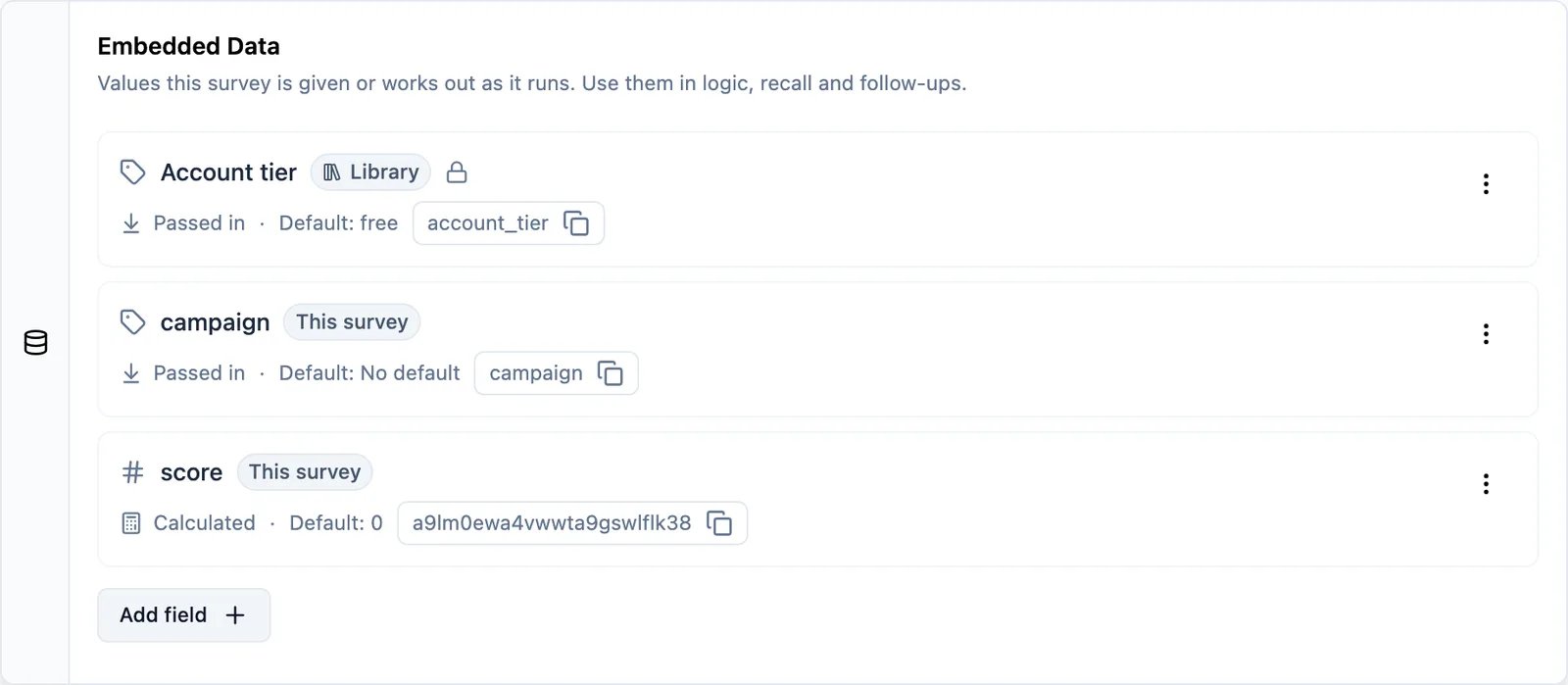 A row's badge says which kind it is: **Library** for a linked field, **This survey** for one declared here.
## Name and Key
A **passed-in** field has two things a person types, and they are not the same:
* **Name** is what you and your team call the field. It is what the response table, the summary and your exports show. Rename it any time.
* **Key** is the address the value lives under: the URL parameter (`?your_key=value`), the SDK key, and what recall and logic resolve. It is lowercase letters, numbers and underscores, and **it cannot be changed once the field exists** — responses already collected are stored under it.
The Key fills itself in from the Name as you type, so you usually only write one of them. Type your own Key and it stops following.
A **calculated survey field** has one control, and its name still has to read like a key — lowercase
letters, numbers and underscores. That name is both what the survey refers to it by and what the response
table shows. Its storage address is generated for you and never typed.
A **calculated library field** asks for both, like a passed-in one: the Name is what the response table
shows, and the Key is how surveys refer to it in recall and logic. Its storage address is still generated.
A library field's key is workspace-unique, so two library fields can share a display name but never a key. A survey field has no library key: a passed-in one lives under the Key you gave it on that survey, a calculated one under its generated address.
## The Library Page
**Settings → Workspace → Embedded Data** is where the library lives. The **Library** card lists every shared
field with its key, source, type, default and how many surveys use it; the **Used in** cell names them.
A row's badge says which kind it is: **Library** for a linked field, **This survey** for one declared here.
## Name and Key
A **passed-in** field has two things a person types, and they are not the same:
* **Name** is what you and your team call the field. It is what the response table, the summary and your exports show. Rename it any time.
* **Key** is the address the value lives under: the URL parameter (`?your_key=value`), the SDK key, and what recall and logic resolve. It is lowercase letters, numbers and underscores, and **it cannot be changed once the field exists** — responses already collected are stored under it.
The Key fills itself in from the Name as you type, so you usually only write one of them. Type your own Key and it stops following.
A **calculated survey field** has one control, and its name still has to read like a key — lowercase
letters, numbers and underscores. That name is both what the survey refers to it by and what the response
table shows. Its storage address is generated for you and never typed.
A **calculated library field** asks for both, like a passed-in one: the Name is what the response table
shows, and the Key is how surveys refer to it in recall and logic. Its storage address is still generated.
A library field's key is workspace-unique, so two library fields can share a display name but never a key. A survey field has no library key: a passed-in one lives under the Key you gave it on that survey, a calculated one under its generated address.
## The Library Page
**Settings → Workspace → Embedded Data** is where the library lives. The **Library** card lists every shared
field with its key, source, type, default and how many surveys use it; the **Used in** cell names them.
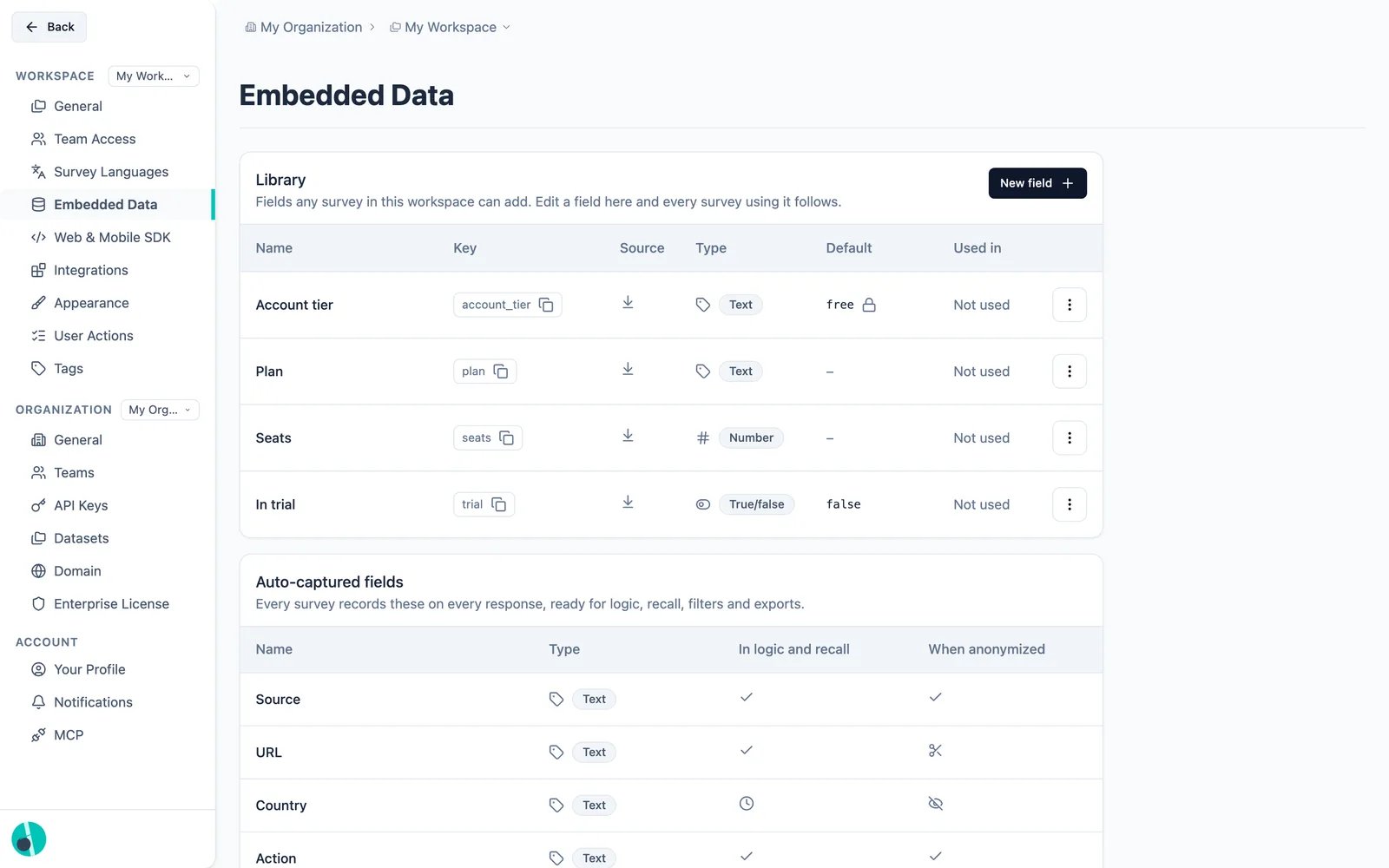 **New field** declares one straight from this page, without opening a survey, so a field can start life
here or on a survey. It always asks for a Key, calculated fields included, because the Key is how other
surveys find it. Clicking a row opens it for editing, and the row's menu offers the same Edit plus Delete.
**New field** declares one straight from this page, without opening a survey, so a field can start life
here or on a survey. It always asks for a Key, calculated fields included, because the Key is how other
surveys find it. Clicking a row opens it for editing, and the row's menu offers the same Edit plus Delete.
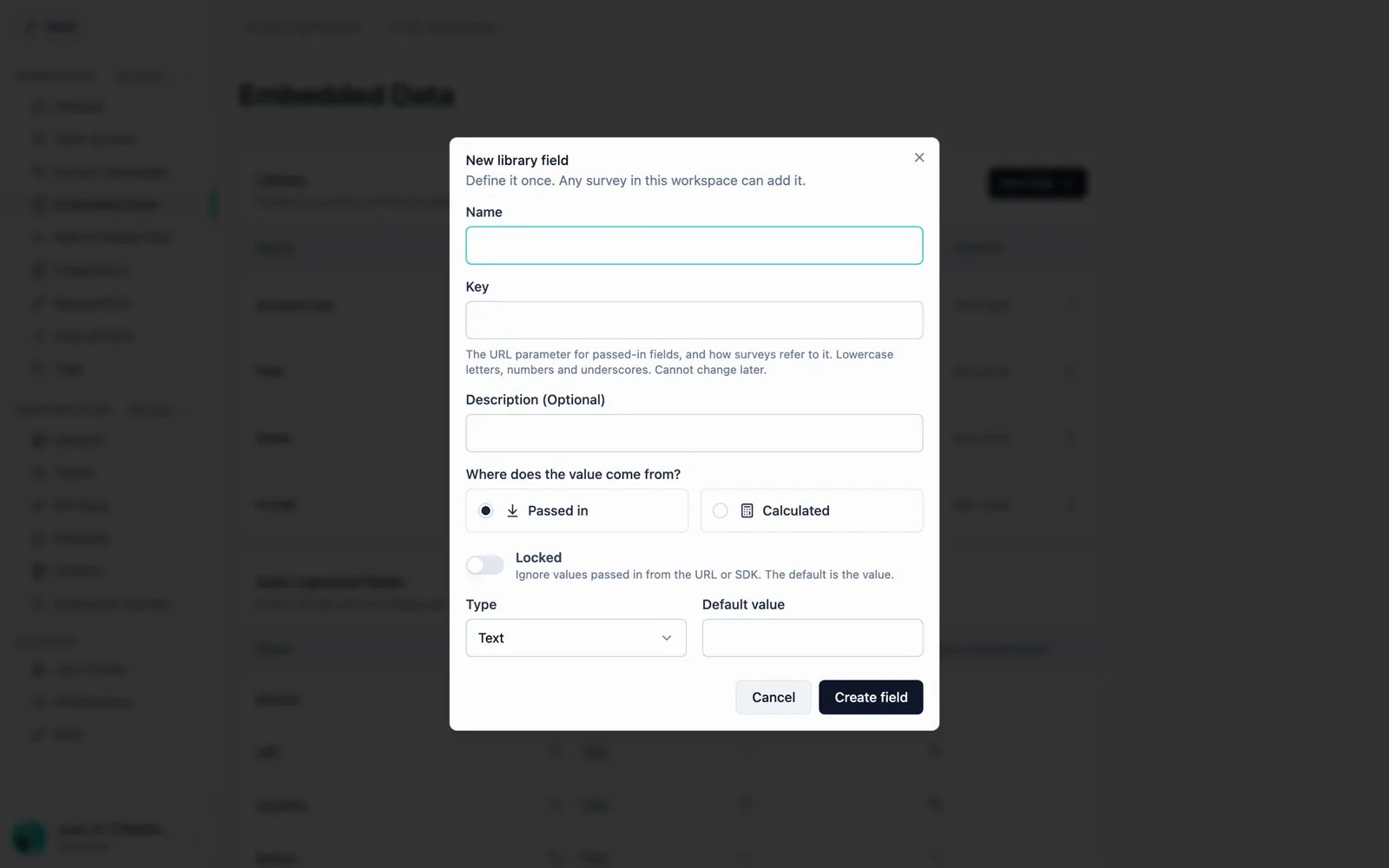 * **Editing a field applies to every survey using it.** The dialog says so before you save.
* **Deleting is blocked while a field is in use.** Formbricks names the surveys still holding it and asks you to remove it from those first.
* **Changing a field's type is asked about, not applied silently**, once responses exist. No stored value is rewritten — but reading one goes through the field's *current* type, so responses you already collected can come back differently:
* A value that fits the new type is read as it: `"42"` under a field retyped to number comes back as `42`.
* A value that does not fit falls back to the field's default, or reads as unset when it has none. `"gold"` under a field retyped to number is still stored, and still exported, but no longer resolves.
Where you see this depends on the reader. The [v3 responses API](/docs/api-v3-reference/introduction) resolves through the declared type, so its output changes. Exports and the response table show the stored value as text, so they do not.
A member without permission to change workspace settings still sees every field and its values, but gets no
**New field** button and no row menu.
The same page lists the **auto-captured fields** — the ones every survey records on every response without declaring anything. Those are covered in [Reserved fields](/docs/surveys/embedded-data/reserved-fields).
## Moving a Field Between the Two
Both directions exist, and neither loses data.
On a linked library field's row in the survey editor, **Edit a copy** stops this survey following the
library and gives it a copy only it can change. The library field is untouched and every other survey
keeps it. Undo it by removing the copy and adding the library field back.
On a survey field's row, **Add to library** gives it a library key, after which any survey in the
workspace can add the same field.
## Removing a Field From a Survey
What "remove" means depends on which kind it is, and the dialog says which one you are about to do:
* **A library field** is unlinked. It stays in the workspace library, other surveys keep it, and you can add it back at any time. This survey stops collecting it.
* **A survey field** is deleted. This survey stops collecting it, and **values already recorded on responses are kept** — removing a field never touches data you have already collected.
## Locked Fields
A **locked** passed-in field ignores whatever a URL parameter or the SDK sends and uses its default instead. That is how you fix a value nobody outside the survey can write — useful when a field must mean the same thing on every response regardless of how the link was built.
Locking applies to passed-in fields only. A calculated field is written by the survey's own logic, so there is nothing outside to lock out.
## What the Warnings on a Row Mean
A survey carried over from before Embedded Data can hold a field that today's rules would not allow. Those fields keep working — nothing is renamed or dropped — but the card marks them, because the reason each is unusual is worth knowing:
| The row says | What it means |
| - | - |
| This name predates the current naming rule | It keeps working; a new field could not be named this. |
| This name is a link-survey URL parameter | A URL can never fill this field — that parameter belongs to the survey link. |
| This name is now a reserved auto-captured field | The survey keeps its own, which wins here, so the auto-captured value is not available by that name. |
| Another field on this survey answers to this name | Recall and logic resolve one of them. |
None of these blocks a save. They are there because the addresses values are already stored under cannot change, so the fix is never a rename.
## What the API Sees
Nothing about the library changes the shape of the survey resource. `hiddenFields` and `variables` keep the same keys (only `hiddenFields.enabled` is derived), whether a field was declared on the survey or linked from the library, so integrations built against the management API keep working untouched.
The library itself is not exposed on the public API in this release, and neither `GET /api/v3/surveys/{id}` nor the MCP `get_survey` tool returns the field definitions behind those two keys.
This documentation is built and hosted on [Mintlify](https://mintlify.com), a developer documentation platform.
* **Editing a field applies to every survey using it.** The dialog says so before you save.
* **Deleting is blocked while a field is in use.** Formbricks names the surveys still holding it and asks you to remove it from those first.
* **Changing a field's type is asked about, not applied silently**, once responses exist. No stored value is rewritten — but reading one goes through the field's *current* type, so responses you already collected can come back differently:
* A value that fits the new type is read as it: `"42"` under a field retyped to number comes back as `42`.
* A value that does not fit falls back to the field's default, or reads as unset when it has none. `"gold"` under a field retyped to number is still stored, and still exported, but no longer resolves.
Where you see this depends on the reader. The [v3 responses API](/docs/api-v3-reference/introduction) resolves through the declared type, so its output changes. Exports and the response table show the stored value as text, so they do not.
A member without permission to change workspace settings still sees every field and its values, but gets no
**New field** button and no row menu.
The same page lists the **auto-captured fields** — the ones every survey records on every response without declaring anything. Those are covered in [Reserved fields](/docs/surveys/embedded-data/reserved-fields).
## Moving a Field Between the Two
Both directions exist, and neither loses data.
On a linked library field's row in the survey editor, **Edit a copy** stops this survey following the
library and gives it a copy only it can change. The library field is untouched and every other survey
keeps it. Undo it by removing the copy and adding the library field back.
On a survey field's row, **Add to library** gives it a library key, after which any survey in the
workspace can add the same field.
## Removing a Field From a Survey
What "remove" means depends on which kind it is, and the dialog says which one you are about to do:
* **A library field** is unlinked. It stays in the workspace library, other surveys keep it, and you can add it back at any time. This survey stops collecting it.
* **A survey field** is deleted. This survey stops collecting it, and **values already recorded on responses are kept** — removing a field never touches data you have already collected.
## Locked Fields
A **locked** passed-in field ignores whatever a URL parameter or the SDK sends and uses its default instead. That is how you fix a value nobody outside the survey can write — useful when a field must mean the same thing on every response regardless of how the link was built.
Locking applies to passed-in fields only. A calculated field is written by the survey's own logic, so there is nothing outside to lock out.
## What the Warnings on a Row Mean
A survey carried over from before Embedded Data can hold a field that today's rules would not allow. Those fields keep working — nothing is renamed or dropped — but the card marks them, because the reason each is unusual is worth knowing:
| The row says | What it means |
| - | - |
| This name predates the current naming rule | It keeps working; a new field could not be named this. |
| This name is a link-survey URL parameter | A URL can never fill this field — that parameter belongs to the survey link. |
| This name is now a reserved auto-captured field | The survey keeps its own, which wins here, so the auto-captured value is not available by that name. |
| Another field on this survey answers to this name | Recall and logic resolve one of them. |
None of these blocks a save. They are there because the addresses values are already stored under cannot change, so the fix is never a rename.
## What the API Sees
Nothing about the library changes the shape of the survey resource. `hiddenFields` and `variables` keep the same keys (only `hiddenFields.enabled` is derived), whether a field was declared on the survey or linked from the library, so integrations built against the management API keep working untouched.
The library itself is not exposed on the public API in this release, and neither `GET /api/v3/surveys/{id}` nor the MCP `get_survey` tool returns the field definitions behind those two keys.
This documentation is built and hosted on [Mintlify](https://mintlify.com), a developer documentation platform.