> ## Documentation Index
> Fetch the complete documentation index at: https://formbricks.com/docs/llms.txt
> Use this file to discover all available pages before exploring further.
# Azure AD OAuth
> Configure Microsoft Entra ID (Azure AD) OAuth for secure Single Sign-On with your Formbricks instance. Use enterprise-grade authentication for your survey platform.
AzureAD OAuth is part of the Formbricks [Enterprise Edition](/self-hosting/advanced/license)
### Microsoft Entra ID
Do you have a Microsoft Entra ID Tenant? Integrate it with your Formbricks instance to allow users to log in using their existing Microsoft credentials. This guide will walk you through the process of setting up an Application Registration for your Formbricks instance.
### Requirements
* A Microsoft Entra ID Tenant populated with users. [Create a tenant as per Microsoft's documentation](https://learn.microsoft.com/en-us/entra/fundamentals/create-new-tenant).
* A Formbricks instance running and accessible.
* The callback URI for your Formbricks instance: `{WEBAPP_URL}/api/auth/callback/azure-ad`
## How to connect your Formbricks instance to Microsoft Entra
* Login to the [Microsoft Entra admin center](https://entra.microsoft.com/).
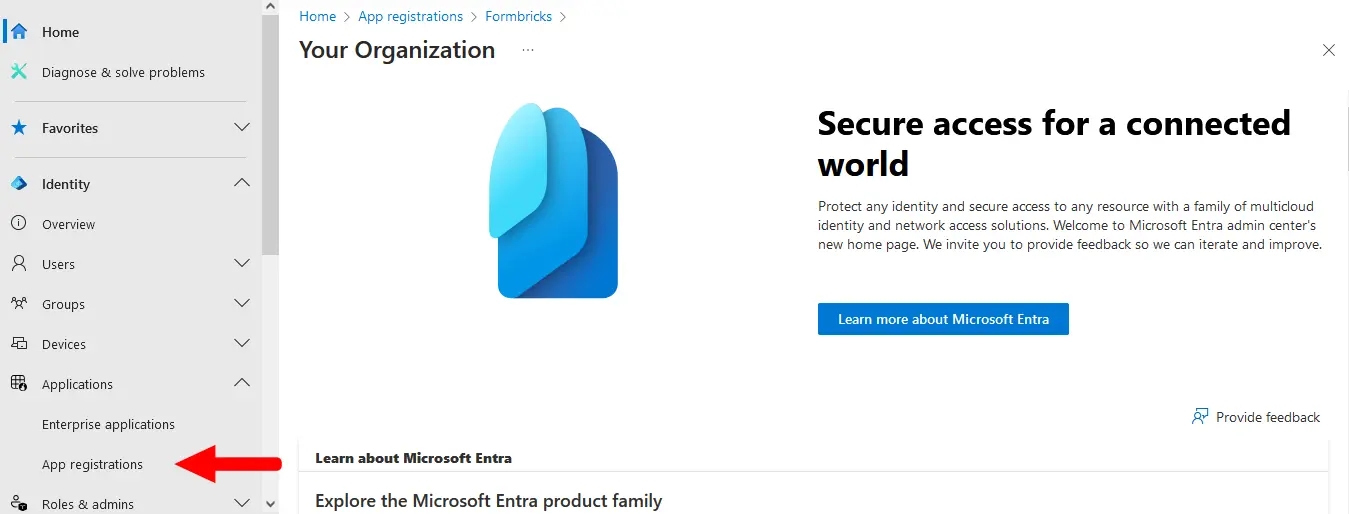
* Go to **Applications** > **App registrations** in the left menu.
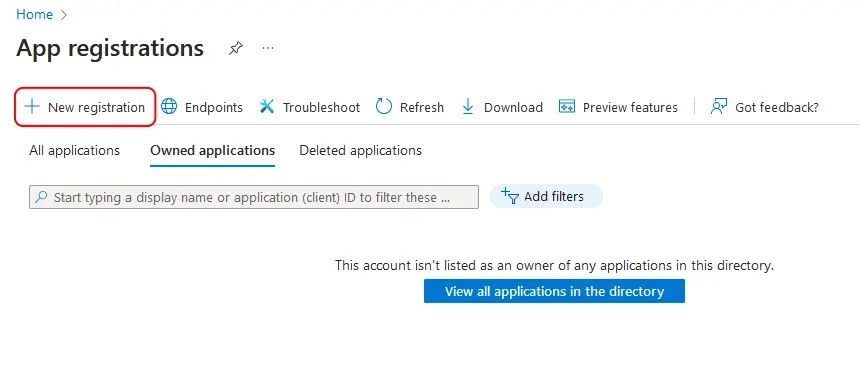
* Click the **New registration** button at the top.
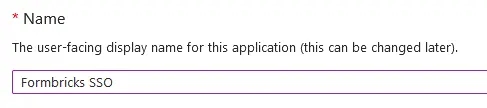
* Name your application something descriptive, such as `Formbricks SSO`.
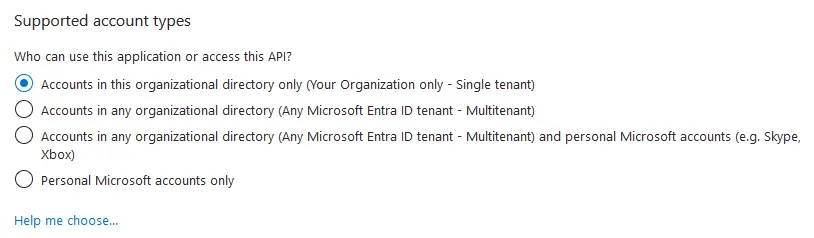
* If you have multiple tenants/organizations, choose the appropriate **Supported account types** option. Otherwise, leave the default option for *Single Tenant*.
* Under **Redirect URI**, select **Web** for the platform and paste your Formbricks callback URI (see Requirements above).

* Click **Register** to create the App registration. You will be redirected to your new app's *Overview* page after it is created.
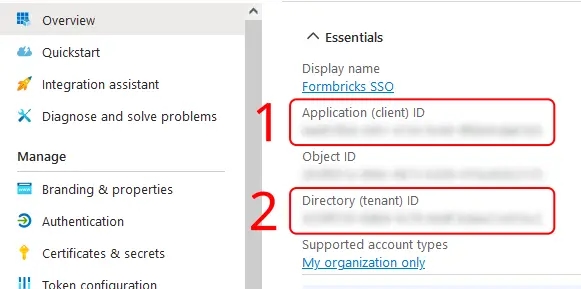
* On the *Overview* page, under **Essentials**:
* Copy the entry for **Application (client) ID** to populate the `AZUREAD_CLIENT_ID` variable.
* Copy the entry for **Directory (tenant) ID** to populate the `AZUREAD_TENANT_ID` variable.
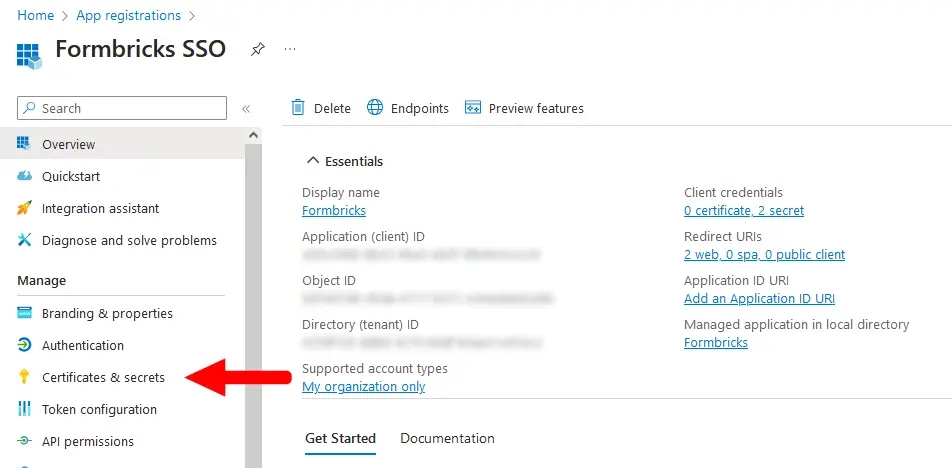
* From your App registration's *Overview* page, go to **Manage** > **Certificates & secrets**.
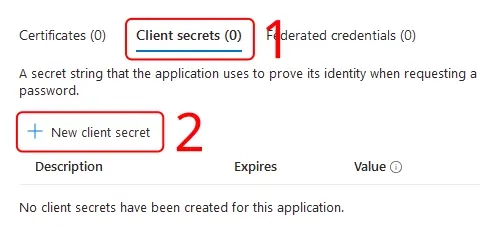
* Make sure you have the **Client secrets** tab active, and click **New client secret**.
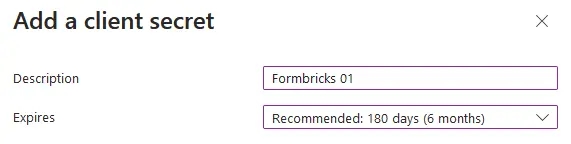
* Enter a **Description**, set an **Expires** period, then click **Add**.
You will need to create a new client secret using these steps whenever your chosen expiry period ends.
* Copy the entry under **Value** to populate the `AZUREAD_CLIENT_SECRET` variable.
Microsoft will only show this value to you immediately after creation, and you will not be able to access it again. If you lose it, simply create a new secret.

* Update these environment variables in your `docker-compose.yml` or pass it like your other environment variables to the Formbricks container.
You must wrap the `AZUREAD_CLIENT_SECRET` value in double quotes (e.g., "THis\~iS4faKe.53CreTvALu3"\`) to prevent issues with special characters.
An example `.env` for Microsoft Entra ID in Formbricks would look like this:
```yml Formbricks Env for Microsoft Entra ID SSO theme={null}
AZUREAD_CLIENT_ID=a25cadbd-f049-4690-ada3-56a163a72f4c
AZUREAD_TENANT_ID=2746c29a-a3a6-4ea1-8762-37816d4b7885
AZUREAD_CLIENT_SECRET="THis~iS4faKe.53CreTvALu3"
```
* Restart your Formbricks instance.
* You're all set! Users can now sign up & log in using their Microsoft credentials associated with your Entra ID Tenant.