> ## Documentation Index
> Fetch the complete documentation index at: https://formbricks.com/docs/llms.txt
> Use this file to discover all available pages before exploring further.
# Salesforce
> Learn how to integrate Formbricks with Salesforce to automatically create or update contacts when survey responses are submitted.
There is no native Salesforce integration yet. Connect Formbricks to Salesforce with Make (recommended), n8n, or a custom webhook.
## Prerequisites
* A Formbricks survey that collects email addresses
* A Salesforce edition with API access (Enterprise, Unlimited, Developer, or Professional with the API add-on)
* A Make or n8n account, unless you build a custom webhook
***
## Method 1: Make.com (recommended)
Make is a registered Salesforce app, so you only need to log in and click **Allow**. No Salesforce app setup is required.
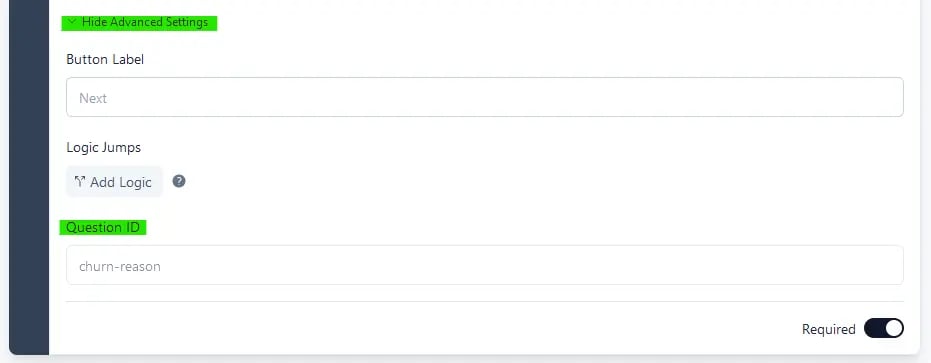
Give each question a meaningful `questionId` so mapping is easier. These can only be changed before publishing; for a published survey, duplicate it first.
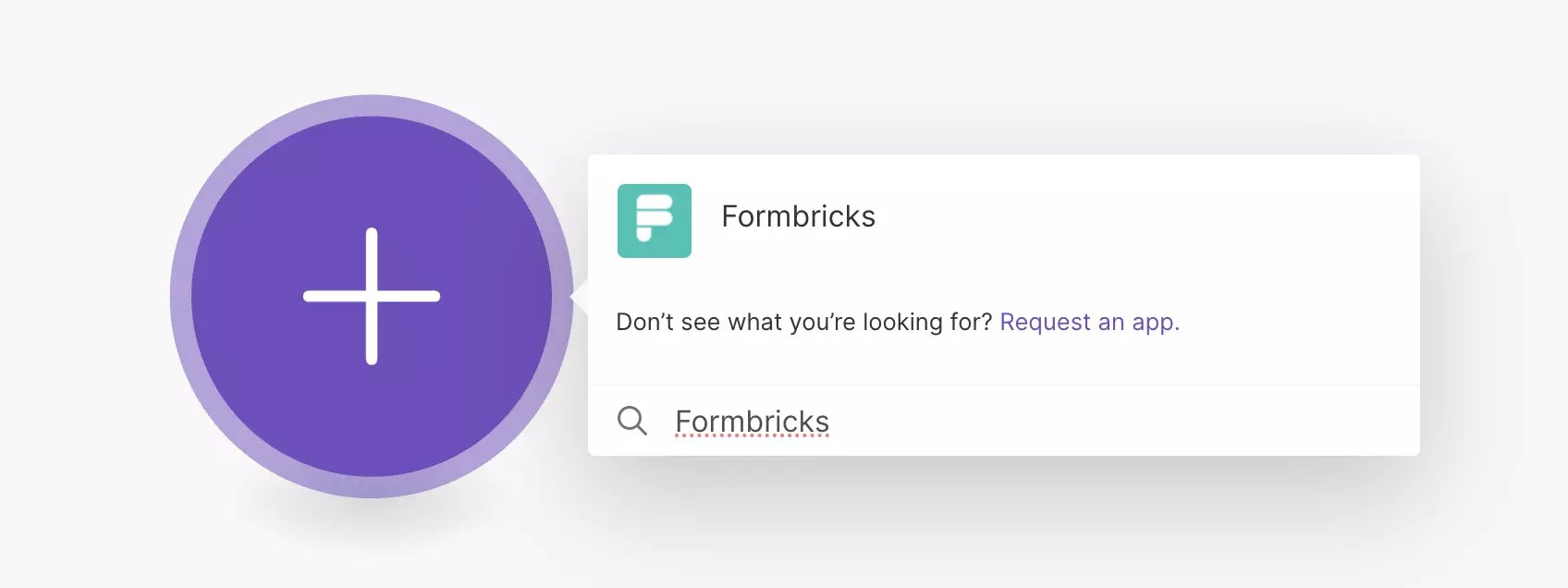
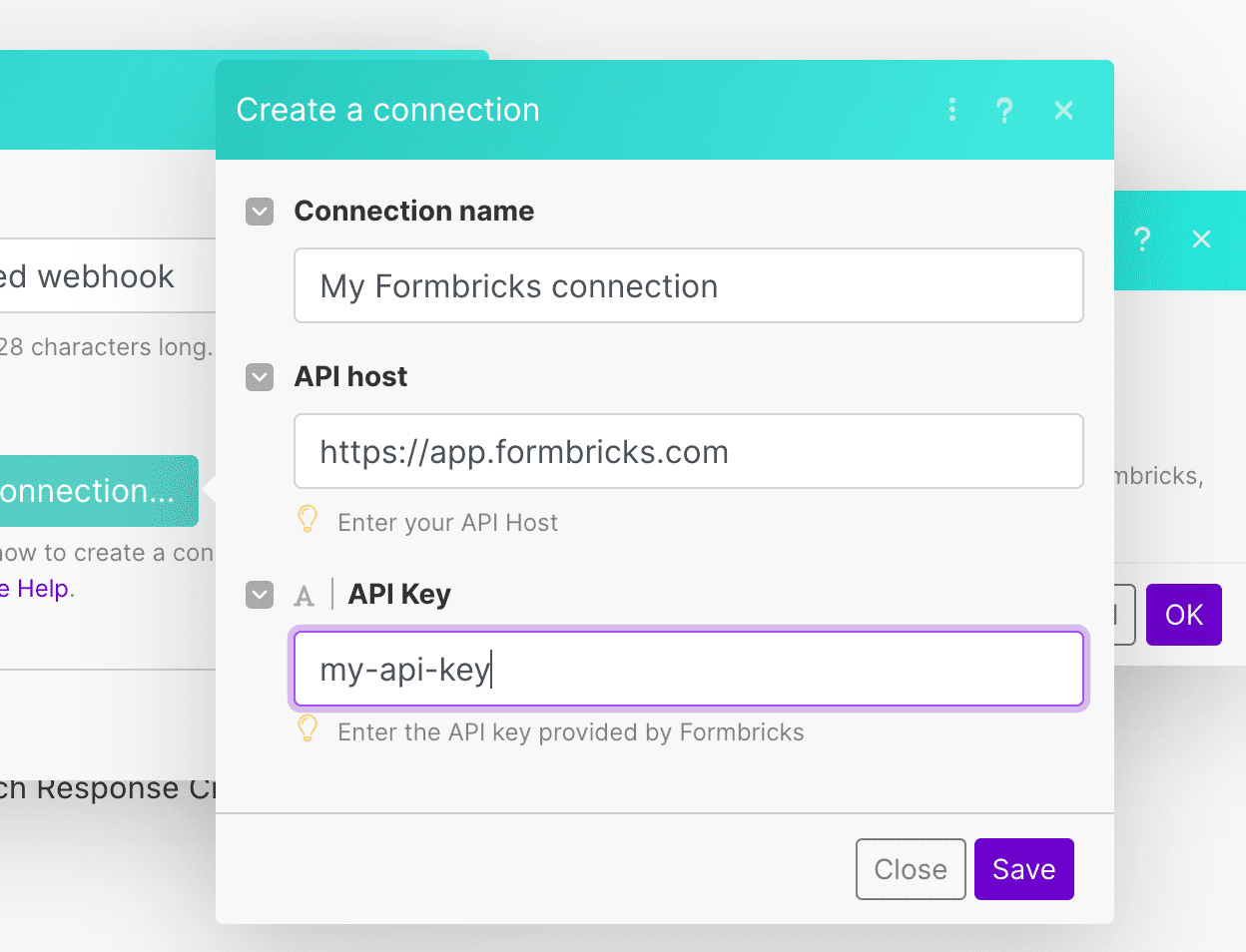
 In a new [Make](https://make.com) scenario, add **Formbricks** → **Watch Response Finished**. Click **Create a webhook**, enter your API host (default `https://app.formbricks.com`) and [API key](/docs/api-reference/rest-api#how-to-generate-an-api-key), and select your survey.
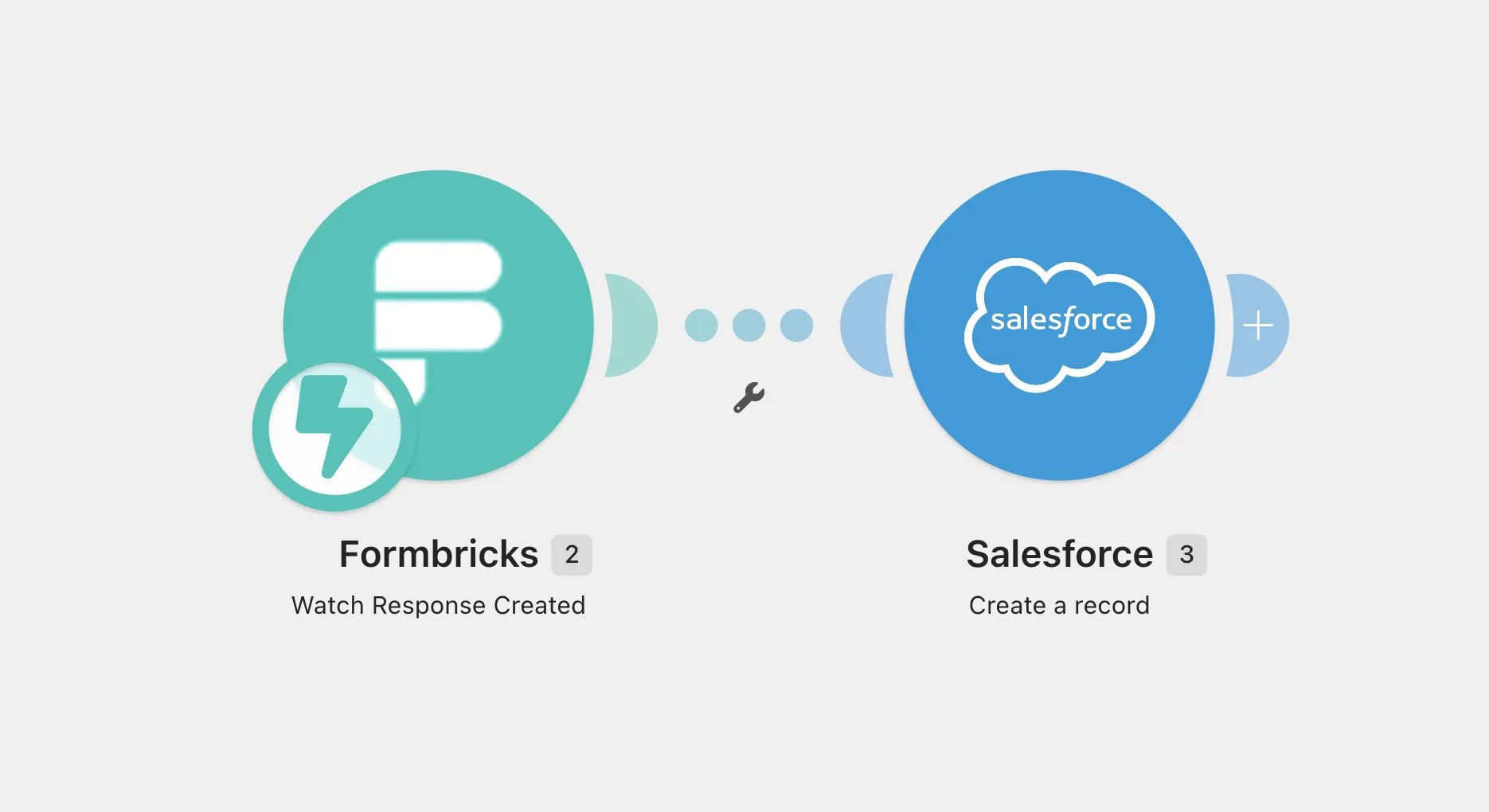
 Add **Salesforce** → **Create a Record**. Next to **Connection**, click **Add**, log in, and click **Allow**. Set **Type** to **Contact** for existing customers, or **Lead** for new prospects.
| Salesforce Field | Formbricks Field |
| - | - |
| Email | `data.email` |
| First Name | `data.firstName` |
| Last Name (required) | `data.lastName` |
| Account (Contact only) | Optional, but Contacts without one are private to their owner |
| Company (Lead only) | Required unless your org uses Person Accounts |
| Custom Field | Any `data.*` or `meta.*` field |
Salesforce doesn't match on email by default. Add a **Search Records** module before the create step and route existing matches to **Update a Record**.
Submit a test response, confirm the record in Salesforce, and turn on the scenario.
Add **Salesforce** → **Create a Record**. Next to **Connection**, click **Add**, log in, and click **Allow**. Set **Type** to **Contact** for existing customers, or **Lead** for new prospects.
| Salesforce Field | Formbricks Field |
| - | - |
| Email | `data.email` |
| First Name | `data.firstName` |
| Last Name (required) | `data.lastName` |
| Account (Contact only) | Optional, but Contacts without one are private to their owner |
| Company (Lead only) | Required unless your org uses Person Accounts |
| Custom Field | Any `data.*` or `meta.*` field |
Salesforce doesn't match on email by default. Add a **Search Records** module before the create step and route existing matches to **Update a Record**.
Submit a test response, confirm the record in Salesforce, and turn on the scenario.
 ***
## Method 2: n8n
The built-in Salesforce node works on n8n Cloud and self-hosted, but needs a Salesforce app for OAuth login. The Formbricks trigger is a community node for self-hosted n8n; on n8n Cloud, use a **Webhook** node as the trigger with a Formbricks webhook pointing at it. The Webhook node nests the request under `body`, so use `$json.body.data.data.*` in place of `$json.data.data.*` in the expressions below.
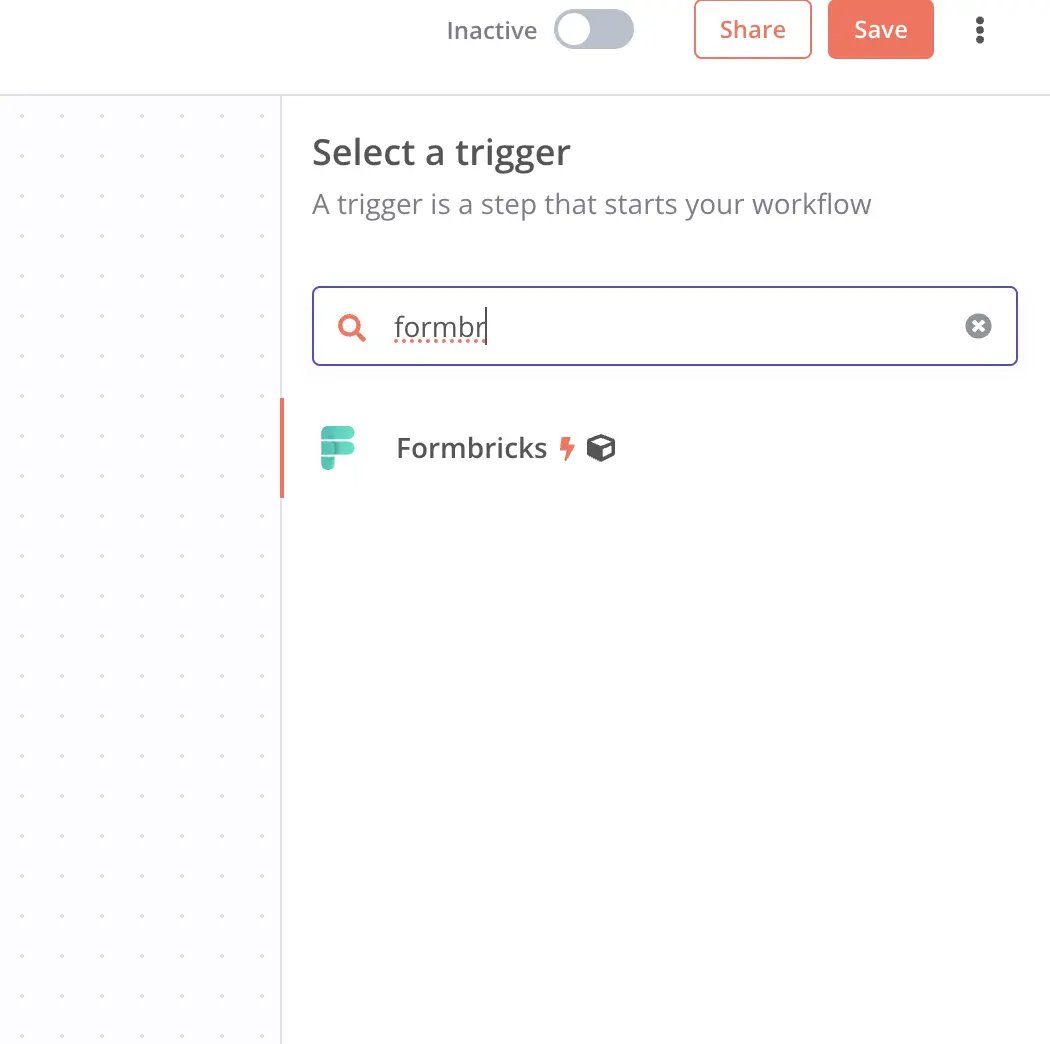
Install `@formbricks/n8n-nodes-formbricks` via **Settings** → **Community Nodes**. Then add the **Formbricks** trigger node, connect your API key and host, select **Response Finished**, and choose your survey.
***
## Method 2: n8n
The built-in Salesforce node works on n8n Cloud and self-hosted, but needs a Salesforce app for OAuth login. The Formbricks trigger is a community node for self-hosted n8n; on n8n Cloud, use a **Webhook** node as the trigger with a Formbricks webhook pointing at it. The Webhook node nests the request under `body`, so use `$json.body.data.data.*` in place of `$json.data.data.*` in the expressions below.
Install `@formbricks/n8n-nodes-formbricks` via **Settings** → **Community Nodes**. Then add the **Formbricks** trigger node, connect your API key and host, select **Response Finished**, and choose your survey.
 In Salesforce, go to **Setup** → **App Manager** → **New External Client App** (or **New Connected App**). Enable OAuth, set the callback URL n8n shows you (`https:///rest/oauth2-credential/callback`), and add the `api` and `refresh_token, offline_access` scopes. Copy the Consumer Key and Secret.
Choose **Contact** → **Create or Update**, create a Salesforce OAuth2 credential with the key and secret, and click **Connect my account**.
Create or Update needs an external ID field to match on, such as a custom `Email__c` field on Contact marked as External ID and Unique. Set **Match Against** to `Email__c` and **Value to Match** to `{{ $json.data.data.email }}`, then map:
```
Email: {{ $json.data.data.email }}
First Name: {{ $json.data.data.firstName }}
Last Name: {{ $json.data.data.lastName }}
```
Click **Listen for event**, submit a test response, confirm the record in Salesforce, and activate the workflow.
***
## Method 3: Custom webhook (advanced)
Use this only if you want to avoid Make or n8n. Your handler authenticates with the OAuth 2.0 Client Credentials Flow.
### Set up an External Client App
Go to **Setup** → **App Manager** → **New External Client App**, and set Distribution State to **Local**.
Enable OAuth, use any callback URL (e.g. `https://login.salesforce.com/services/oauth2/callback`), and select **only** the `api` scope. Enable **Client Credentials Flow** and save.
In **External Client Apps Manager** → your app → **Policies**, set **Run As** to an active, full-license user with **API Enabled** and create/edit access on Contact.
On the **Settings** tab, click **Consumer Key and Secret** and copy them. Changes can take a few minutes to apply.
See [Salesforce's Client Credentials Flow guide](https://help.salesforce.com/s/articleView?id=xcloud.configure_client_credentials_flow_for_external_client_apps.htm) for details.
### Build the handler
Go to **Configuration** → **Integrations** → **Manage Webhooks** → **Add Webhook**, enter your endpoint URL, select **Response Finished**, and choose your surveys.
1. Read the answers from `data.data` (keyed by `questionId`).
2. Get a token: `POST https://YOUR_DOMAIN.my.salesforce.com/services/oauth2/token` with `grant_type=client_credentials`.
3. Create the Contact: `POST /services/data/vXX.0/sobjects/Contact`.
4. To avoid duplicates, query by email first and `PATCH` any match, or upsert via an external ID: `PATCH /sobjects/Contact/Email__c/jane@example.com`.
For signature verification, see [Webhooks](/docs/platform/features/integrations/webhooks).
Deploy the handler to a public URL, submit a test response, and confirm the record in Salesforce.
***
## Troubleshooting
**No record created**
* Check that you're mapping the correct email `questionId`.
* Contacts require `LastName`; Leads also require `Company` unless your org uses Person Accounts.
**Duplicate records**
* Add a search-then-update step, or upsert on an external ID.
**Authentication errors (Method 3)**
* `no client credentials user enabled`: set a valid **Run As** user under **Policies**.
* `no valid scopes defined`: make sure the `api` scope is selected; Client Credentials ignores `full` and `refresh_token`.
* Expired token or blocked IP: request a new token on 401, and check Trusted IP Ranges.
**Webhook not firing**
* Check the URL is public, **Response Finished** is selected, and the survey is linked.
***
Need help? Ask in [GitHub Discussions](https://github.com/formbricks/formbricks/discussions).
This documentation is built and hosted on [Mintlify](https://mintlify.com), a developer documentation platform.
In Salesforce, go to **Setup** → **App Manager** → **New External Client App** (or **New Connected App**). Enable OAuth, set the callback URL n8n shows you (`https:///rest/oauth2-credential/callback`), and add the `api` and `refresh_token, offline_access` scopes. Copy the Consumer Key and Secret.
Choose **Contact** → **Create or Update**, create a Salesforce OAuth2 credential with the key and secret, and click **Connect my account**.
Create or Update needs an external ID field to match on, such as a custom `Email__c` field on Contact marked as External ID and Unique. Set **Match Against** to `Email__c` and **Value to Match** to `{{ $json.data.data.email }}`, then map:
```
Email: {{ $json.data.data.email }}
First Name: {{ $json.data.data.firstName }}
Last Name: {{ $json.data.data.lastName }}
```
Click **Listen for event**, submit a test response, confirm the record in Salesforce, and activate the workflow.
***
## Method 3: Custom webhook (advanced)
Use this only if you want to avoid Make or n8n. Your handler authenticates with the OAuth 2.0 Client Credentials Flow.
### Set up an External Client App
Go to **Setup** → **App Manager** → **New External Client App**, and set Distribution State to **Local**.
Enable OAuth, use any callback URL (e.g. `https://login.salesforce.com/services/oauth2/callback`), and select **only** the `api` scope. Enable **Client Credentials Flow** and save.
In **External Client Apps Manager** → your app → **Policies**, set **Run As** to an active, full-license user with **API Enabled** and create/edit access on Contact.
On the **Settings** tab, click **Consumer Key and Secret** and copy them. Changes can take a few minutes to apply.
See [Salesforce's Client Credentials Flow guide](https://help.salesforce.com/s/articleView?id=xcloud.configure_client_credentials_flow_for_external_client_apps.htm) for details.
### Build the handler
Go to **Configuration** → **Integrations** → **Manage Webhooks** → **Add Webhook**, enter your endpoint URL, select **Response Finished**, and choose your surveys.
1. Read the answers from `data.data` (keyed by `questionId`).
2. Get a token: `POST https://YOUR_DOMAIN.my.salesforce.com/services/oauth2/token` with `grant_type=client_credentials`.
3. Create the Contact: `POST /services/data/vXX.0/sobjects/Contact`.
4. To avoid duplicates, query by email first and `PATCH` any match, or upsert via an external ID: `PATCH /sobjects/Contact/Email__c/jane@example.com`.
For signature verification, see [Webhooks](/docs/platform/features/integrations/webhooks).
Deploy the handler to a public URL, submit a test response, and confirm the record in Salesforce.
***
## Troubleshooting
**No record created**
* Check that you're mapping the correct email `questionId`.
* Contacts require `LastName`; Leads also require `Company` unless your org uses Person Accounts.
**Duplicate records**
* Add a search-then-update step, or upsert on an external ID.
**Authentication errors (Method 3)**
* `no client credentials user enabled`: set a valid **Run As** user under **Policies**.
* `no valid scopes defined`: make sure the `api` scope is selected; Client Credentials ignores `full` and `refresh_token`.
* Expired token or blocked IP: request a new token on 401, and check Trusted IP Ranges.
**Webhook not firing**
* Check the URL is public, **Response Finished** is selected, and the survey is linked.
***
Need help? Ask in [GitHub Discussions](https://github.com/formbricks/formbricks/discussions).
This documentation is built and hosted on [Mintlify](https://mintlify.com), a developer documentation platform.