> ## Documentation Index
> Fetch the complete documentation index at: https://formbricks.com/docs/llms.txt
> Use this file to discover all available pages before exploring further.
# Attio
> Learn how to integrate Formbricks with Attio to automatically create or update records when survey responses are submitted.
There is no native Attio integration yet. Connect Formbricks to Attio with Attio Workflows, Make, n8n, or a custom webhook.
## Prerequisites
* A Formbricks survey that collects email addresses
* An Attio plan that includes Workflows or API access
* An Attio access token (n8n and webhook methods only)
### Attio access token
In Attio, go to **Workspace Settings** → **Developers** and click **Create a new integration**.
Grant `record_permission:read-write` and `object_configuration:read`, save, and copy the access token.
See [Attio's authentication docs](https://docs.attio.com/rest-api/guides/authentication) for details.
***
## Method 1: Attio Workflows
Attio [Workflows](https://attio.com/help/reference/automations/workflows/overview-of-workflows) can receive Formbricks webhooks directly, so no third-party tool is needed.
In Attio, go to **Workflows** → **Create workflow** and choose **Webhook received** as the trigger. Copy the generated URL.
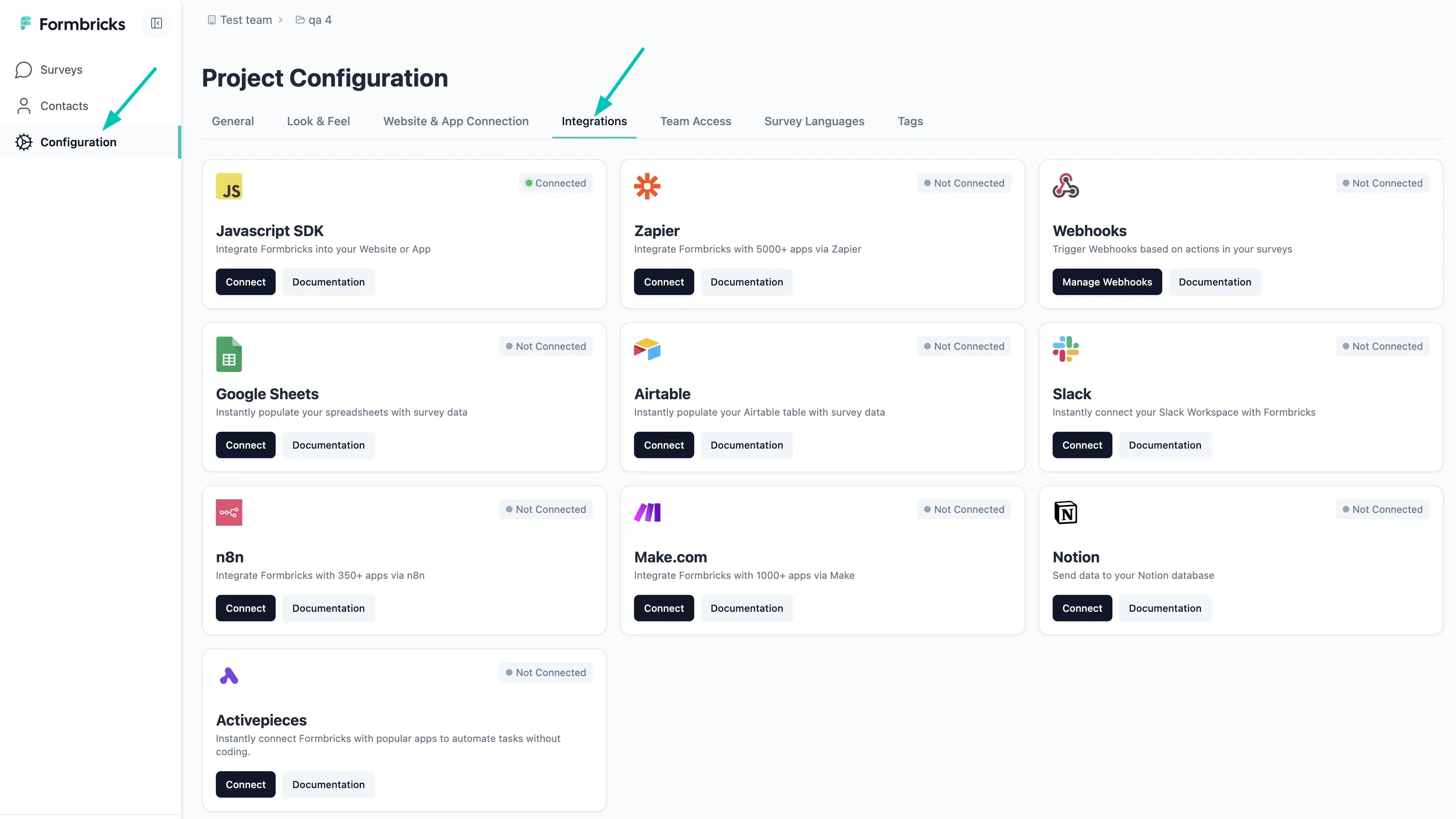
Go to **Configuration** → **Integrations** → **Manage Webhooks** → **Add Webhook**. Paste the Attio URL, select **Response Finished**, and choose your survey.
 Submit a test response, then add a **Parse JSON** block. Set **Input** to **Webhook Payload Body** and generate the schema by pasting the sample Formbricks payload. Answers are under `data.data`, keyed by `questionId`.
Choose **People** or **Companies** and map the parsed fields. To avoid duplicates, match People on email (e.g. `data.data.email`) and Companies on domain.
Submit another response, confirm the record in Attio, and turn the workflow on.
***
## Method 2: Make.com
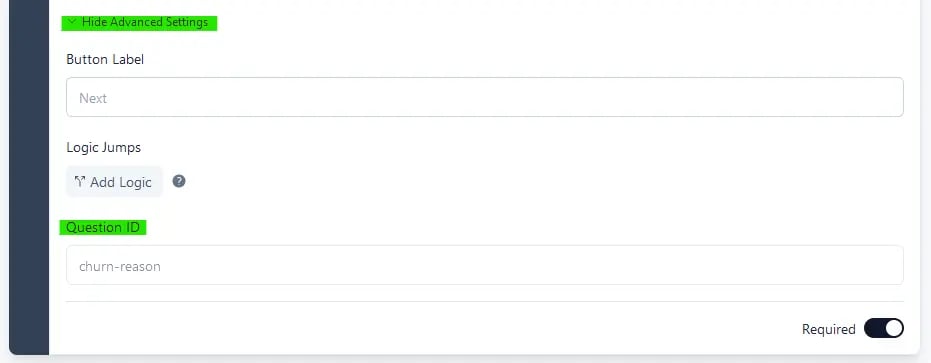
Give each question a meaningful `questionId` so mapping is easier. These can only be changed before publishing; for a published survey, duplicate it first.
Submit a test response, then add a **Parse JSON** block. Set **Input** to **Webhook Payload Body** and generate the schema by pasting the sample Formbricks payload. Answers are under `data.data`, keyed by `questionId`.
Choose **People** or **Companies** and map the parsed fields. To avoid duplicates, match People on email (e.g. `data.data.email`) and Companies on domain.
Submit another response, confirm the record in Attio, and turn the workflow on.
***
## Method 2: Make.com
Give each question a meaningful `questionId` so mapping is easier. These can only be changed before publishing; for a published survey, duplicate it first.
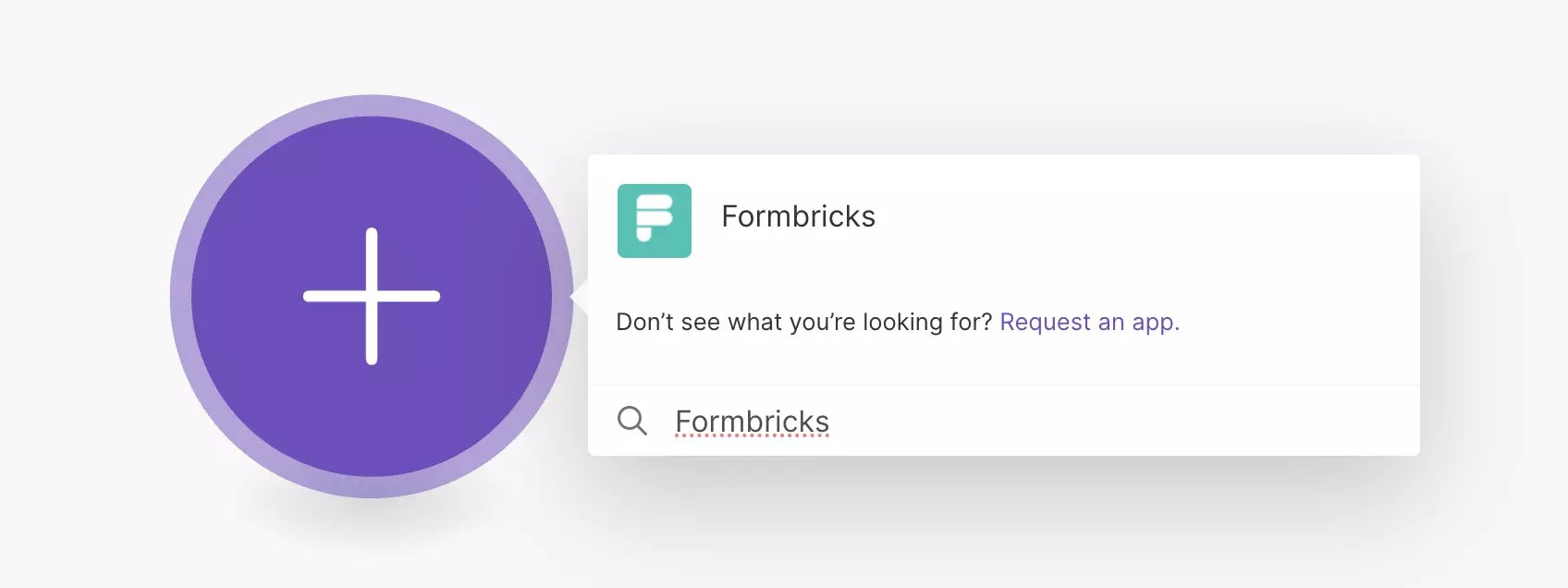
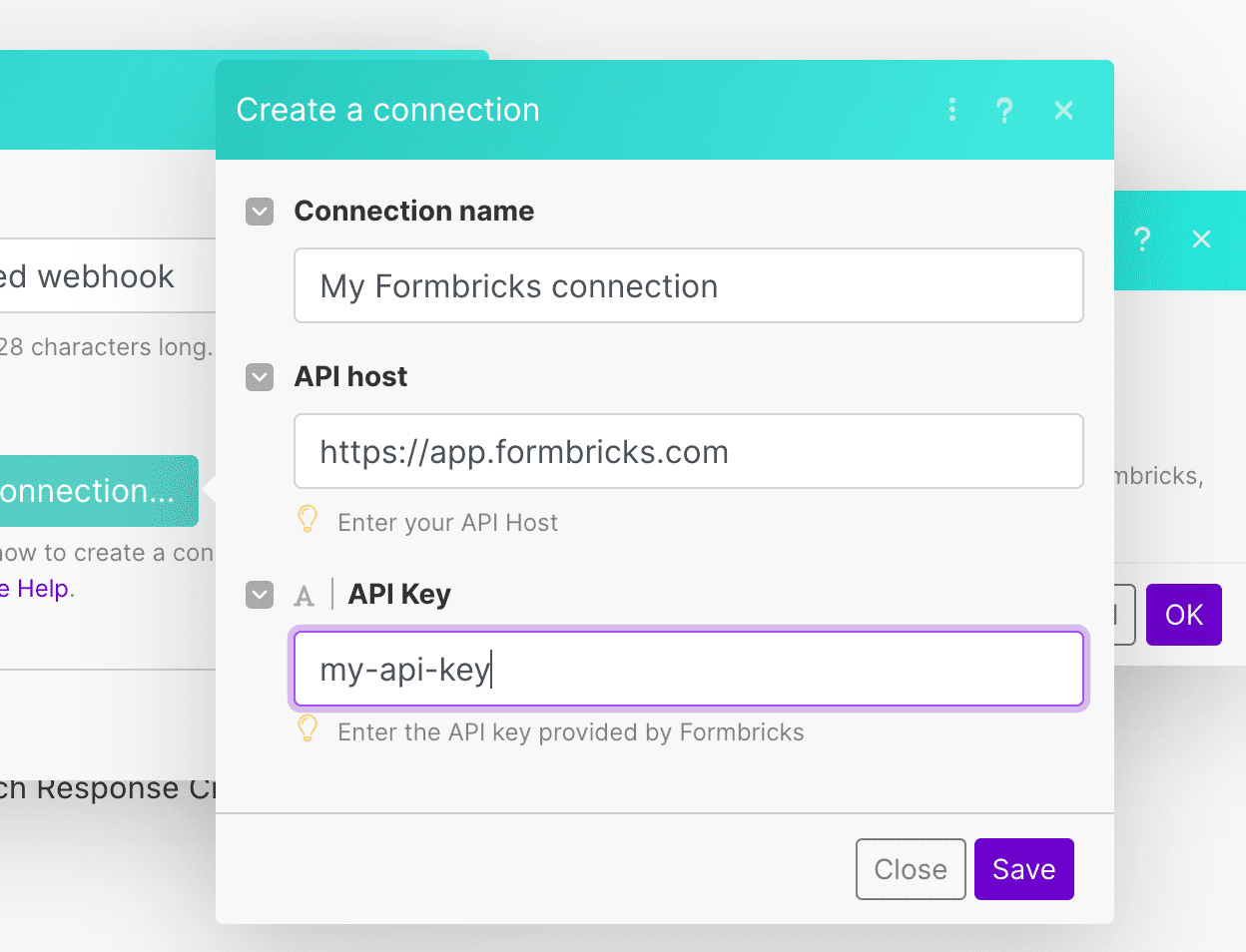
 In a new [Make](https://make.com) scenario, add **Formbricks** → **Watch Response Finished**. Click **Create a webhook**, enter your API host (default `https://app.formbricks.com`) and [API key](/docs/api-reference/rest-api#how-to-generate-an-api-key), and select your survey.
 Add **Attio** → **Create or Update a Person** (or **Company**) and connect your Attio account.
| Attio Attribute | Formbricks Field |
| - | - |
| Email Addresses | `data.email` |
| Name | `data.firstName` / `data.lastName` |
| Custom Attribute | Any `data.*` or `meta.*` field |
Submit a test response, confirm the record in Attio, and turn on the scenario.
***
## Method 3: n8n
The Formbricks and Attio nodes are community nodes for self-hosted n8n. On n8n Cloud, use a **Webhook** node as the trigger (with a Formbricks webhook pointing at it) and an **HTTP Request** node with the API call from Method 4. The Webhook node nests the request under `body`, so use `$json.body.data.data.*` in place of `$json.data.data.*`.
Install `@formbricks/n8n-nodes-formbricks` via **Settings** → **Community Nodes**. Then add the **Formbricks** trigger node, connect your API key and host, select **Response Finished**, and choose your survey.
Add **Attio** → **Create or Update a Person** (or **Company**) and connect your Attio account.
| Attio Attribute | Formbricks Field |
| - | - |
| Email Addresses | `data.email` |
| Name | `data.firstName` / `data.lastName` |
| Custom Attribute | Any `data.*` or `meta.*` field |
Submit a test response, confirm the record in Attio, and turn on the scenario.
***
## Method 3: n8n
The Formbricks and Attio nodes are community nodes for self-hosted n8n. On n8n Cloud, use a **Webhook** node as the trigger (with a Formbricks webhook pointing at it) and an **HTTP Request** node with the API call from Method 4. The Webhook node nests the request under `body`, so use `$json.body.data.data.*` in place of `$json.data.data.*`.
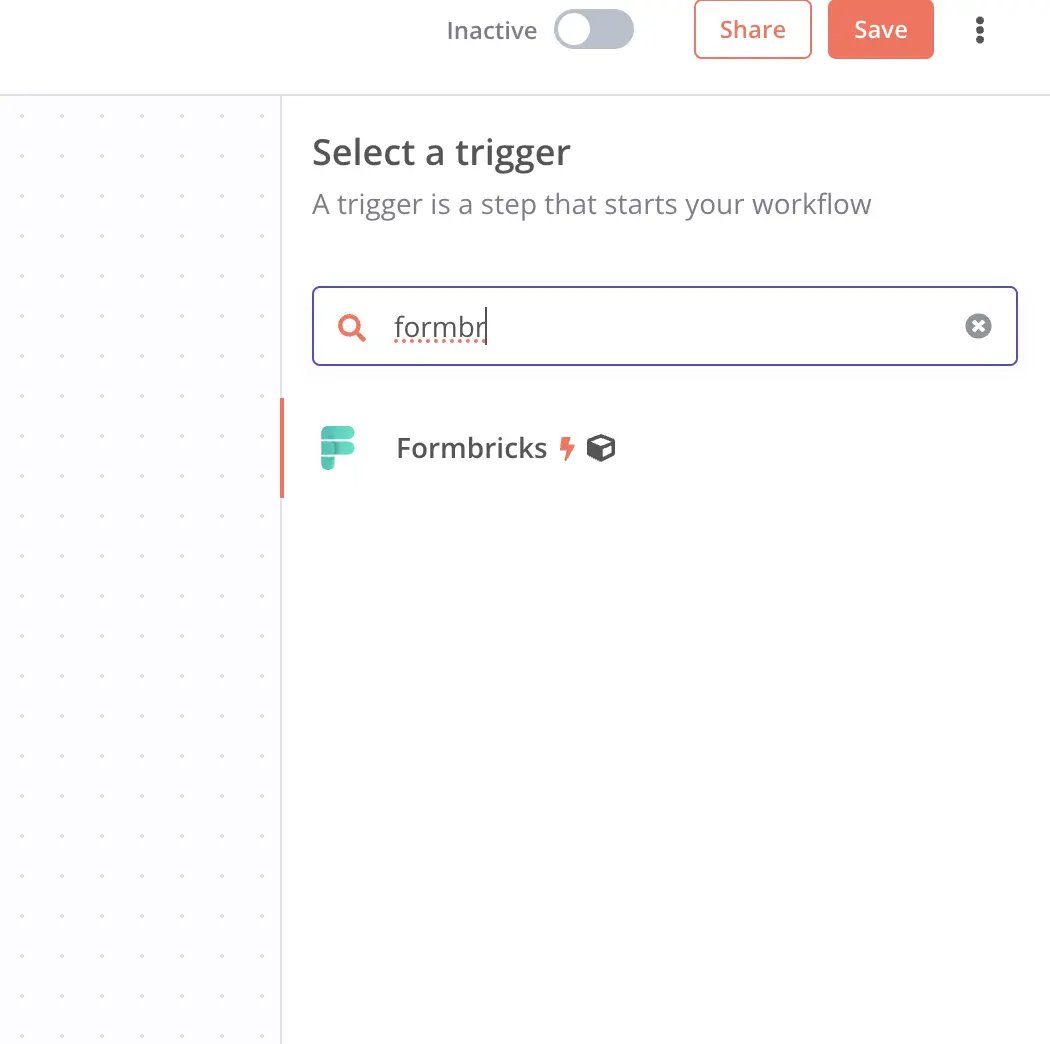
Install `@formbricks/n8n-nodes-formbricks` via **Settings** → **Community Nodes**. Then add the **Formbricks** trigger node, connect your API key and host, select **Response Finished**, and choose your survey.
 Install `n8n-nodes-attio` via **Settings** → **Community Nodes**, add it with the **Assert Record** operation, and authenticate with your access token.
Set **object** to `people` and **matching\_attribute** to `email_addresses`, then set the `data` body (replace the keys with your `questionId`s):
```json theme={null}
{
"values": {
"email_addresses": ["{{ $json.data.data.email }}"],
"name": [{
"first_name": "{{ $json.data.data.firstName }}",
"last_name": "{{ $json.data.data.lastName }}",
"full_name": "{{ $json.data.data.firstName }} {{ $json.data.data.lastName }}"
}]
}
}
```
Click **Listen for event**, submit a test response, confirm the record in Attio, and activate the workflow.
***
## Method 4: Custom webhook
Go to **Configuration** → **Integrations** → **Manage Webhooks** → **Add Webhook**, enter your endpoint URL, select **Response Finished**, and choose your surveys.
Read the answers from `data.data` (keyed by `questionId`) and call Attio's [Assert Record endpoint](https://docs.attio.com/rest-api/endpoint-reference/records/assert-a-record), which creates or updates in one call:
```
PUT /v2/objects/people/records?matching_attribute=email_addresses
```
```json theme={null}
{
"data": {
"values": {
"email_addresses": ["jane@example.com"],
"name": [{ "first_name": "Jane", "last_name": "Doe", "full_name": "Jane Doe" }]
}
}
}
```
For signature verification, see [Webhooks](/docs/platform/features/integrations/webhooks).
Deploy the handler to a public URL, submit a test response, and confirm the record in Attio.
***
## Troubleshooting
**No record created**
* Check that you're mapping the correct email `questionId`.
* Check the token has `record_permission:read-write` and `object_configuration:read`.
**Duplicate records**
* Use a create-or-update action (or the Assert endpoint) matching People on email and Companies on domain.
**Webhook not firing**
* Check the URL is public, **Response Finished** is selected, and the survey is linked.
***
Need help? Ask in [GitHub Discussions](https://github.com/formbricks/formbricks/discussions).
This documentation is built and hosted on [Mintlify](https://mintlify.com), a developer documentation platform.
Install `n8n-nodes-attio` via **Settings** → **Community Nodes**, add it with the **Assert Record** operation, and authenticate with your access token.
Set **object** to `people` and **matching\_attribute** to `email_addresses`, then set the `data` body (replace the keys with your `questionId`s):
```json theme={null}
{
"values": {
"email_addresses": ["{{ $json.data.data.email }}"],
"name": [{
"first_name": "{{ $json.data.data.firstName }}",
"last_name": "{{ $json.data.data.lastName }}",
"full_name": "{{ $json.data.data.firstName }} {{ $json.data.data.lastName }}"
}]
}
}
```
Click **Listen for event**, submit a test response, confirm the record in Attio, and activate the workflow.
***
## Method 4: Custom webhook
Go to **Configuration** → **Integrations** → **Manage Webhooks** → **Add Webhook**, enter your endpoint URL, select **Response Finished**, and choose your surveys.
Read the answers from `data.data` (keyed by `questionId`) and call Attio's [Assert Record endpoint](https://docs.attio.com/rest-api/endpoint-reference/records/assert-a-record), which creates or updates in one call:
```
PUT /v2/objects/people/records?matching_attribute=email_addresses
```
```json theme={null}
{
"data": {
"values": {
"email_addresses": ["jane@example.com"],
"name": [{ "first_name": "Jane", "last_name": "Doe", "full_name": "Jane Doe" }]
}
}
}
```
For signature verification, see [Webhooks](/docs/platform/features/integrations/webhooks).
Deploy the handler to a public URL, submit a test response, and confirm the record in Attio.
***
## Troubleshooting
**No record created**
* Check that you're mapping the correct email `questionId`.
* Check the token has `record_permission:read-write` and `object_configuration:read`.
**Duplicate records**
* Use a create-or-update action (or the Assert endpoint) matching People on email and Companies on domain.
**Webhook not firing**
* Check the URL is public, **Response Finished** is selected, and the survey is linked.
***
Need help? Ask in [GitHub Discussions](https://github.com/formbricks/formbricks/discussions).
This documentation is built and hosted on [Mintlify](https://mintlify.com), a developer documentation platform.